Start with your home, not the speed on the box
A router’s advertised speed is a laboratory-style maximum for wireless connections, not a promise that every room will get that speed. Your internet plan, device capabilities, distance from the router, walls and nearby wireless networks all affect what you experience. Begin by noting where you use Wi-Fi, which rooms have weak service and where your modem or internet connection enters the home.
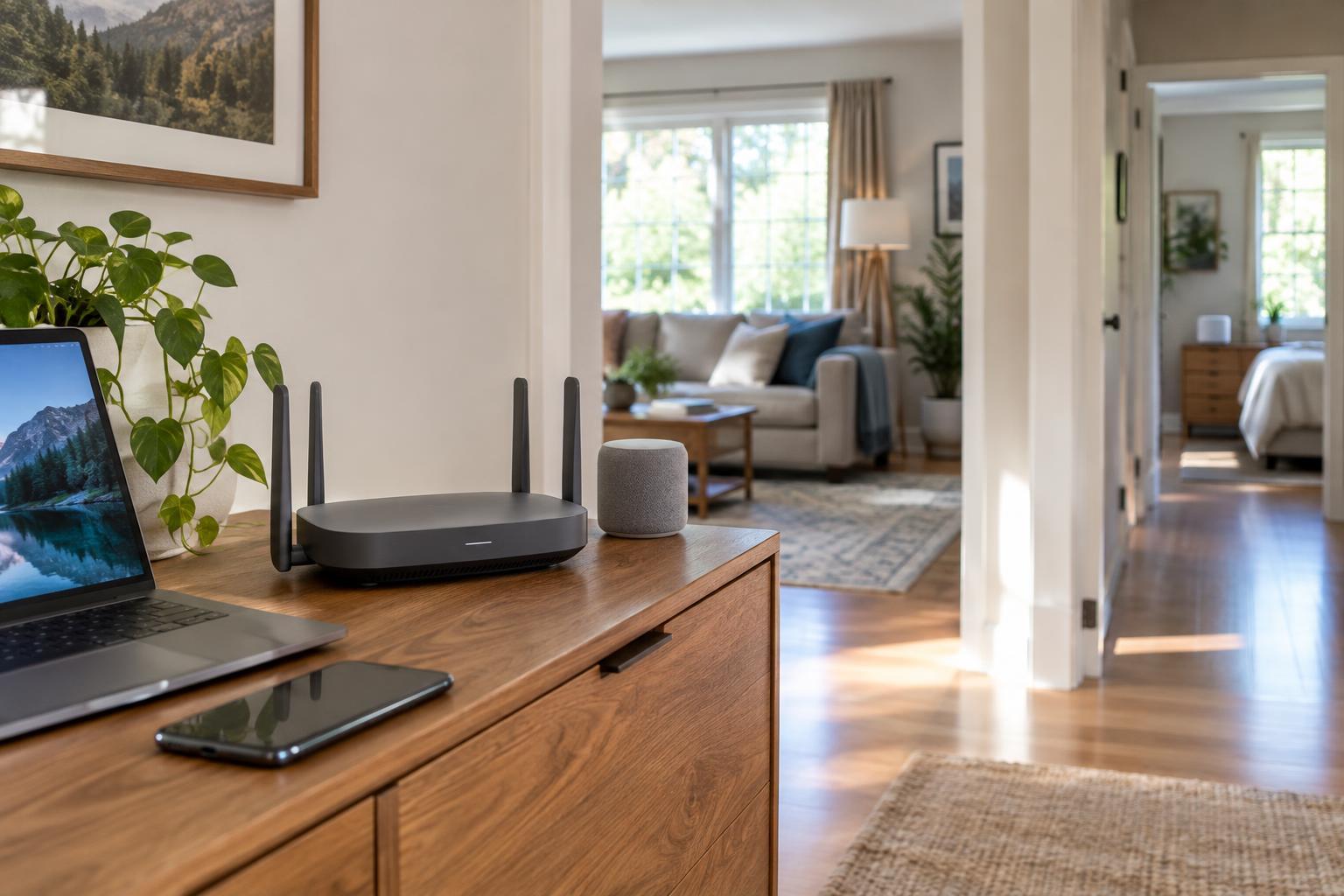
A centrally placed router in an open position is a sensible starting point. Putting it in a cabinet, behind a television or at one end of a long home can make coverage harder. If you can move it before buying new hardware, try that first. For a home with several floors, dense walls or distant rooms, plan for multiple access points rather than expecting one powerful router to reach everywhere.
Match the setup to the coverage problem
A single router is often the simplest choice when one well-placed unit can serve the spaces you use. A mesh system uses two or more units to extend the network under a shared name, making it a practical option when rooms are spread out. An additional wired access point can also work well if your home has Ethernet cabling.
How the units connect matters. A wired connection between mesh nodes or access points avoids using Wi-Fi to carry their traffic back to the main router. Wireless mesh is more flexible to install, but a node still needs a strong connection to the main unit or another node. Placing it inside the room with the weakest signal may be less effective than placing it partway between that room and the main router.
Treat coverage-area figures as rough comparisons, not floor-plan guarantees. Building materials and placement can matter more than a number on the package. If you already have suitable Ethernet runs, check whether a router or mesh kit supports wired backhaul before paying for extra wireless performance.
Read device-capacity claims with care
The number of devices a router can connect is different from the number it can keep responsive under heavy use. A smart bulb sending occasional messages places a different demand on a network than a laptop uploading files or a console downloading a game. When comparing models, think about how many people might stream, join video calls or transfer large files at the same time—not just how many gadgets appear in your Wi-Fi list.
Look for enough Ethernet ports for equipment that stays put, such as a desktop computer or television. Wiring those devices where practical can free up wireless airtime. If you have internet service faster than one gigabit per second, check the speed of the router’s internet-facing port; a faster plan alone cannot overcome a slower port. Multi-gigabit LAN ports are useful mainly when your local devices and network equipment can use them.
Higher-priced routers may offer more radios or bands for distributing traffic, but they cannot create more bandwidth from your internet provider. A clear device list, easy updates and straightforward settings may be more valuable in daily use than a very large advertised device count.
Choose a Wi-Fi standard for the devices you own
Wi-Fi 6, also called 802.11ax, is a useful baseline for a new router. It supports features designed to manage busy networks more efficiently, though the benefit depends on the devices and conditions. Older devices can generally connect using the standards they support, but they do not gain every feature of a newer standard.
Wi-Fi 6E adds access to the 6 GHz band for compatible devices. That band can provide another place for traffic to operate, but it generally has less reach through obstacles than lower-frequency bands. Check whether your phones and computers support 6 GHz before paying extra for it. Wi-Fi 7 introduces further capabilities, but taking advantage of them requires compatible devices and a network setup that can use the additional performance.
Band labels also deserve attention: 2.4 GHz usually reaches farther but can be crowded, while 5 GHz is often a practical choice for nearby, higher-throughput devices. A 6 GHz connection is not automatically the best choice across a large home. Choose the standard as part of an overall coverage plan, not as a substitute for one.
Check everyday features before you buy
Confirm that the router works with your internet connection and that you know whether it will replace your provider’s router or connect to it. If both devices act as routers, the resulting setup can complicate some connections; a bridge or access-point mode may help, depending on the equipment. Check the available modes and ports before purchase.
Prioritize security updates, a supported encryption option such as WPA3 and an admin interface you can understand. Guest-network controls can be useful for visitors, while scheduling and device-management tools are worth considering if your household will use them. Features vary by model, so read the specifications for the exact version you plan to buy.
A sensible shortlist is built around your hardest-to-cover room, your busiest typical evening and the ports your fixed devices need. Once those needs are met, a more expensive speed rating may offer less practical value than better placement or an additional well-connected access point.