How heat can affect laptop speed
A laptop packs a processor, graphics hardware, battery and cooling system into a small space. When the processor or graphics chip works hard, it produces heat. The cooling system moves some of that heat away, but it has limits. If a component gets too hot, the laptop may reduce its operating speed to keep temperatures within a safer range. This is often called thermal throttling.
The result can feel sudden: a game becomes choppy, a video call stutters or an export takes longer than expected. The fan may get loud at the same time, though fan noise alone does not prove that throttling is happening. Some laptops have no fan, and different models manage heat in different ways. A warm case is also normal during demanding work; the useful question is whether performance drops repeatedly as the machine heats up and improves after it cools.
Start with the task and the apps running
Before blaming the cooling system, notice when the slowdown occurs. Does it happen only during gaming, video editing or a large software update? Does it start after several minutes of work, or is the laptop slow as soon as it turns on? A slowdown that follows sustained, demanding use fits a heat-related pattern, while sluggishness from startup may point to a different issue.
Open the laptop’s built-in task manager or activity monitor and look for apps using a large share of the processor, memory or storage. A browser with many active tabs, a file sync, a backup or an update can add work you did not intend to run. Close apps you do not need, save your work and see whether the laptop settles down. If an unfamiliar process keeps consuming resources, investigate it through your operating system’s normal security tools rather than ending processes at random.
Restarting is a simple way to clear temporary software problems, but it should not be the only response to a recurring slowdown. Make a note of what was running, where the laptop was sitting and whether it was plugged in. Those details make patterns easier to spot.
Check airflow without opening the laptop
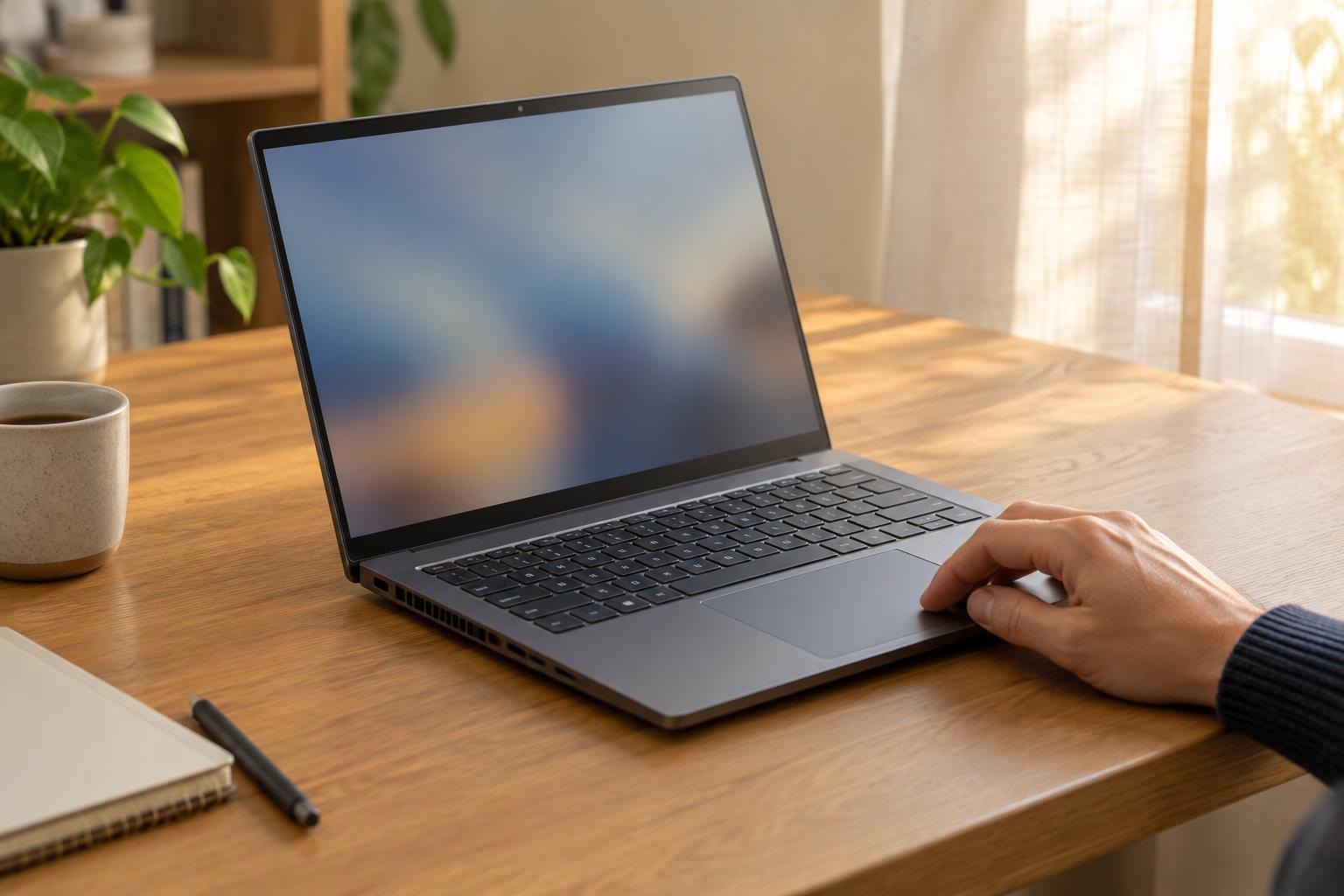
Place the laptop on a firm, flat surface and look for its intake and exhaust vents. Bedding, a cushion or your lap can block airflow, depending on the design. Move papers and other objects away from the vents, then give the machine time to cool. If you use an external monitor, check that a stand or nearby wall is not obstructing an exhaust opening.
Look for visible dust around the vents. Dust buildup can make cooling less effective, but avoid pushing tools into an opening or spraying liquids near it. Follow the manufacturer’s cleaning guidance for your model before using compressed air or removing a cover. Opening a laptop to clean its fan or replace thermal paste is more involved than clearing its workspace; if you are unsure, consider a qualified repair service.
Pay attention to unusual symptoms. A fan that grinds or rattles, repeated shutdowns, or a case that becomes uncomfortably hot under light use deserves more attention than ordinary warmth during a heavy task. Turn the laptop off and seek appropriate service if you notice a swollen battery, a burning smell or visible damage.
Compare power and performance settings
Power settings can change how fast a laptop runs and how much heat it makes. A battery-saving mode may limit performance even when the machine is cool; a high-performance mode may let it work harder and become hotter. Check the selected mode and, if practical, compare the same task on battery power and while plugged into the correct charger. Do not assume that plugging in will always make it faster, since behavior varies by model and settings.
Keep the comparison simple. Try one familiar task after the laptop has cooled, with the vents clear and unnecessary apps closed. If it runs smoothly at first but slows as it warms, heat is a plausible factor. If it remains slow while cool, investigate software load, available storage, updates or hardware limitations instead. You do not need a temperature app to make these first checks.
Know when basic checks are not enough
If the laptop repeatedly slows during tasks it used to handle comfortably, record the symptoms and check the maker’s support guidance for your model. A cooling fault, dust inside the machine or a software problem may require further diagnosis. Avoid forcing demanding work through repeated overheating or shutdowns.
The best first steps are modest: identify the workload, check what is running, clear the airflow and review the power mode. Together, they can help you distinguish normal heat under load from a persistent problem—and give you useful information if you decide to request a repair.