Check what your tablet supports
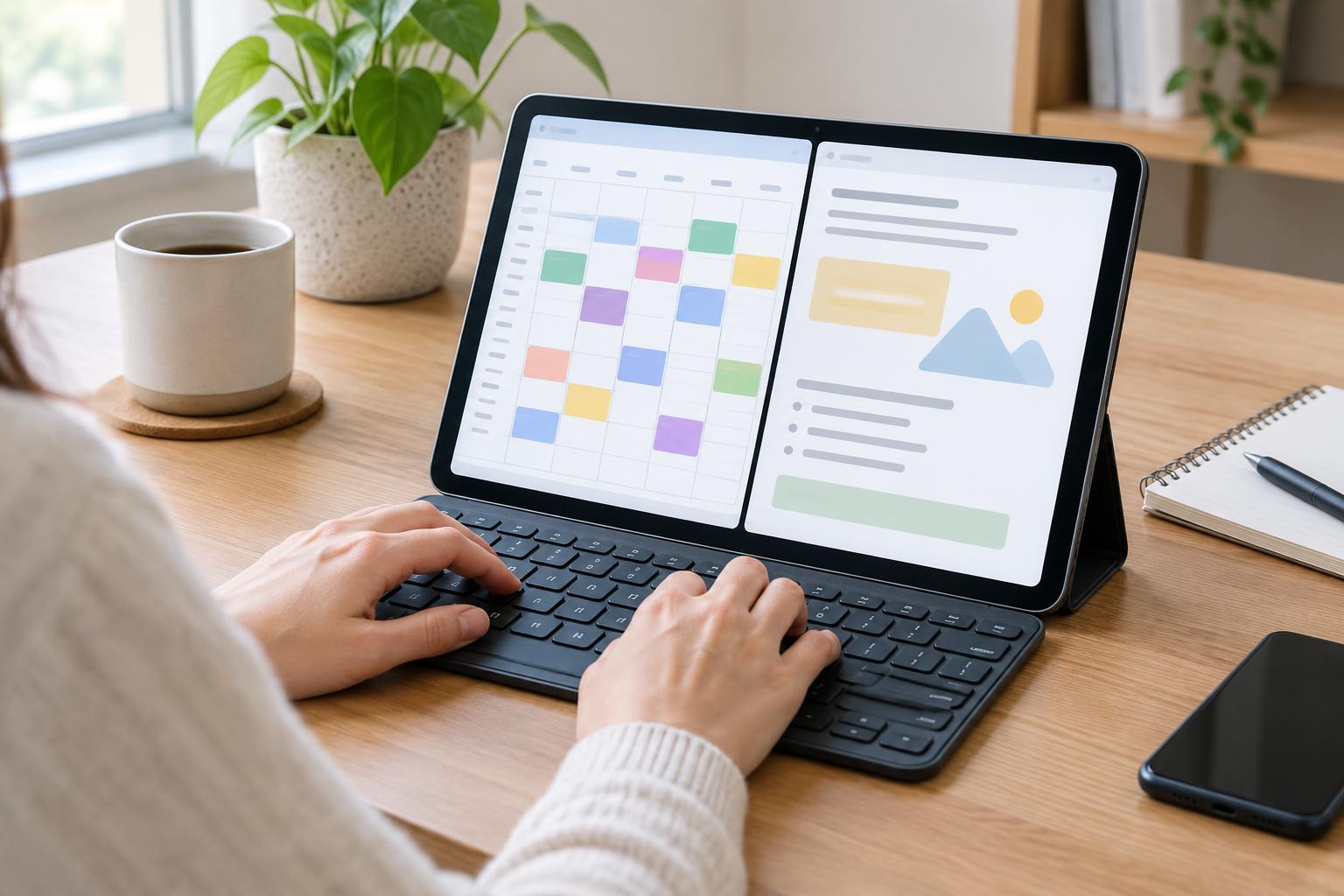
Split-screen features differ by tablet, operating system version, and app. On many Android tablets, you can place two compatible apps side by side. On an iPad, available multitasking layouts depend on the model and software version; some offer a split view, while others also provide window-based options. Start by checking your tablet’s multitasking settings and looking for an app menu, window control, or split-screen command when an app is open.
A physical keyboard is helpful for shortcuts, but it is not required for using two apps. A Bluetooth keyboard or a keyboard case can make repeated actions faster. Before buying one, check that it connects to your tablet and has a layout you find comfortable. Shortcuts often vary by app, so treat any list of key combinations as a starting point rather than a promise that every command will work everywhere.
Put two apps on screen
Open the first app, then look for its multitasking or window control. On some tablets, you can also open the recent-apps view, select an app’s icon or menu, and choose a split-screen option. Once the first app occupies part of the display, select a second compatible app. If your tablet uses movable windows instead, open the second app and arrange the windows so both remain visible.
Drag the divider between apps to give more room to the one you are actively using. For example, a document may need most of the screen while a reference page stays narrow. To leave the layout, use the window controls or drag the divider toward an edge, depending on your device. If you cannot find the option, try two basic built-in apps first. That can help you tell whether the limitation comes from an app or from the tablet’s settings.
Build a layout around one task
Split screen works best when each app has a clear role. Keep notes beside a web page while planning a trip, place a reading app next to a document while studying, or keep a file manager open beside an email draft when attaching files. If you spend more time resizing windows than working, consider using one app at a time and switching between them instead.
A tablet’s screen size matters here. On a smaller display, two apps may leave little room for a keyboard or for controls inside each app. Rotate the tablet, adjust the divider, or hide the on-screen keyboard when you do not need it. Also check whether text, images, or files can be dragged between your chosen apps before relying on drag and drop; support is not universal. Copy and paste is often a useful fallback.
Find shortcuts you will actually use
Connect your keyboard and begin inside an app you use often. Look through the app’s menus or settings for keyboard commands. Some tablets display a shortcut list when you hold a modifier key, though the key and behavior vary. Try a small set of actions first: moving between fields, selecting text, copying and pasting, searching within an app, and switching apps. These are easier to remember when they solve a task you repeat.
Pay attention to the difference between system shortcuts and app shortcuts. A combination that switches apps is controlled by the tablet, while one that formats text may work only in a particular editor. If a shortcut does nothing, tap the intended app to bring it into focus and try again. If it still fails, check the app’s own shortcut list rather than assuming your keyboard is broken.
Make the setup comfortable and predictable
For a longer session, position the tablet where you can read both apps without leaning forward. A stable stand and a keyboard that leaves room for touch input can make the setup easier to use. Adjust text size if a narrow pane is difficult to read, and remember that some apps may reload or change layout when you resize them.
Before working across two apps, consider what each one may reveal on screen, especially if you are sharing your display or working in a public place. Close sensitive tabs and notifications you do not need. Once you have a comfortable arrangement, practice opening it and leaving it a few times. Knowing how to recover your workspace is more valuable than memorizing a long list of shortcuts.