Start with the light in your room
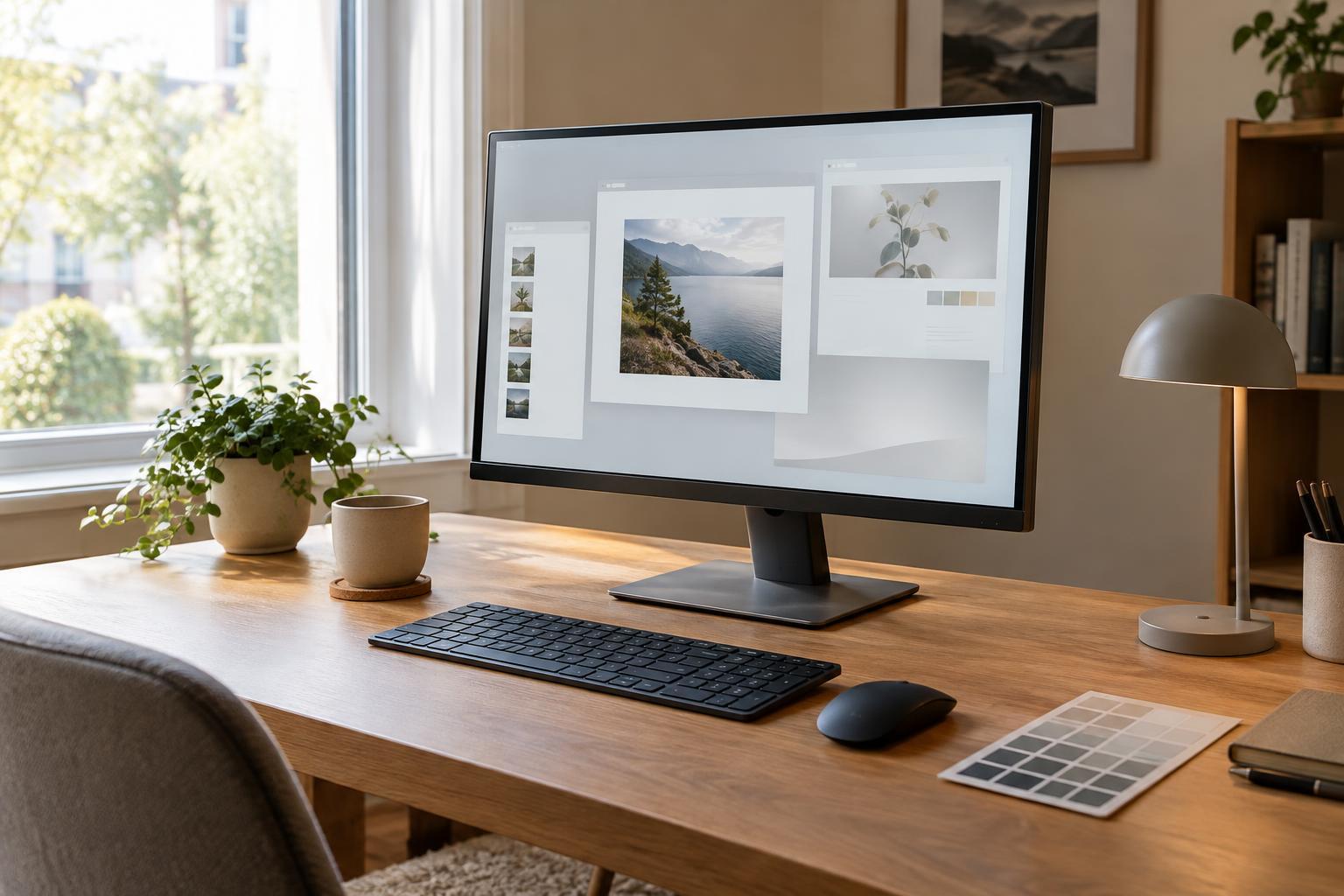
Before changing monitor settings, look at where you use the screen. A display that looks fine beside a bright window may seem harsh in a dim room. If possible, keep direct sunlight off the screen and avoid placing a bright lamp where its reflection lands in your usual viewing area. Reducing glare often helps more than raising brightness to overpower it.
Set the room lighting to something you can use consistently, then open a familiar document and a webpage with a white background. Adjust the monitor’s brightness until white looks clear without appearing like a light source shining at you. Check a darker window or image as well: you should be able to make out useful detail without turning the screen so bright that light backgrounds become distracting. There is no single brightness percentage that works for every monitor or room.
If your room changes substantially during the day, expect to make small adjustments. Save separate day and evening presets if your monitor offers them, or use an automatic brightness feature if you like its results. Automatic adjustment is a convenience, not a requirement; turn it off if frequent changes interrupt your work.
Use contrast to preserve detail
Brightness and contrast do different jobs. Brightness changes the overall light output on many monitors, while contrast affects the separation between light and dark tones. The names and behavior of these controls can vary, so begin with the monitor’s default picture mode and make one change at a time.
For everyday work, use a normal or standard picture preset as your starting point. Look at a page with black text on white and an image containing both shadows and bright areas. If pale details disappear into white or dark details merge into black, try returning contrast and related image-enhancement controls to their defaults. Extreme contrast settings can make a picture look punchy at first while hiding information you may need to see.
Also check for options such as dynamic contrast or automatic picture enhancement. These can change the image as content changes, which may be distracting when switching between documents, photos and video calls. You can leave them disabled if a steady appearance matters more to you than a dramatic-looking image.
Choose a neutral starting point for color
Most monitors provide color-temperature presets with names such as Warm, Normal and Cool. Cool often makes white areas look bluish; Warm makes them look more yellow or reddish. For general work, start with a neutral or standard preset. If your monitor offers an sRGB mode, it can be a useful starting point for viewing common web content, though it may lock some adjustment controls.
Give your eyes a few minutes to adapt before judging a change. A neutral setting may initially look warm if you have been using a very cool one. Compare a document, a familiar photograph and a video call rather than relying on a single bright image. Avoid using another screen as a perfect reference: phones, laptops and monitors can differ even when their settings have similar names.
Night-light features intentionally warm the image at scheduled times. They may make evening work more pleasant for some people, but they also change how colors appear. If you are choosing colors for a presentation, editing photos or shopping for a color-sensitive item, temporarily turn the feature off and review the content in your usual neutral mode.
Check the settings outside the monitor
Your computer can alter the picture even when the monitor controls stay the same. Look in your operating system’s display settings for night light, color filters, HDR and automatic brightness. Some laptops also change their display based on battery settings. If an image looks unexpectedly washed out or tinted, check these features before repeatedly adjusting the monitor.
HDR is useful for compatible content and displays, but it is not automatically the best setting for every desktop task. If documents or ordinary webpages look unusual with HDR enabled, compare them with HDR off. Use the option that gives you a predictable picture for the work you do most often, and switch modes when you want to view HDR content.
If you use an external monitor, confirm that you are changing the settings for the intended screen. You may have a brightness control on the monitor itself, a software brightness control, or both. Record the starting settings before experimenting so you can return to a known baseline.
Keep a simple setup you can repeat
Once the display looks balanced, note the picture preset, brightness level and color-temperature setting. A short note is more useful than trying to remember how the screen looked weeks later. If the monitor supports saved profiles, one for a bright room and one for an evening room may be enough.
For routine documents, email and browsing, prioritize readable text, visible detail and a stable appearance over perfectly matching every device you own. If accurate color is essential to your work, an appropriate calibration tool and a controlled viewing environment offer a more dependable approach than adjusting by eye. For everyday use, a neutral preset and occasional brightness changes are usually a practical place to start.