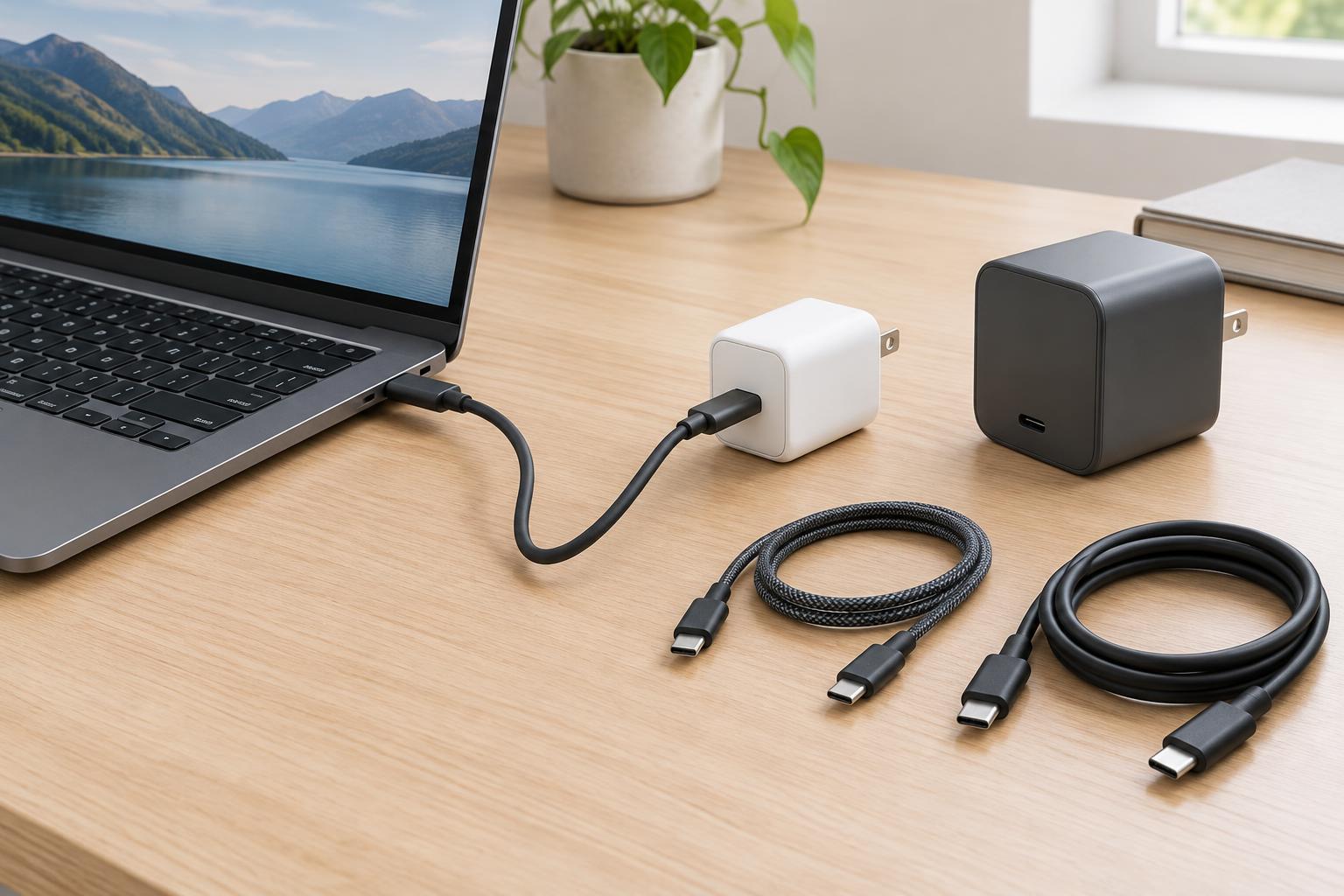
A matching connector is only the starting point
USB-C describes the shape of a connector, not a promise about charging performance. A laptop may have several identical-looking USB-C ports, but only some may accept power. Another laptop might use USB-C for data and displays while relying on a separate charging connector. Before buying a charger, check the laptop’s specifications or the markings beside its ports for USB-C charging support and a stated input wattage.
USB Power Delivery, often shortened to USB PD, is the system that lets compatible devices negotiate how much power to use. A PD charger can offer supported voltage and current combinations; the laptop requests one it can accept. The charger does not simply push its full advertised wattage into the computer. This negotiation is why a higher-rated charger can often power a lower-rated laptop safely, provided both follow compatible USB-C charging standards.
Find the limit at each part of the connection
Charging speed depends on the laptop’s input limit, the charger’s available output and the cable’s rating. The lowest relevant limit constrains the connection. For example, a laptop designed to draw up to 65 W will not gain a faster charging mode merely because it is connected to a 100 W charger. Conversely, a smaller charger may work but replenish the battery slowly, especially while the laptop is busy.
Read charger labels carefully. A charger advertised as 100 W may deliver that amount from one port only when its other ports are unused. When several devices are connected, it may divide its total output among them. Check the per-port ratings and, for a multiport charger, its power-sharing rules. Also check whether the charger offers a USB PD output suitable for the laptop; a wattage printed on the casing does not by itself establish compatibility.
A laptop that charges slowly, stops gaining battery percentage during demanding work or reports a low-power adapter is not necessarily faulty. It may be using power as quickly as a limited charger can supply it. Some laptops also restrict performance or decline to charge from an undersized supply. The practical target is a charger that meets the laptop maker’s stated requirement, with enough capacity left for other devices if you plan to share it.
What 60 W, 100 W and 240 W cable ratings mean
A cable is part of the power path, not just a convenient length of wire. A standard 3 A USB-C cable can carry up to 60 W when a compatible charger and device negotiate 20 V at 3 A. To carry up to 100 W under the older USB PD power range, the cable must support 5 A. These higher-current cables use an electronic marker, commonly called an e-marker, so compatible equipment can identify their capability.
USB PD also has an Extended Power Range that can reach up to 240 W, but only with a suitable charger, laptop and EPR-rated cable. A cable marked 240 W does not turn a 65 W laptop into a 240 W device. Likewise, an older 100 W-rated 5 A cable should not be assumed to support EPR charging. When shopping, look for a clearly stated wattage rating rather than judging by thickness, connector appearance or a vague claim of fast charging.
Power rating and data performance are separate specifications. A cable suitable for high-wattage charging may transfer data slowly, while a cable sold for fast data transfer may have a lower power rating. If one cable must also connect a monitor or fast external drive, check its video and data capabilities separately from its charging rating.
A simple way to choose and troubleshoot a setup
Start with the laptop: identify a port that accepts charging and note the recommended charger wattage. Then choose a USB PD charger whose relevant port can supply at least that amount, accounting for any other devices you will plug into it. Finally, select a cable rated for the power the setup needs. For a laptop requiring more than 60 W, a clearly marked 100 W or suitable 240 W cable is a more dependable choice than an unlabelled spare.
If charging does not work as expected, test one change at a time. Use a known charging-capable laptop port, connect the charger directly rather than through a dock, unplug other devices from the charger and try a cable with a known rating. A dock has its own power limits and may pass less power to the laptop than its supply provides. If the laptop uses a specialized charging system, consult its documentation before assuming that any USB-C PD setup can replace its original adapter.