Start with the desk you want to connect
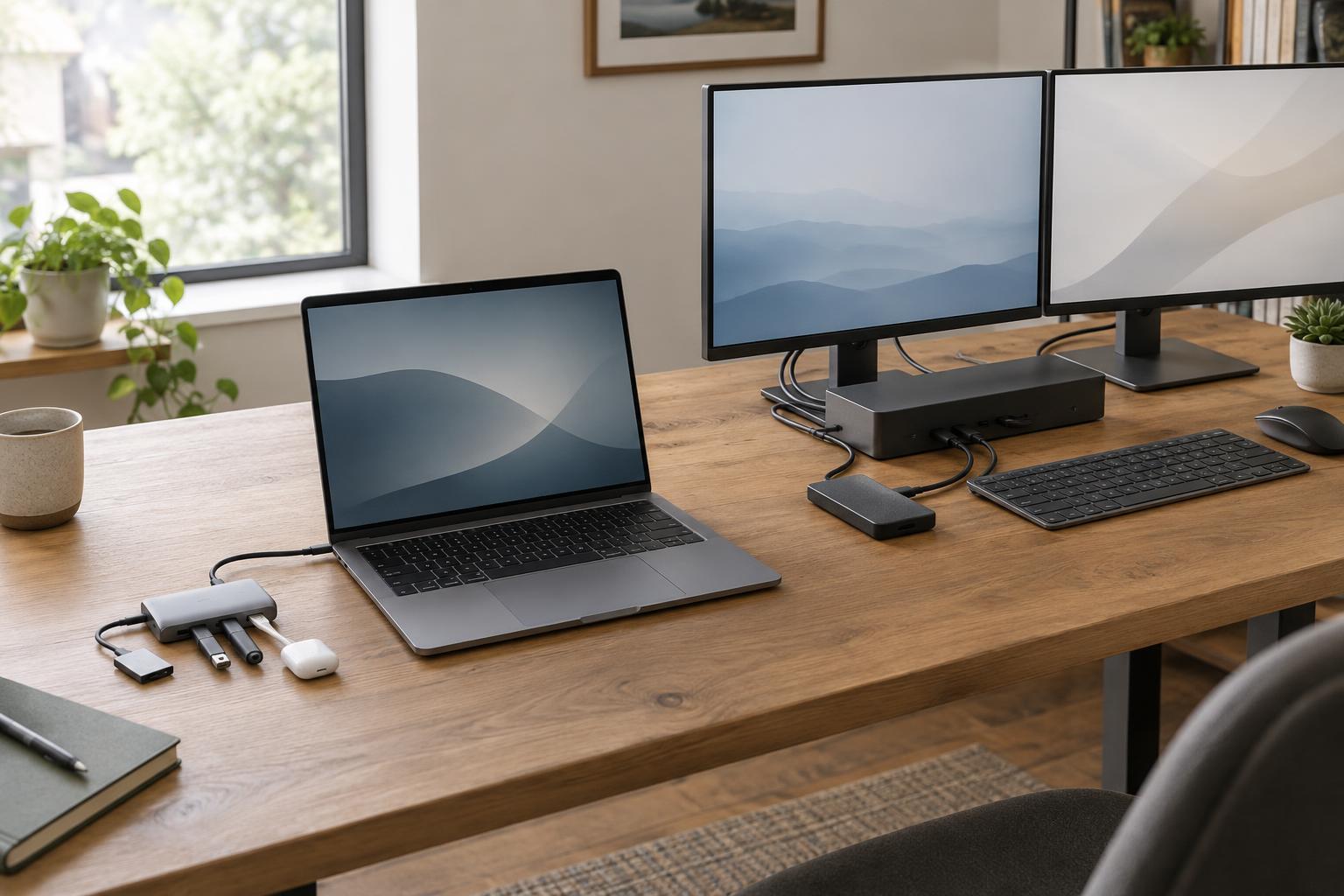
A USB-C hub is usually a compact way to add a few connections to a laptop: perhaps HDMI, USB-A, a card reader and power pass-through. A docking station is generally larger, with more ports and a design suited to leaving monitors, a network cable and other desk accessories connected. The names are not strict technical categories, so judge the connections and capabilities rather than the label on the box.
Write down what will stay on your desk and what you carry with you. A keyboard, mouse and one monitor may fit comfortably on a small hub. Two monitors, wired Ethernet, several drives and speakers may make a dock easier to use. Also count the ports your laptop already has. The best accessory is not necessarily the one with the most sockets; it is the one that connects your actual setup without adapters hanging from adapters.
Check the computer before the accessory
USB-C describes the connector’s shape, not a complete set of features. A laptop’s USB-C port may support data, charging, video output or some combination of those. Look up the specifications for the exact laptop model and port you intend to use. If that port cannot send a video signal, an ordinary USB-C hub with an HDMI socket will not make it do so.
Pay particular attention to the connection type a dock requires. Some use USB-C video output, often described as DisplayPort Alt Mode; others require USB4 or Thunderbolt for their stated capabilities. A plug that fits is not proof that a dock will provide its full range of displays or speeds. Check the dock’s host requirements alongside your computer’s specifications, including any stated operating-system limitations.
Match display claims to your monitors
For each monitor, note its resolution, desired refresh rate and input connections. Then check whether the hub or dock supports that combination through the ports you plan to use. A product advertised as supporting a high-resolution display may do so only at a lower refresh rate, or only when one monitor is connected. Its HDMI and DisplayPort sockets may not all be usable at once.
Multiple-monitor support needs extra care. Some USB-C docks split one video signal into separate displays using Multi-Stream Transport, or MST, but computer and operating-system support for that approach varies. Other docks use a different display technology that may require software. If you want two independent external screens, verify that exact arrangement for your computer rather than relying on a listing that says only “dual display.”
Budget bandwidth and charging power
Ports on a hub or dock share the connection back to the computer. A keyboard and mouse use little data, while fast external storage, a wired network connection and displays place greater demands on the setup. Check both the host connection speed and the speeds specified for individual ports. Several fast-looking sockets do not mean every attached device can run at its maximum speed simultaneously.
Charging needs a separate check. A bus-powered hub draws power from the laptop unless it offers power pass-through from a charger. A powered dock typically uses its own adapter and may charge the laptop through the same cable used for data. Compare the stated laptop-charging output with your computer’s requirements; a dock may consume part of its adapter’s total power for its own ports. If the available output is too low, the laptop may charge slowly or lose battery charge during demanding use.
Make a short buying checklist
Before choosing, confirm the host-port requirements, the exact monitor combination, enough ports in usable positions, and charging output. For storage, note the speed of the USB ports rather than counting them alone. For a fixed desk, consider whether the cable reaches your laptop comfortably and whether an included power adapter needs a spare outlet. For travel, size and a simple set of essential ports may matter more.
Use the manufacturer’s compatibility details to narrow the choices, especially for displays. These are specification-based checks, not a substitute for firsthand testing of a particular product. When a listing leaves a crucial detail unclear, choose a model with a clearer compatibility description or ask the seller to confirm your intended setup before buying.