Start with the signal your devices will use
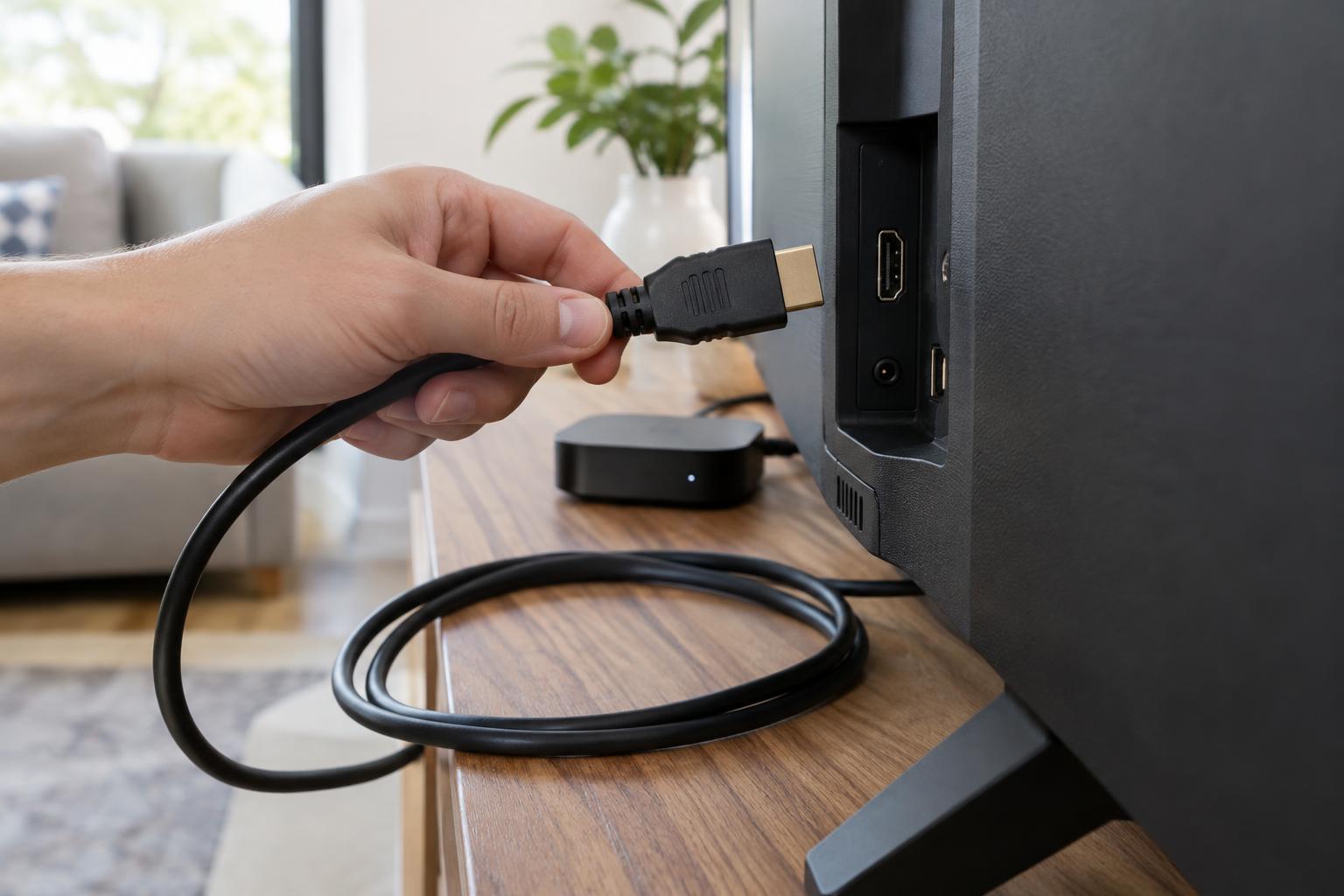
An HDMI cable carries video and audio between devices such as a streaming box and a TV, or a game console and a monitor. To choose one, first check the output of the source device and the input of the display. The connection can only use features supported by both devices and their HDMI ports. A higher-capacity cable cannot add a refresh rate or feature that either device lacks.
Resolution alone does not tell the whole story. A 4K picture at 60 frames per second can require a different amount of bandwidth depending on settings such as color format and bit depth. Features including high dynamic range, variable refresh rate and high refresh rates are also worth checking in your devices’ specifications. If you are unsure which settings you will use, choosing a cable with some capacity to spare is simpler than matching the bare minimum.
Read the cable label, not just the version number
Look for a cable category with a stated bandwidth. High Speed HDMI cables are rated for up to 10.2 Gbps, Premium High Speed HDMI cables for up to 18 Gbps, and Ultra High Speed HDMI cables for up to 48 Gbps. Premium High Speed is a practical starting point for many 4K-at-60-Hz setups. For demanding combinations such as 4K at 120 Hz, choose Ultra High Speed, then confirm that both connected ports support the mode you want.
Be cautious with listings that describe a cable only as “HDMI 2.1.” Version numbers describe device capabilities and specifications; they are less useful than a clear cable category when shopping for a cable. A certification label can help you distinguish a tested cable from one that merely makes a broad compatibility claim. You do not need to buy the highest-bandwidth option for every connection, but it can be convenient if you expect to reuse the cable with more demanding devices later.
Choose a length that reaches without strain
Measure the route the cable will actually follow, not just the straight-line distance between ports. Include the path behind furniture, room for gentle bends and enough slack to move a device for cleaning or troubleshooting. Avoid a cable pulled tight against a connector. At the other extreme, a large coil of unused cable can be awkward to manage.
Longer cables can be more difficult to use reliably at demanding signal settings, but there is no single maximum length that applies to every cable and setup. For a short run, a suitable certified passive cable is usually the straightforward choice. For a long run, check that the specific cable is rated for your intended signal. Active or optical HDMI cables may be useful for longer routes; some are directional, so check which end connects to the source before installing one.
Cable trouble often appears as a blank screen, intermittent dropouts or a display mode that works at a lower setting but not the one you want. If that happens, reseat the connectors and check the devices’ settings before replacing anything. Trying a shorter, appropriately rated cable can help isolate whether the cable run is the problem.
Check connector size and physical clearance
Most TVs, monitors, consoles and streaming devices use the full-size HDMI connector, also called Type A. Some compact cameras and other small devices use Mini HDMI (Type C) or Micro HDMI (Type D). These shapes are not interchangeable, so check the port on each device rather than relying on the product name. You may need a cable with different connectors at each end or an appropriate adapter.
Connector fit also includes the space around the port. A thick plug may block a neighboring socket, and a stiff cable can press against a wall-mounted TV. A slimmer plug, flexible cable or suitable right-angle adapter may make installation easier. Check the direction of a right-angle connector against the way the port faces: an adapter that turns the wrong way will not solve a clearance problem.
Finally, keep the purchase proportional to the job. A cable with the correct rating, length and connector fit matters more than elaborate packaging or claims that it will improve picture quality by itself. Once a digital HDMI connection is working reliably at your chosen settings, a more expensive cable is unlikely to make the image visibly sharper.