Start with the height you actually need
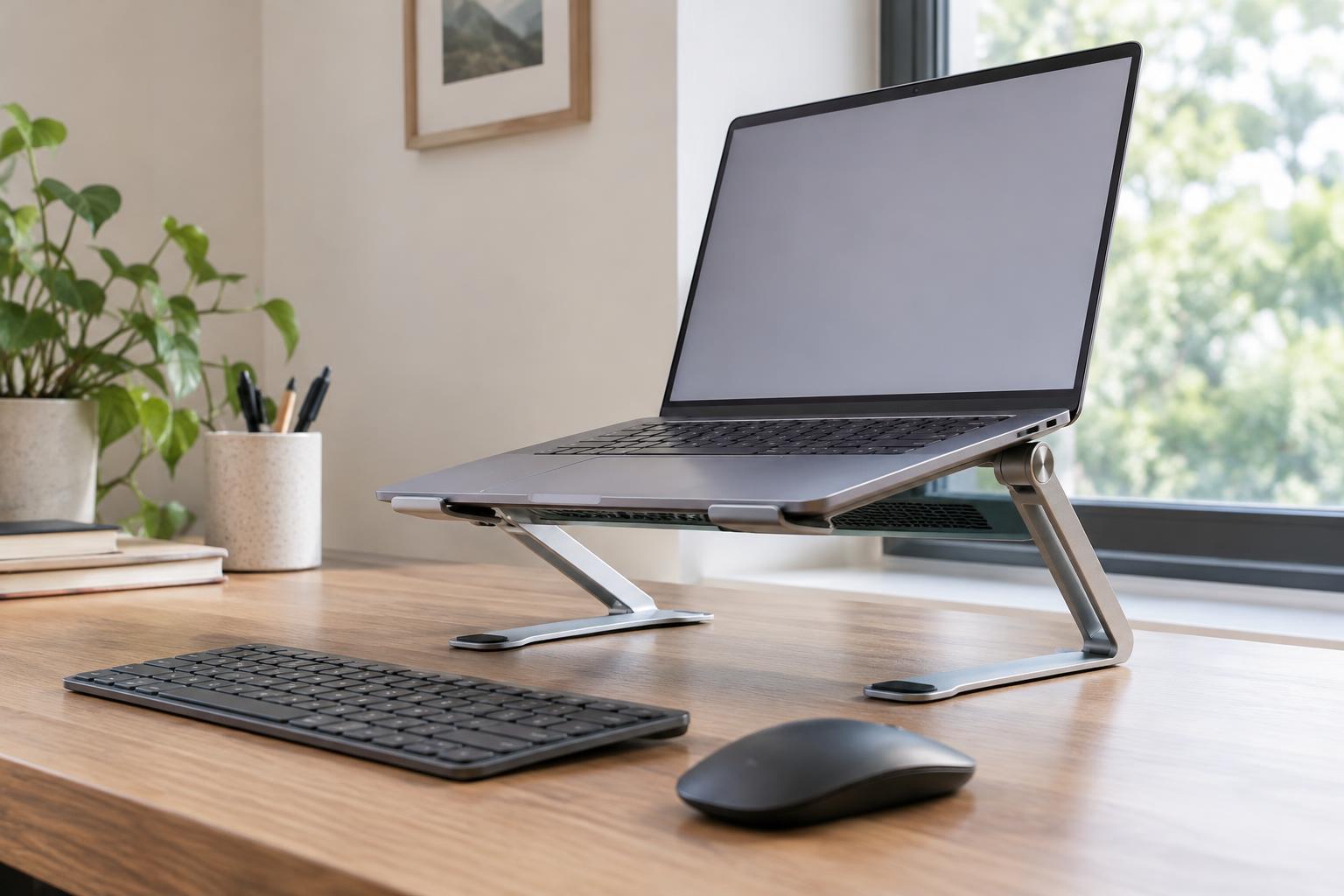
A laptop stand can make a desk feel less cramped by lifting the screen and clearing space beneath the computer. The best height, though, depends on how you use the laptop. If you type on its built-in keyboard, a steep lift may raise your wrists and make the keys awkward to reach. If you use a separate keyboard and mouse, you have more freedom to bring the screen up while keeping your hands at a comfortable desk height.
Before shopping, sit where you normally work and look at the screen without leaning forward. Note how much lift would let you view it comfortably. You do not need to aim for a precise measurement: chair height, desk depth and screen size all affect the result. An adjustable stand gives you room to refine the position, while a fixed-height stand is simpler if you already know the height that works for your setup.
Check the stand’s angle as well as its advertised lift. A stand that raises only the back of the laptop tilts both the screen and keyboard. A riser that lifts the whole laptop keeps the keyboard closer to level but may take up more desk space. Product photos can obscure these differences, so look for side-view dimensions and the height of the front edge.
Check where your laptop draws and releases air
Laptop vents are not all in the same place. Depending on the model, air openings may be on the underside, along the sides or near the hinge. Look at your laptop while it is closed and open, and note any grilles or gaps that need room around them. Then compare those positions with the stand’s rails, pads, lip and platform. A stand should support the laptop without covering a vent or pressing against an area where warm air exits.
Open-frame stands often leave more of the underside exposed than solid trays, but the shape alone does not guarantee a good match. A crossbar might sit directly beneath an intake on your particular laptop. Likewise, a solid platform may have cutouts that align well with one device and poorly with another. If a product listing does not show its top surface clearly, ask for dimensions or choose a design whose contact points you can verify.
Leave space around side and rear exhaust openings, too. A tall rear wall, nearby monitor or pile of desk items can obstruct airflow even when the stand itself does not. A stand also does not replace routine care: keep vents free of dust and avoid setting the laptop on soft material that can bunch up against its underside.
Judge stability by the whole setup
A stand can meet a laptop’s stated weight limit yet still feel unsteady during typing or when you adjust the screen. Check that the stand’s support area fits the laptop’s footprint, not just its weight. The laptop should sit fully on its pads or rails, with its front edge securely held if the stand tilts. A broad base is often reassuring on a permanent desk, while a compact folding design may trade some steadiness for easier carrying.
Adjustable stands have hinges or joints that must hold their position under the laptop’s weight. Look for a clear load rating and a way to lock or firmly set the chosen angle. Rubber or similar grippy contact points can help prevent sliding, but they should not block vents or lift one corner unevenly. On a smooth desk, feet that grip the surface matter as much as the pads touching the laptop.
Think about how you will interact with the computer. If you regularly type on its keyboard or tap its trackpad, small amounts of wobble can become distracting. If the laptop will stay open beside an external keyboard, movement during typing matters less, but the stand still needs to remain secure when you open the lid or plug in a cable.
Make sure the stand fits your desk and connections
Measure the space where the stand will sit, including the room needed to open the laptop screen. Check that the raised display will not hit a shelf or crowd a monitor. Side-mounted ports need enough clearance for chargers, drives and other accessories; bulky plugs may require more room than the bare port suggests. If you frequently connect and disconnect devices, confirm that you can reach those ports without moving the laptop.
For a shared or travel setup, consider folded size, weight and the number of steps needed to set the stand up. For a fixed desk, you may value a larger base or usable space underneath for a keyboard when it is not in use. Neither style is automatically better: choose for the way the stand will spend most of its time, rather than for features you are unlikely to use.
Use a short final checklist
Before buying, compare your laptop’s width, depth, weight, vent positions and port locations with the stand’s dimensions and support points. Decide whether you will type on the laptop or use external input devices, and choose a height and angle that suit that arrangement. Finally, check that the base fits your desk and that the screen can open freely.
Specifications can narrow the choice, but they cannot tell you exactly how a stand will feel on your desk. If possible, choose a retailer with a suitable return policy so you can check for wobble, clearance and comfort in your own setup. A good stand is one that holds your laptop securely at a useful height while leaving its vents and connections unobstructed.