Start with the monitor, not the arm
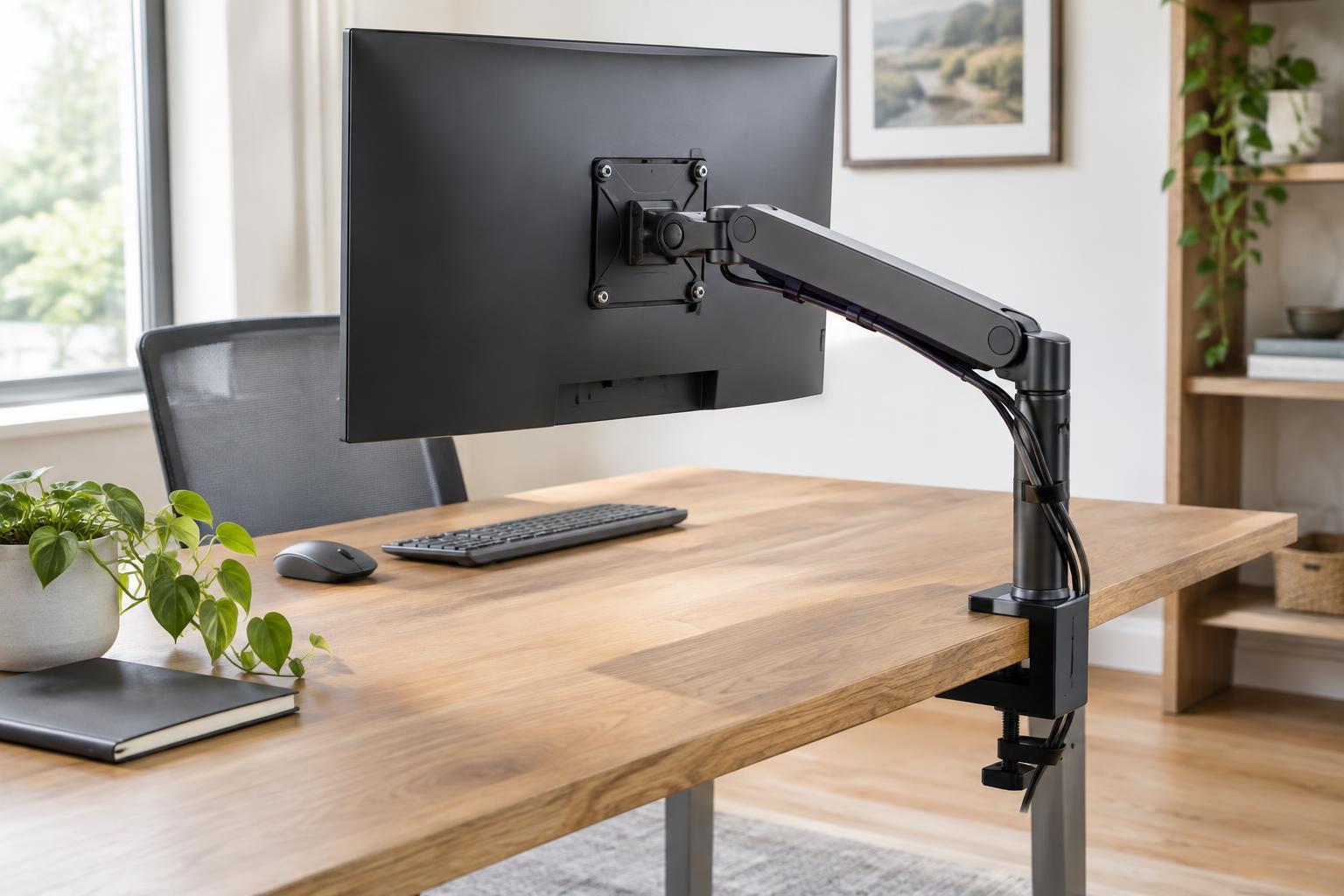
First, check how your monitor attaches to a mount. Many monitors have four threaded holes on the back in a VESA mounting pattern. The pattern is measured as the horizontal and vertical distance between the centers of the holes, in millimeters. Common patterns include 75 × 75 mm and 100 × 100 mm, but you should confirm the pattern for your specific screen rather than assume it from its size.
Some monitors hide the holes behind the original stand or require a model-specific adapter. Look at the monitor’s documentation before removing anything, and check whether an adapter adds weight or moves the screen farther from the arm’s mounting plate. If you cannot find compatible mounting points or an approved adapter, do not count on a universal arm fitting.
Next, compare the monitor’s weight without its original stand with the arm’s supported weight range. Both the minimum and maximum matter: a screen that is too light may rise on a spring-assisted arm, while one that is too heavy may sink. Screen-size limits are useful guides, but weight and mounting compatibility are the more direct checks. For an unusually deep, curved or ultrawide display, also check the arm maker’s guidance for that shape.
Make sure the desk can support the mount
Most monitor arms attach with an edge clamp, a grommet mount through a desk hole, or both. For a clamp, measure the thickness of the desktop at the intended mounting spot and compare it with the clamp’s stated range. Check underneath for a frame, drawer, cable tray or other obstruction that could prevent the clamp from sitting flat. You will also need enough access to tighten it.
For a grommet mount, check the required hole diameter, the desktop thickness range and whether there is room beneath the hole for the hardware. A cable-management opening is not automatically suitable: its position, size and surrounding material still need to work with the mount. Measure where the arm’s post would sit, not just whether a hole exists.
A sturdy-looking desk is not necessarily strong at every edge. Thin or hollow-core surfaces may need reinforcement, while glass tops can be unsuitable for concentrated clamp pressure. Follow the desk and arm manufacturers’ mounting guidance, particularly for glass or other delicate surfaces. If the desk flexes noticeably or the clamp cannot bear evenly on a solid area, choose another location or mounting approach.
Match the arm’s movement to how you work
Think about where the screen needs to be, not simply how far the arm can extend. Measure your preferred screen position relative to the back edge of the desk. An arm with ample reach may help on a deep desk, but its joints also need space behind the monitor and near a wall. On a shallow desk, an arm that folds neatly may be more useful than one with the longest advertised reach.
Check the stated height range, tilt, swivel and rotation against the adjustments you actually want. If you plan to turn a screen into portrait orientation, confirm that the arm supports rotation and that the screen will clear the desk at the intended height. If you frequently move the display, consider how the arm adjusts under load; if it will stay in one position, easy movement may matter less.
For two monitors, decide whether a dual arm can place both screens where you want them. Two separate arms may offer more flexibility when the screens differ in size or need very different positions, although they take up more mounting space. In either case, check the weight limit for each arm position and allow room for both displays to move without colliding.
Plan for cables, clearance and setup
Cable routing can affect whether a setup works in practice. Before buying, check where the monitor’s power and video ports sit and whether their plugs will clear the mounting plate. Cables also need enough slack for the full movement you intend to use. Built-in cable channels can tidy the arm, but they do not replace a suitable cable length or careful routing around moving joints.
When installing the arm, follow its instructions and support the screen while attaching it. Tighten the mount as directed, then adjust any spring tension with the monitor attached and within the arm’s rated range. Move the screen slowly through its intended positions to check for desk contact, loose cables, wobble or a drifting display. Recheck that the mount remains secure after making adjustments.
The simplest buying checklist is four questions: Does the plate fit the monitor’s mounting pattern? Is the monitor within the supported weight range? Can the mount attach securely to this particular desk? Can the arm place the screen where you want it without hitting the wall, desk or another screen? If any answer is uncertain, resolve it with measurements and product documentation before ordering.