Start with the job the cable needs to do
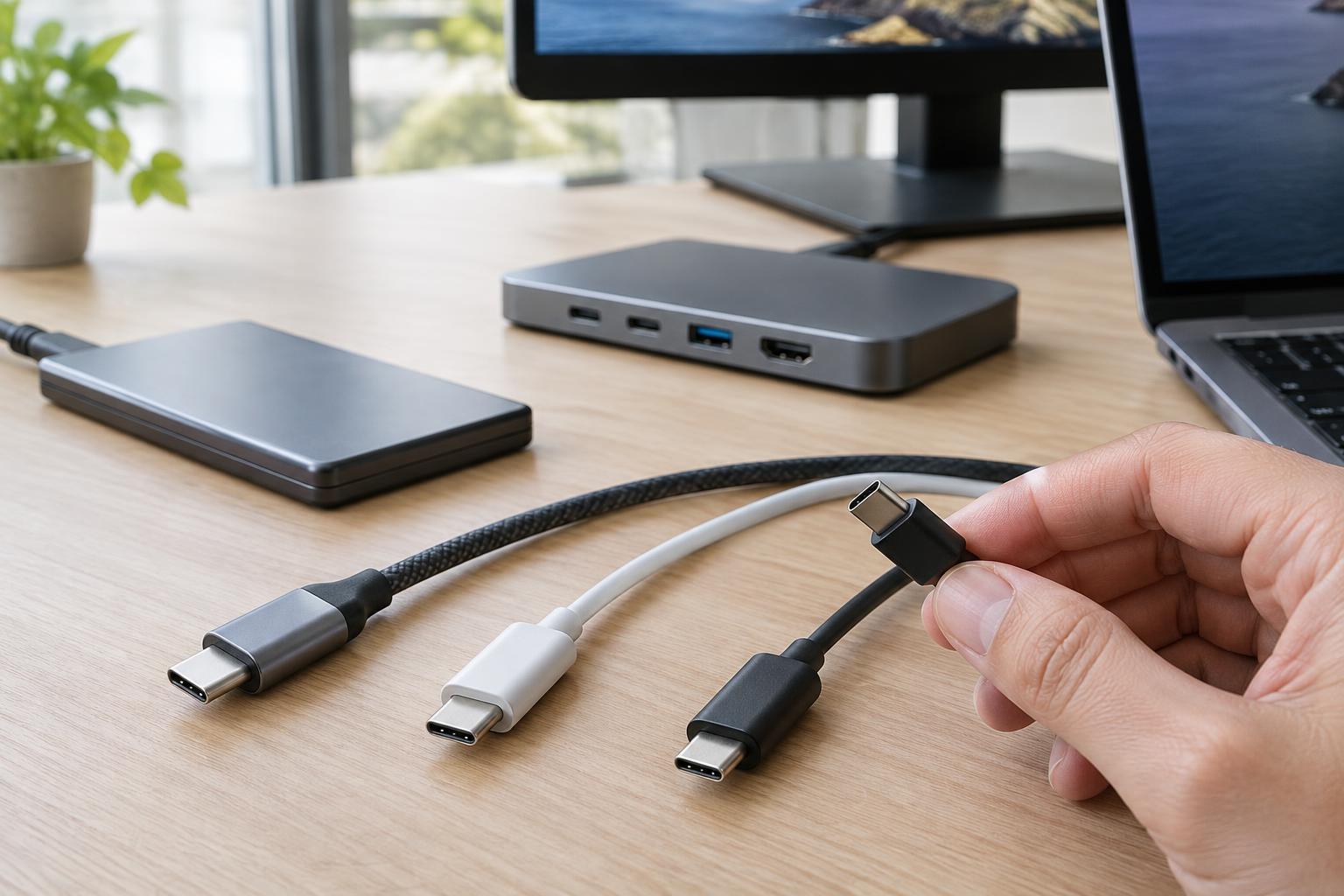
A USB-C plug can look identical across cables with very different capabilities. One cable may be suited to charging a phone, while another can carry fast data between a computer and an external drive. A third may also work with a monitor. The connector shape alone does not tell you which one you have.
Before reading a label, decide what matters for your setup: charging power, data speed, video, or a combination. Then check the specifications of both devices as well as the cable. A cable cannot add a video output to a laptop port that does not provide one, or make a slower drive transfer files faster. The whole connection is limited by what its components support.
Translate speed markings into useful expectations
Look for a stated data rate on the cable or its packaging. Common markings include 480 Mbps, 5 Gbps, 10 Gbps, 20 Gbps and 40 Gbps. Some newer cables may be marked 80 Gbps. A cable described only as USB-C or fast charging may not tell you its data capability; check the detailed specifications rather than treating an unstated speed as a promise.
The numbers are maximum signaling rates, not the file-copy speeds you should expect to see. Protocol overhead, the connected ports and the storage device itself can all reduce real-world transfers. A 480 Mbps cable may be adequate for charging and basic peripherals, but it can hold back a fast external SSD. For that use, match the cable’s stated data rate to the drive and the computer port.
Names such as USB4 and Thunderbolt are useful clues, but read the specific cable rating too. They do not mean that every port bearing a USB-C connector supports the same speed. If a product page gives a prominent charging wattage but no data rate, do not assume the cable is intended for high-speed file transfers.
Treat video support as a separate question
A speed marking by itself is not a clear promise that your monitor setup will work. Many USB-C monitor connections use DisplayPort Alt Mode, which depends on support from the source device, the display or adapter, and a cable suitable for that connection. USB4 and Thunderbolt setups can also carry display signals when the connected equipment supports the required features. Check the intended connection method rather than relying on the plug shape.
For a USB-C-to-USB-C monitor connection, look for an explicit video-support claim, such as DisplayPort Alt Mode support, and confirm that the computer’s chosen USB-C port outputs video. Also check the monitor’s USB-C input specifications. Some monitors accept USB-C for power or data without accepting video through that port.
An adapter changes what you need to check. A USB-C-to-HDMI cable or adapter may be designed to take video from a computer to a display, not to work in reverse. A dock may support a monitor only at certain resolutions or refresh rates, depending on its ports and the host device. Match the complete setup to the display you intend to use.
Keep charging labels in their own lane
Power ratings such as 60W or 240W describe a different capability from data speed. A cable can be rated for substantial charging power yet carry data at only 480 Mbps. Conversely, a high-speed cable’s data label does not, by itself, tell you how much charging power it supports. Check both figures when you want one cable for a laptop, dock and accessories.
The delivered power also depends on the charger and device. If you need a higher-power laptop cable, choose one with an appropriate stated wattage and check the charger and laptop requirements. Do not use a power rating as shorthand for video support: these are separate specifications.
Use a short checklist before you buy or reconnect
For a phone charger, verify the required power rating and decide whether basic data transfer is enough. For an external SSD, prioritize a stated data rate that matches the drive and computer. For a monitor or dock, check the cable’s video claim, the computer port’s video output, and the display or dock’s input requirements. If a listing leaves one of those points unclear, choose a cable with clearer specifications.
When a connection fails, test one change at a time: try the specified port, remove adapters, and substitute a cable whose capabilities you know. Label cables you rely on for particular jobs so you do not accidentally replace a monitor or drive cable with a charging-focused one. The most useful USB-C label is the one that states the capability you actually need.