Start with the picture mode
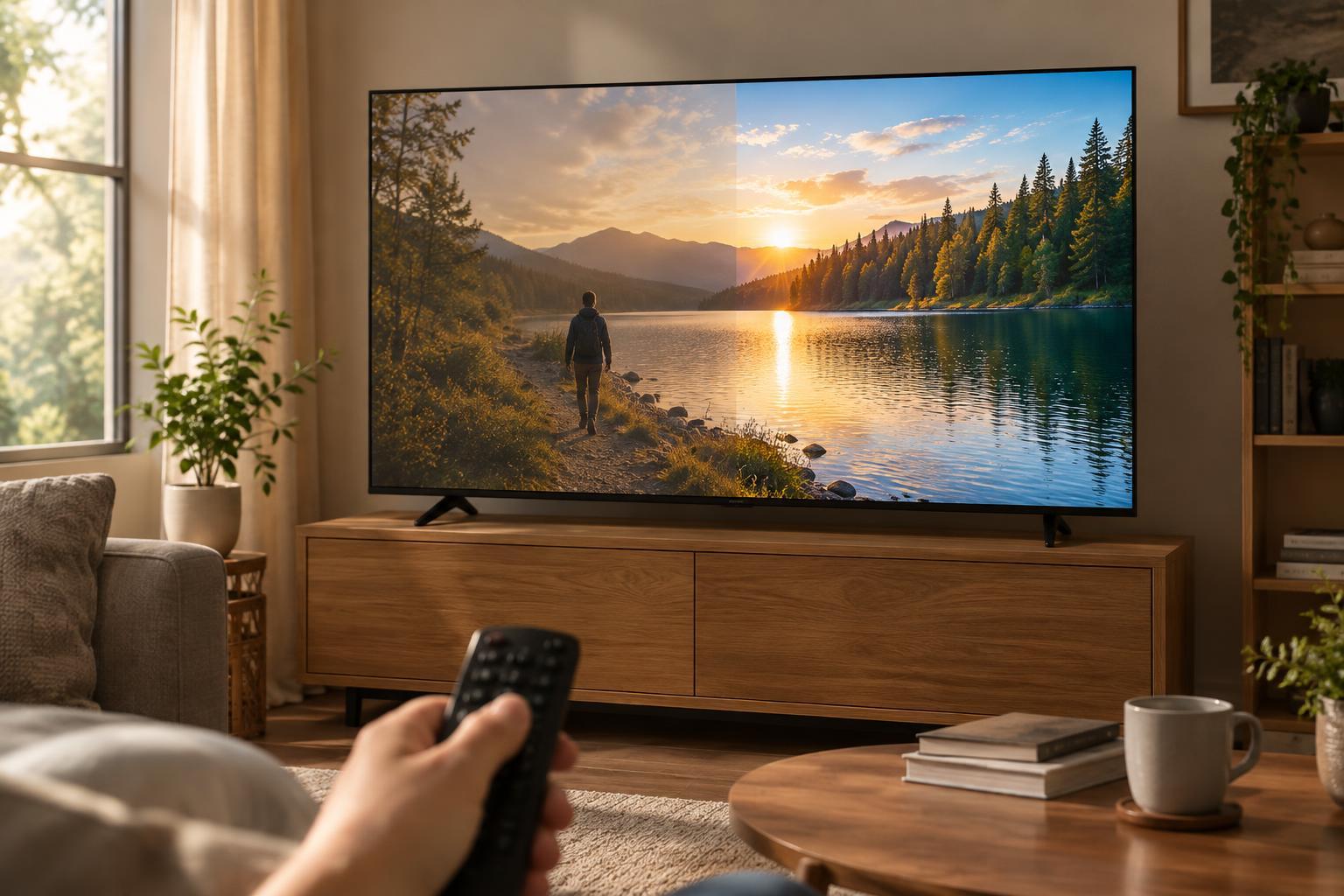
Picture modes are groups of settings that change brightness, color, contrast, sharpness and motion processing together. Their names vary by TV, but the usual choices include Standard, Vivid or Dynamic, Cinema or Movie, Filmmaker Mode, Sports and Game. A mode is a starting point, not a verdict on what looks best in every room.
Vivid modes often aim to stand out under bright lighting. They may make colors and edges more intense than you want at home. Cinema, Movie and Filmmaker modes generally aim for a less processed appearance, though they can seem dim if you are used to a punchier preset. Standard offers a middle ground on many TVs. Game mode typically prioritizes a quicker response to controller inputs and may limit some image processing.
Pick a familiar scene, sit where you normally watch, and switch between modes before changing individual controls. Use the same scene and room lighting for each comparison. If you mainly watch in daylight, a mode that looks comfortable in a dark room may need a brightness adjustment rather than an entirely different color style.
How to spot oversharpening
A TV’s Sharpness control usually does not add detail that was missing from the video. Instead, it can emphasize boundaries between light and dark areas. Too much emphasis may make an image look crisp at first glance while adding outlines that do not belong there.
Pause on a clear image with faces, text, building edges or tree branches. Look closely for pale or dark halos beside strong edges, such as a bright line around a person against a dark background. Fine textures may look gritty or grainy, and small text can acquire a hard outline. Those are useful clues that the TV may be applying too much edge enhancement. The video source can also contain these artifacts, so compare several scenes before blaming one setting.
Lower Sharpness gradually and check whether the picture keeps its natural detail while losing the outlines. Do not assume that zero is the correct value: scales and default behavior differ between TVs. Judge the result from your usual seat, not only from inches away. If lowering the control makes little visible difference, you may not need to change it.
How to spot motion smoothing
Motion smoothing tries to make movement appear more continuous, often by creating extra frames between the frames in the source. It may be labeled Motion Interpolation, Motion Enhancement, MotionFlow, TruMotion or something similar. The feature is separate from a TV’s refresh-rate specification, and a higher refresh rate does not tell you whether smoothing is enabled.
To see its effect, watch a slow camera pan or a person walking across the screen. With strong smoothing, filmed drama may take on an unusually slick, video-like look, sometimes called the soap-opera effect. Around fast-moving hands, sports equipment or objects crossing a busy background, you may also notice brief warping or broken edges. If you prefer the original feel of films and shows, try turning interpolation off or selecting its lowest setting.
There is no universal right choice. Some viewers like smoother sports or other fast-moving content, while others notice the processing more than the benefit. TVs may also offer a separate setting for blur reduction or for reducing judder in film material. Change one option at a time so you can tell which one produced the result.
Make adjustments without losing your place
Before experimenting, note the current picture mode and any values you plan to change. Start with a preset that is comfortable to watch, then adjust Sharpness and motion settings individually. If the picture looks unnatural after several changes, returning to a preset is easier than trying to remember every slider position.
Check more than one type of content. A compressed stream can have blockiness or fuzzy detail that picture controls cannot fully repair, while a clean source may reveal processing artifacts more clearly. Also check whether your TV stores settings separately for different inputs, apps or SDR and HDR content. An adjustment that improves one source may not appear on another, or it may need a different value there.
Choose for comfort, not maximum processing
A useful picture mode should let you follow the action without drawing attention to the TV’s processing. If outlines catch your eye, reduce sharpening. If motion feels unnaturally smooth or moving objects develop odd edges, reduce interpolation. If a calmer preset looks too dim during the day, adjust the appropriate light-output control rather than immediately returning to Vivid.
The best final check is ordinary viewing. Watch a few familiar scenes at your normal distance and lighting level, then leave the controls alone for a while. You can always keep different presets for different uses; the goal is a picture that looks comfortable and consistent for what you watch.