Pairing, connecting and multipoint are different things
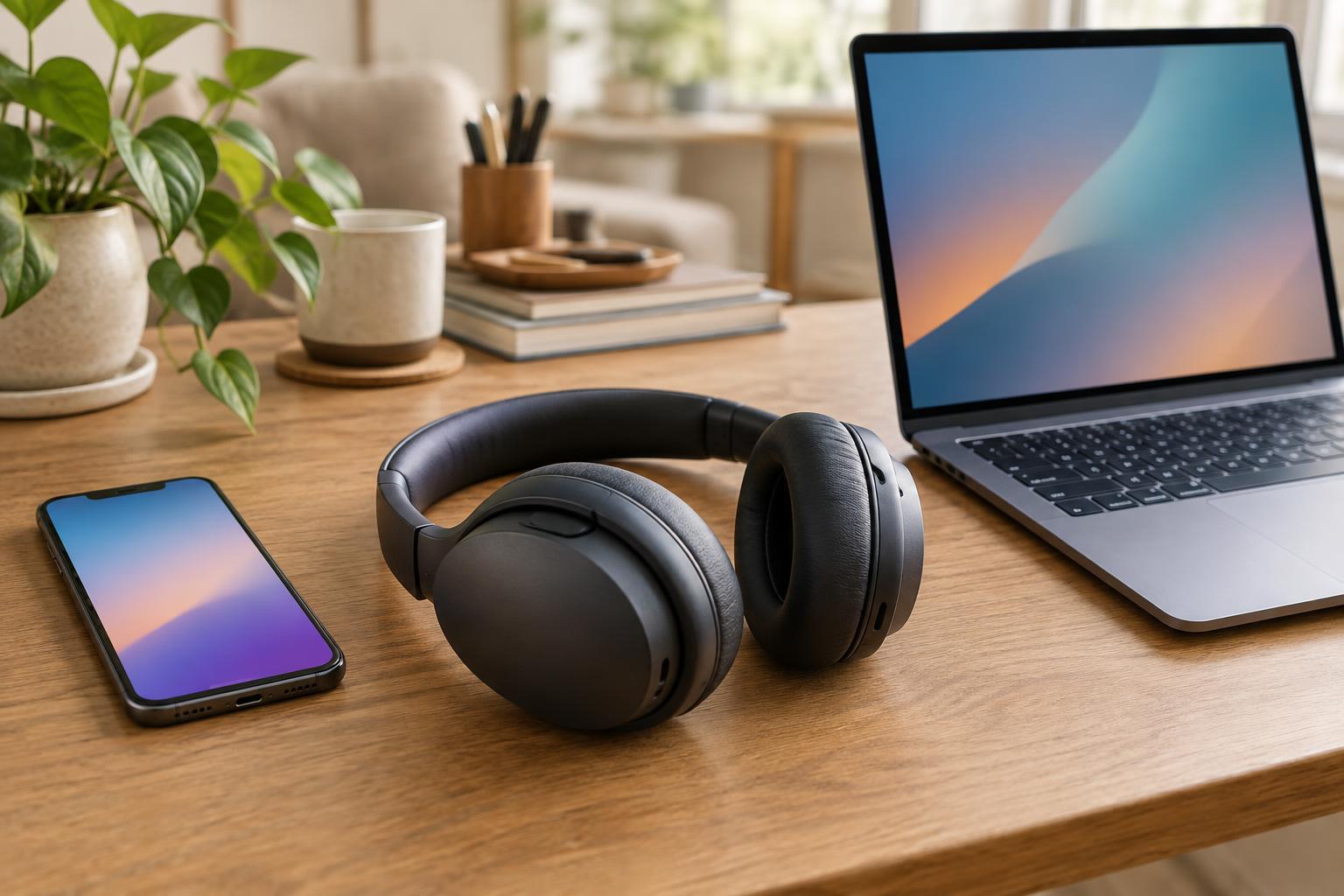
Pairing introduces your headphones to a phone, computer or other device. Once paired, the devices usually remember each other, so you do not need to repeat the setup every time. Connecting is the next step: it establishes the active link used for audio or calls. Headphones can remember several paired devices while connecting to only one at a time.
Multipoint is a feature that lets compatible headphones maintain connections to two devices at once, such as a phone and a laptop. It is designed to reduce the need to open Bluetooth settings whenever you change devices. Multipoint does not necessarily mean you can hear two audio streams mixed together. Typically, the headphones play one source at a time and switch when the other device needs attention. Exactly what triggers a switch depends on the headphone model and the apps involved.
Set up your phone and computer
First, pair the headphones with your phone using the instructions for your model. This usually means putting the headphones in pairing mode, opening the phone’s Bluetooth settings and selecting their name. To add your computer, put the headphones in pairing mode again and select them from the computer’s Bluetooth device list. If the computer cannot find them, check whether the headphones need a different button sequence to add a second device rather than reconnect to the first.
Next, check whether multipoint needs to be enabled in the headphone maker’s companion app or device settings. Some models manage it automatically; others ask you to choose which two devices can remain connected. Having both devices listed as paired does not prove that multipoint is active, so look for a connected status on each device or follow the maker’s setup guidance. If your headphones do not support multipoint, you can still pair both devices, but you may need to disconnect one before connecting the other.
For a simpler first test, pause any music or video on the computer, then start audio on the phone. Pause it and try the computer. This tests ordinary playback before adding calls, meetings or notifications, which may have different switching behavior. Keep both devices nearby during setup so an out-of-range connection does not confuse the result.
What to expect when audio switches
Multipoint often gives calls priority over music. For example, a phone call may interrupt audio playing on a computer. When the call ends, computer audio might resume, or you might have to press play again. A notification sound may behave differently from a call, and some apps continue sending silent audio after you pause a video. If switching feels inconsistent, stop playback in the first app rather than only muting its volume, then try the second device.
Computers add another layer of settings. Your headphones may appear as separate output and input choices, and a meeting app may have its own speaker and microphone selections. If you can hear music but not a meeting, check both the operating system’s sound output and the app’s audio settings. Likewise, if other people cannot hear you, confirm that the intended microphone is selected. Switching into a call can change how audio sounds; that does not by itself mean the headphones have lost their connection.
Fix common connection problems
If one device repeatedly takes over, pause or close its audio app and turn off automatic playback where the app offers that option. Check the headphone app for connection-management settings, then disconnect and reconnect the two devices in the order recommended for your model. If switching stops altogether, turn Bluetooth off and on for the affected device, or restart the headphones. These steps are less disruptive than deleting every saved pairing.
If the headphones connect to an unexpected tablet or an old computer, that device may be occupying one of the available connection slots. Disconnect it or remove it from the headphone app’s device list if that option exists. As a later step, remove the headphones from the Bluetooth lists on both intended devices and pair them again. A headphone reset can also help, but check the model’s instructions first: it may erase all saved pairings and custom settings.
Multipoint is most useful when your day involves frequent moves between two devices. If you mainly use one device at a time, ordinary pairing may be enough. When choosing headphones, check the stated multipoint support and connection limits rather than assuming that a long list of remembered devices means simultaneous connections. That distinction matters more than the speed of the initial pairing process.