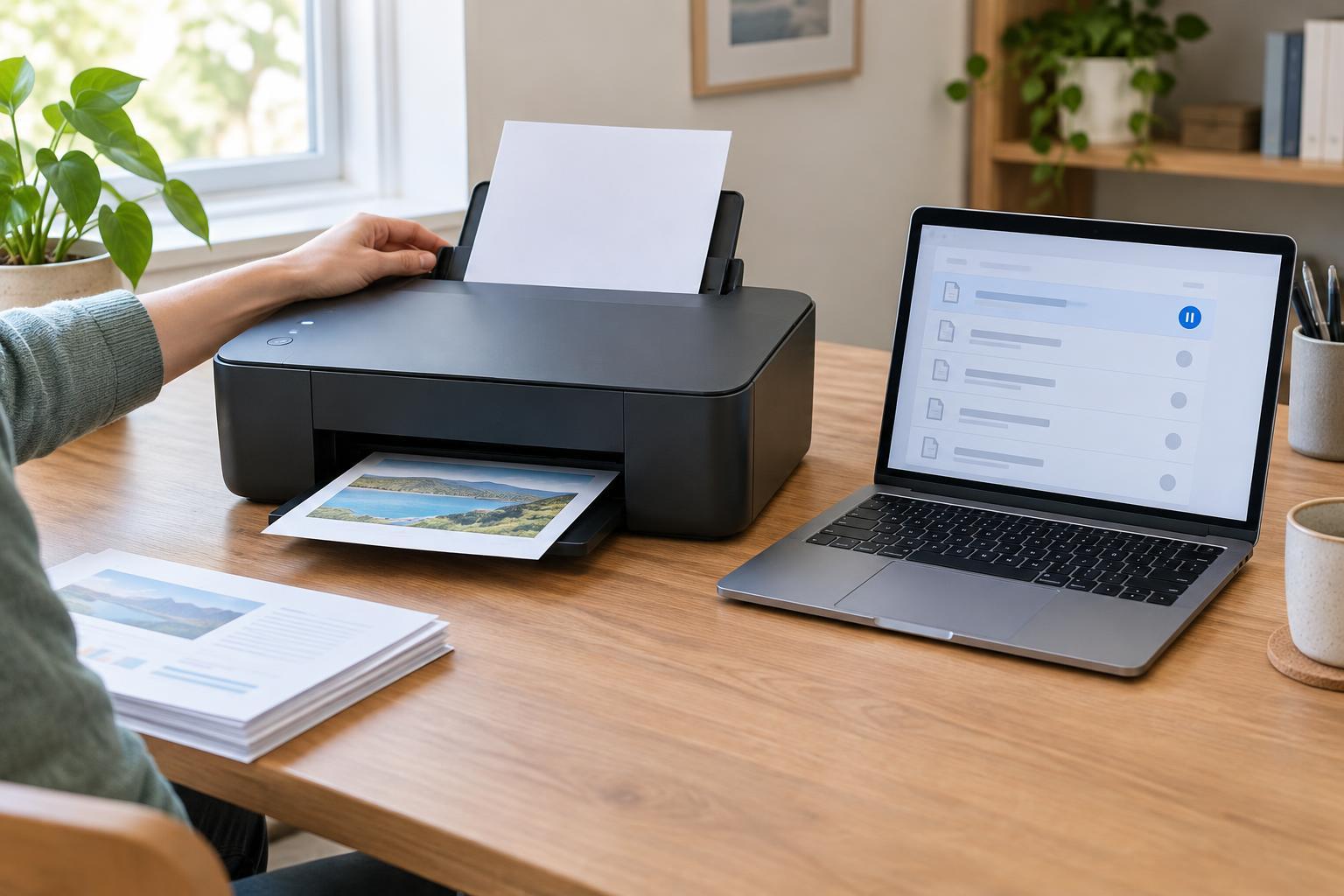
Start with the right paper
Paper jams often begin before a sheet reaches the printer. Paper that has absorbed moisture may curl or stick together, while bent corners and torn edges can catch in the feed path. Keep unused paper flat in its packaging until you need it, and store it away from damp areas and direct heat. If a stack feels wavy or the sheets cling to one another, try a fresh stack before assuming the printer needs repair.
Check the printer’s specifications for supported paper sizes, weights, and types. Standard office paper and thicker photo paper may require different tray settings or feed paths. If you switch paper types, update the setting in the print dialog or on the printer where applicable. A mismatch can affect how the printer feeds the sheet, as well as how the finished page looks.
Load the tray without crowding it
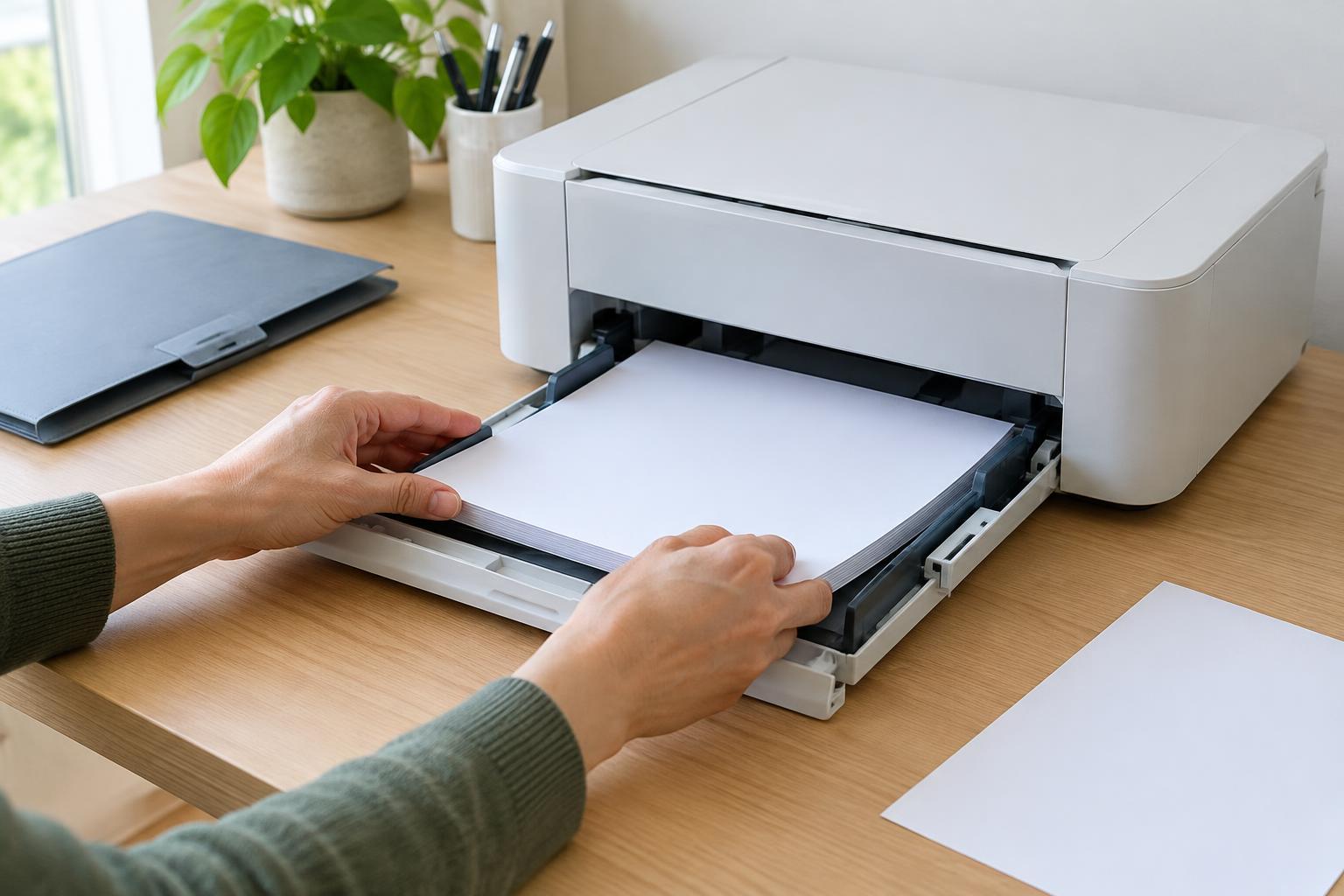
Take a moment to align the edges of a paper stack before loading it. Place it in the tray in the orientation indicated by the printer, and keep the stack below the tray’s fill mark. Overloading can cause multiple sheets to feed at once. Avoid adding new sheets on top of a partly used stack if the existing paper is curled or sitting unevenly; remove it, straighten the stack, and reload.
Adjust the paper guides so they rest against the edges without bending the sheets. Guides set too loosely can let paper enter at an angle, while guides pressed too tightly can interfere with feeding. Before starting a large job, make sure the output area has room for finished pages. Removing completed pages periodically can prevent them from piling up near the exit.
Clear a jam carefully, then look for the cause
When a jam occurs, stop the print job and follow the printer’s on-screen instructions or manual. Switch off and unplug the printer before reaching into its paper path, and allow hot parts in a laser printer to cool. Open only the covers intended for user access. Pull a visible sheet slowly and evenly in the direction recommended by the manufacturer; tugging or using sharp tools can tear the paper or damage internal parts.
After removing the sheet, check accessible areas for scraps. A small piece left behind can trigger another jam. Note where the paper stopped: repeated trouble at the tray may point to loading or paper condition, while trouble with one specialty paper type may suggest an unsupported setting or feed path. If jams continue with fresh, correctly loaded paper, consult the printer’s troubleshooting guide rather than forcing parts apart.
Keep inkjet ink flowing without wasting it
Dried ink is mainly a concern for inkjet printers, which push liquid ink through tiny nozzles. Laser printers use toner, so they do not need the same routine. If you have an inkjet, printing a small page in the colors you use can help keep ink moving during long gaps between jobs. The useful interval depends on the printer and how it is stored; there is no need to print a large document simply for maintenance.
Use the printer’s normal power button when shutting it down. On many models, this lets the printer park its printhead as designed. Leave cartridges installed unless the manual directs otherwise, and avoid touching their nozzles or electrical contacts. Keep the printer in a reasonably clean, temperate spot rather than beside a heater or in direct sunlight.
If a page develops missing lines or faded colors, run the printer’s built-in nozzle check or print-quality test first. Use its cleaning function only when the test indicates a problem, since cleaning cycles consume ink. One cycle followed by another test is a better starting point than repeatedly running the deepest cleaning option. If quality does not improve, follow the model’s guidance for further troubleshooting or cartridge replacement.
Make maintenance a small, repeatable habit
Most home printers do not need an elaborate care schedule. Keep paper dry and correctly loaded, remove dust from accessible exterior surfaces with a soft cloth, and check the output tray before a long print job. For an inkjet used infrequently, an occasional small print and a quick look at print quality can help you catch a problem before an urgent document is due.
When something goes wrong, change one thing at a time: try fresh paper, confirm the settings, or run a nozzle check as appropriate. This makes it easier to identify what helped and avoids using unnecessary supplies. Your printer’s manual remains the best guide for model-specific access panels, cleaning steps, and supported materials.