Start with the printer itself
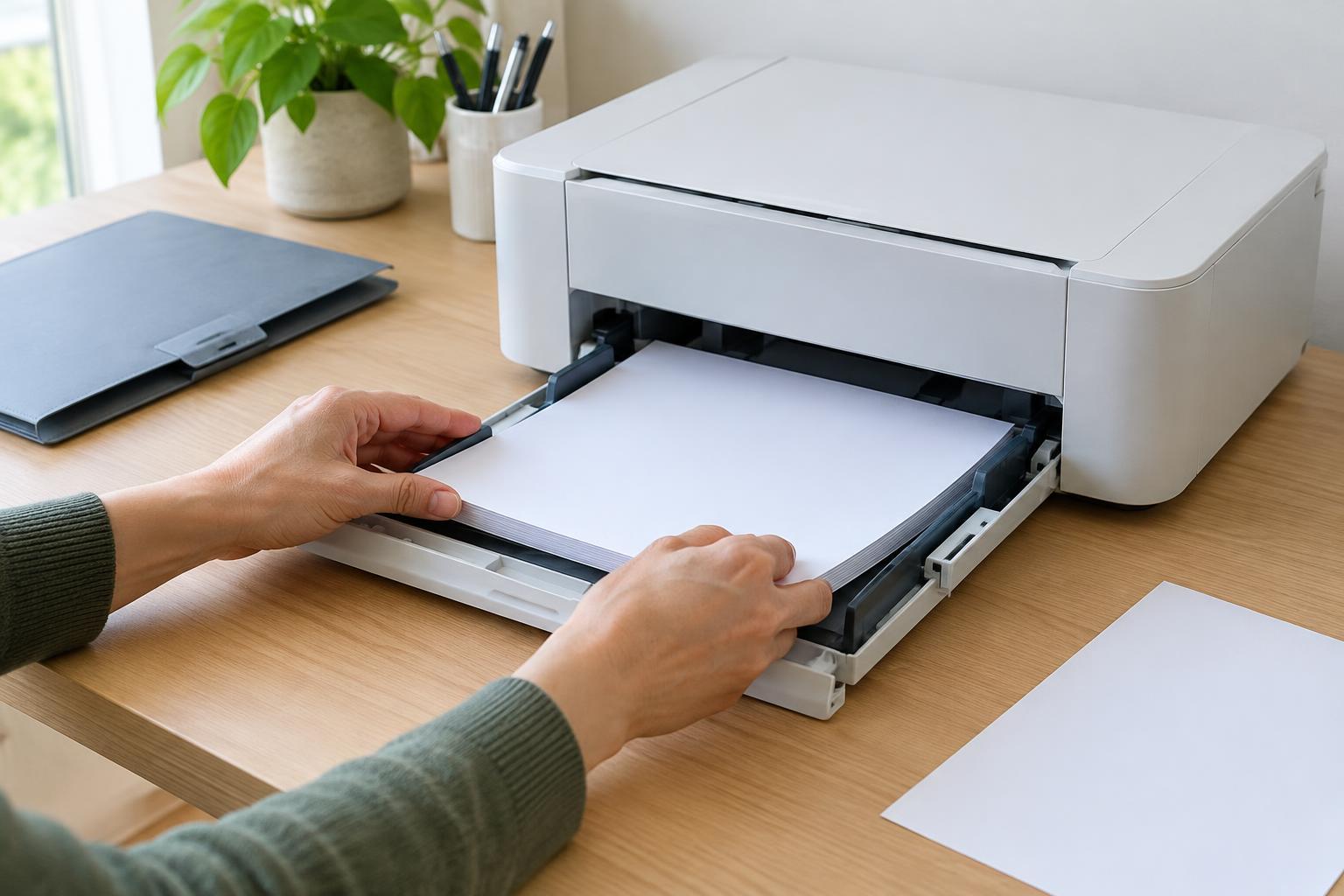
Before changing computer settings, look at the printer. Confirm that it is powered on, has paper, and has no visible error about an open cover, a jam or an ink or toner cartridge. Some printers appear offline to a computer while they are waiting for an issue on the device to be cleared. If the printer has a screen, follow its prompt first.
Next, check how it connects. For a USB printer, make sure the cable is seated at both ends. If you use a hub or dock, try a direct connection to the computer when practical. For a wireless printer, check that its Wi-Fi indicator or network screen shows a connection. A printer connected to a guest network may not be reachable from a computer on your main network, even when both have internet access.
If nothing obvious is wrong, turn the printer off, wait briefly, and turn it back on. Give it time to finish starting before sending another job. Avoid repeatedly pressing Print while it starts: each attempt may add another copy to the queue.
Check where the job was sent
A computer can remember several printers, including old devices and virtual options such as saving to a file. Open the print dialog in the app you are using and confirm that the selected printer is the one in front of you. If you often print to the same device, setting it as your default printer can prevent future mix-ups.
Open the printer list in your computer’s settings and look at the device’s status. If you see an option to pause or resume printing, make sure printing is not paused. Some systems also have a setting labeled Use Printer Offline; turn that off if it was enabled unintentionally. Menu names vary by operating system, so focus on the printer’s status and queue rather than an exact sequence of clicks.
When the computer and printer both seem connected but cannot communicate, restart the computer and, for a network printer, check that both devices are on the intended home network. If the printer recently changed networks or your router was replaced, its saved connection may need to be set up again.
Clear a stuck print job carefully
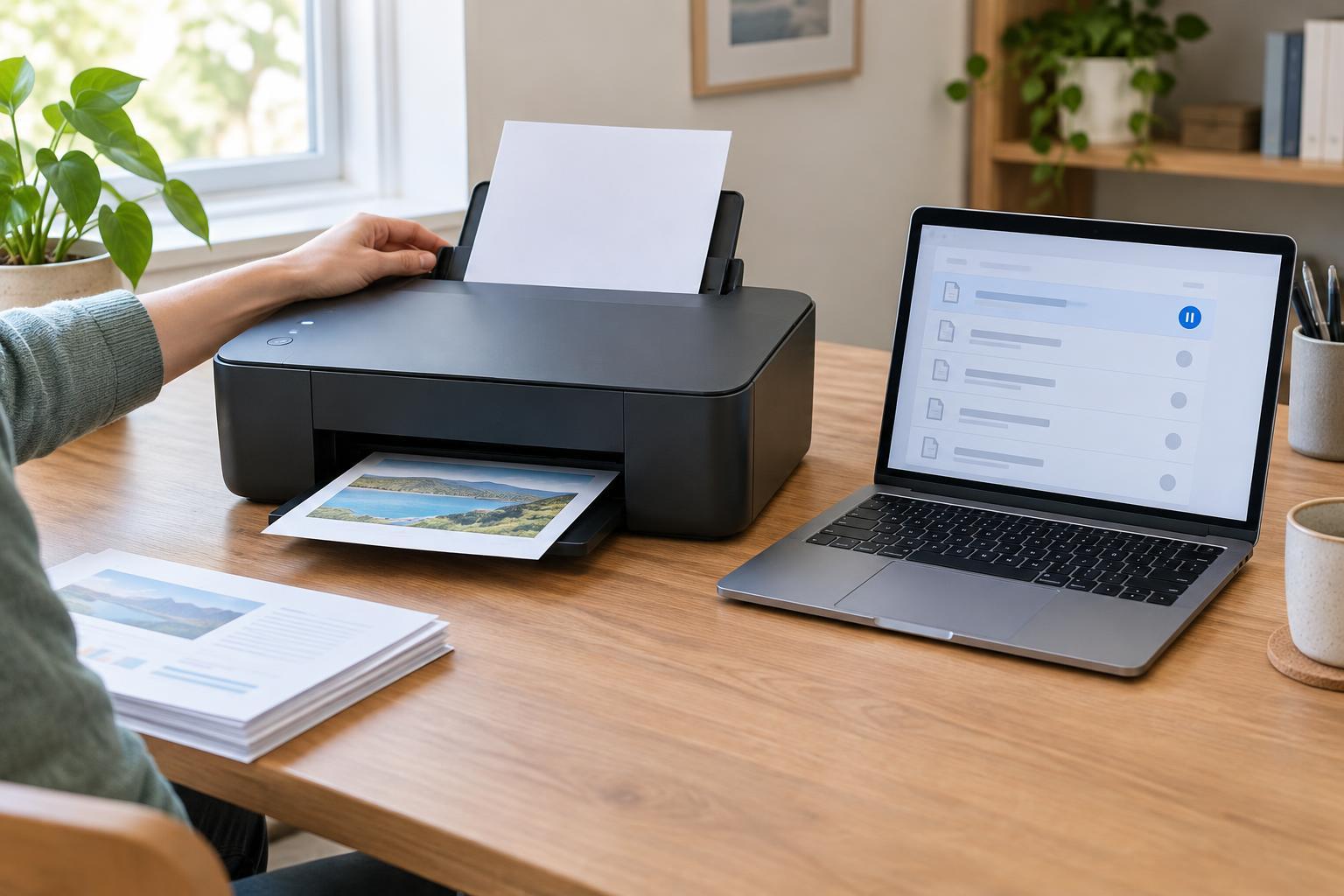
Open the printer’s queue and inspect the waiting jobs. A single troublesome document can hold up everything behind it. First try canceling that job, then send a simple one-page document as a test. If the queue is full of repeated attempts, cancel the duplicates so it is clear which test is new.
A cancellation may take a moment. If the job remains stuck, restart the printer and computer, then check the queue again. On a shared printer, ask other users before clearing every job; the queue may include documents they still need. If your computer offers a print service restart or a printer troubleshooter, those can be reasonable next steps, but clearing the entire queue should not be your first move.
If a test page prints but one particular file does not, the problem may be with that file or app rather than the connection. Close and reopen the document, check that the selected paper size matches what is loaded, and try printing a smaller page range. Keep the original file intact while you test.
Look for a connection or software pattern
If USB printing works but wireless printing does not, concentrate on the network connection. If several devices cannot print, check the printer’s network status and your router before changing settings on every computer. If only one computer has trouble, its saved printer entry or printing software is a more useful place to look.
Operating system updates, router changes and new printer settings can sometimes disrupt a previously working setup. Check for printer software or driver updates through your operating system’s update tools or the printer maker’s official support channels. If you remove and add the printer again, note its model and connection method first so you can select the correct device during setup.
Print a test page from the printer’s own controls, if it offers that option. Success suggests the printer can handle a basic job, though it does not prove the computer connection is working. If the printer cannot produce its own test page after you have addressed its displayed errors, consult its manual for device-specific steps.
Make the next interruption easier to solve
Once printing works, note what fixed it: a paused queue, the wrong printer selection, a loose cable or a lost Wi-Fi connection. That small record can save time if the same symptom returns. Keep the printer where you can reach its screen and paper path without moving cables each time you need to check it.
Treat an offline label as a clue, not a diagnosis. Checking the printer, connection, selected device and queue in that order helps separate a temporary stall from a recurring setup problem. If the issue persists, the exact message on the printer and the behavior of a simple test page will be more useful than another round of repeated print attempts.