Find out what is actually failing
Start by noting the pattern rather than repeatedly tapping the control button. Does one device disconnect, or do several fail at once? Does it happen in one room, at a particular time, or only when you are away from home? Try controlling the device from its own app, then from a voice assistant or automation. If the manufacturer’s app works but a voice command does not, the device’s connection may be fine; the problem could be with that integration instead.
Check whether the device is shown as offline or simply takes a long time to respond. An offline message points toward a lost connection, an unpowered hub, or an account or service issue. A delayed response may come from weak wireless coverage, a busy network, a slow automation, or an internet-dependent command. Keep these as possibilities, not diagnoses. A quick test across two devices can save you from resetting the wrong one.
Check power and the connection path
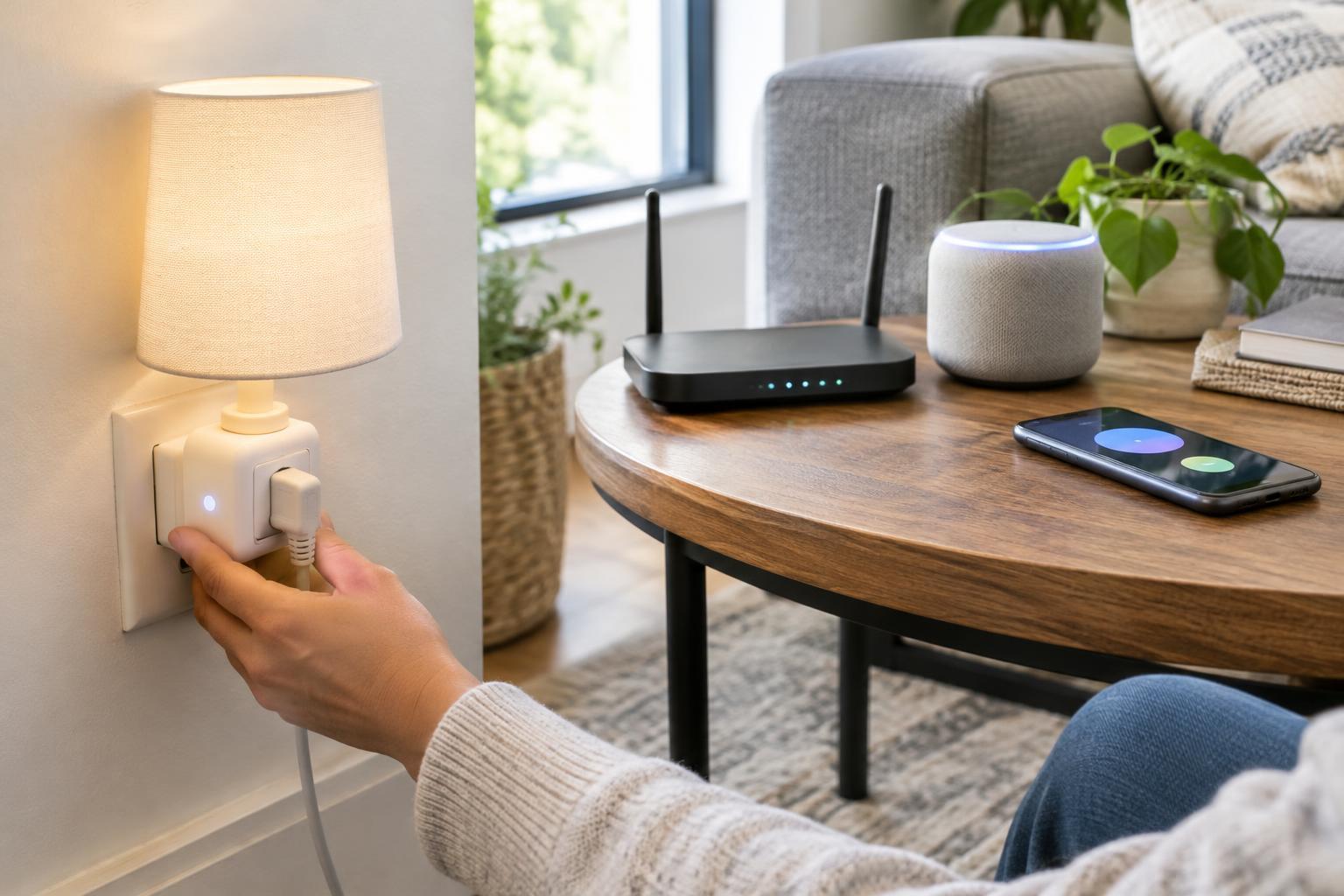
Confirm that the device has power before changing settings. Check a plug’s outlet, a bulb’s wall switch, or a sensor’s battery. If several devices stopped working together, check their shared equipment: the router, any smart home hub, and the internet connection. A simple restart of the affected device may restore it, but wait for it to reconnect fully before drawing conclusions.
Not every smart device connects directly to Wi-Fi. Some communicate through a hub using another wireless protocol. In that setup, moving the Wi-Fi router may not help a sensor that cannot reliably reach its hub. Check the product’s connection type and the path a command takes: controller or app, network or hub, then device. If a device works nearby but fails in its usual location, range or interference is more plausible than an app setting.
Improve Wi-Fi without changing everything
For Wi-Fi devices, look at the signal where the device is installed, not just beside the router. Walls, appliances, cabinets, and distance can weaken a connection. If possible, temporarily move a portable device closer to the router to see whether it becomes reliable. For a fixed device, try repositioning the router or a mesh node, while keeping equipment in an open, ventilated spot. Avoid making several changes at once; test after each adjustment so you know what helped.
Check the device’s setup requirements before changing network settings. Some smart devices require a 2.4 GHz Wi-Fi connection, even if your phone also uses a 5 GHz or 6 GHz band. A changed network name or password can leave devices trying to join the old network. If a device connects but often stalls, see whether the router reports a weak link or frequent reconnections. Router menus vary, so use your router’s documentation rather than assuming a particular setting is available.
Separate device delays from app and automation delays
Try a direct command in the device’s app, followed by the same action through an automation or voice assistant. If direct control is prompt but the automation is slow, review its triggers and steps. A routine that waits for another sensor, checks a condition, or contacts an online service may take longer than a direct command. If the device responds locally but not when you are away, check the internet connection and the app’s account status.
Look for available updates for the device, hub, router, and control app, and read any prompts before installing them. Updates can address connection problems, but they may briefly interrupt service. If trouble began after a setup change, review that change first. Also check that duplicate automations are not issuing conflicting commands, such as one routine turning a light on while another turns it off.
Reset only after simpler checks
If one device remains unreliable, remove it from power and restart it according to its instructions, then give it time to reconnect. Consult the manufacturer’s troubleshooting guidance before removing it from an app or performing a factory reset. A reset can erase pairing information and require you to rebuild scenes or automations. Record important settings first, and add the device back near its router or hub if its setup instructions recommend doing so.
When many devices fail together, focus on what they share rather than resetting each one. If only one device repeatedly fails while nearby devices remain stable, the issue is more likely to be specific to its power, placement, configuration, or hardware. Work from the simplest shared checks toward the most disruptive steps, testing one change at a time. That approach makes the eventual fix easier to identify—and less likely to create a second problem.