Start with one library and a safe copy
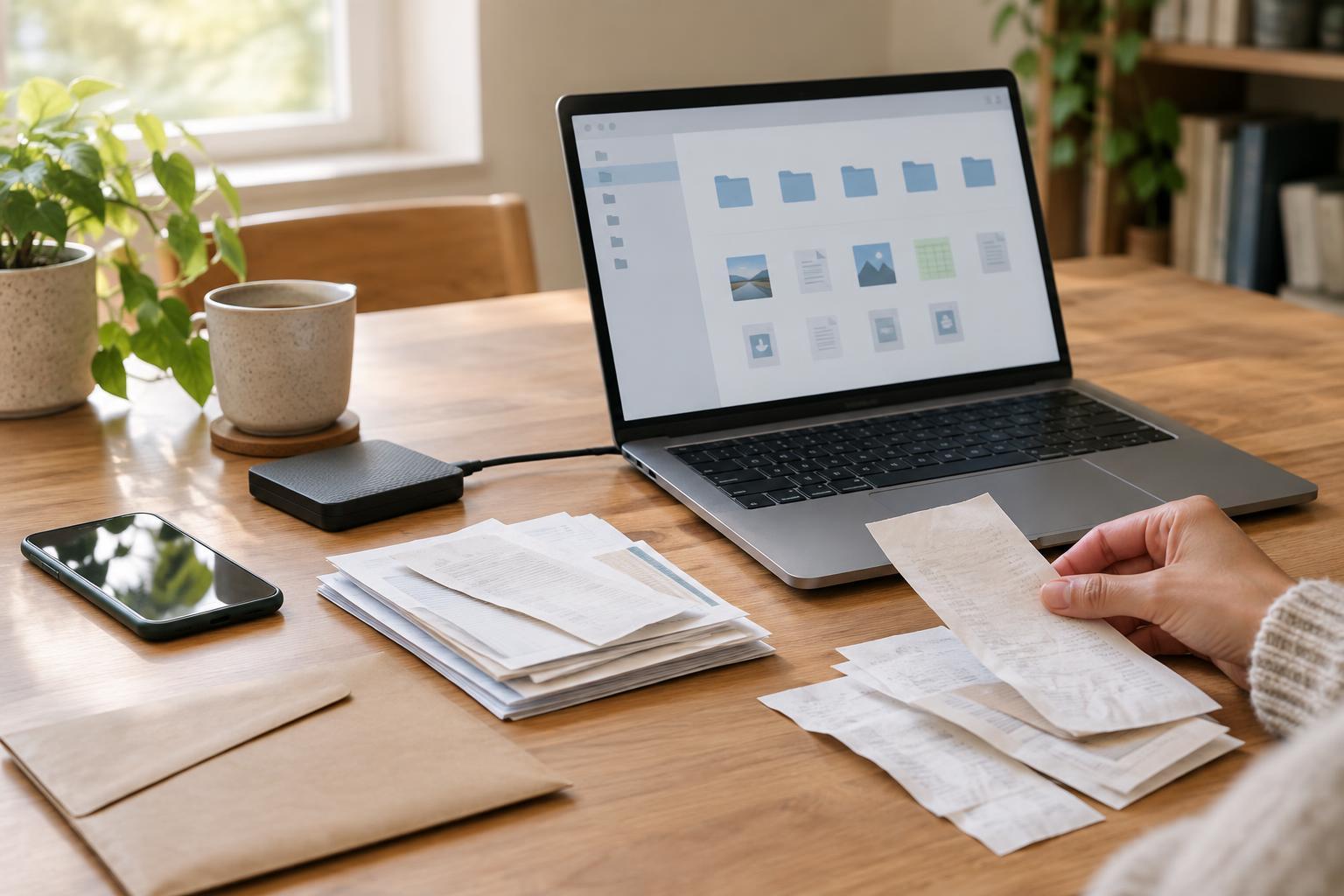
Before rearranging anything, decide where your main photo library will live. That might be a photo app, a folder on your computer or a service that syncs across devices. Try to avoid treating several partly overlapping collections as equally up to date. Choose one as the place where you add and organize photos, then work out how pictures from your phone, camera and other devices will reach it.
Make a backup before a large cleanup, especially if you plan to merge libraries or delete duplicates. Check that the copy includes original photo and video files, not just small previews. A sync service can make a library available on multiple devices, but a deletion may sync too; a separate backup gives you another way to recover files. Once that safeguard is in place, gather your photos into the main library in manageable batches. You do not have to sort every image before importing the next batch.
Let dates provide the basic structure
Dates are a useful starting point because cameras and phones usually record when an image was taken. In a photo app, a chronological view may already provide most of the structure you need. If you manage files in folders, a simple year-and-month arrangement is easier to maintain than a deep hierarchy of places, people and occasions. For example, a folder for a month can hold everyday pictures, while a clearly named event folder can hold a large trip or celebration.
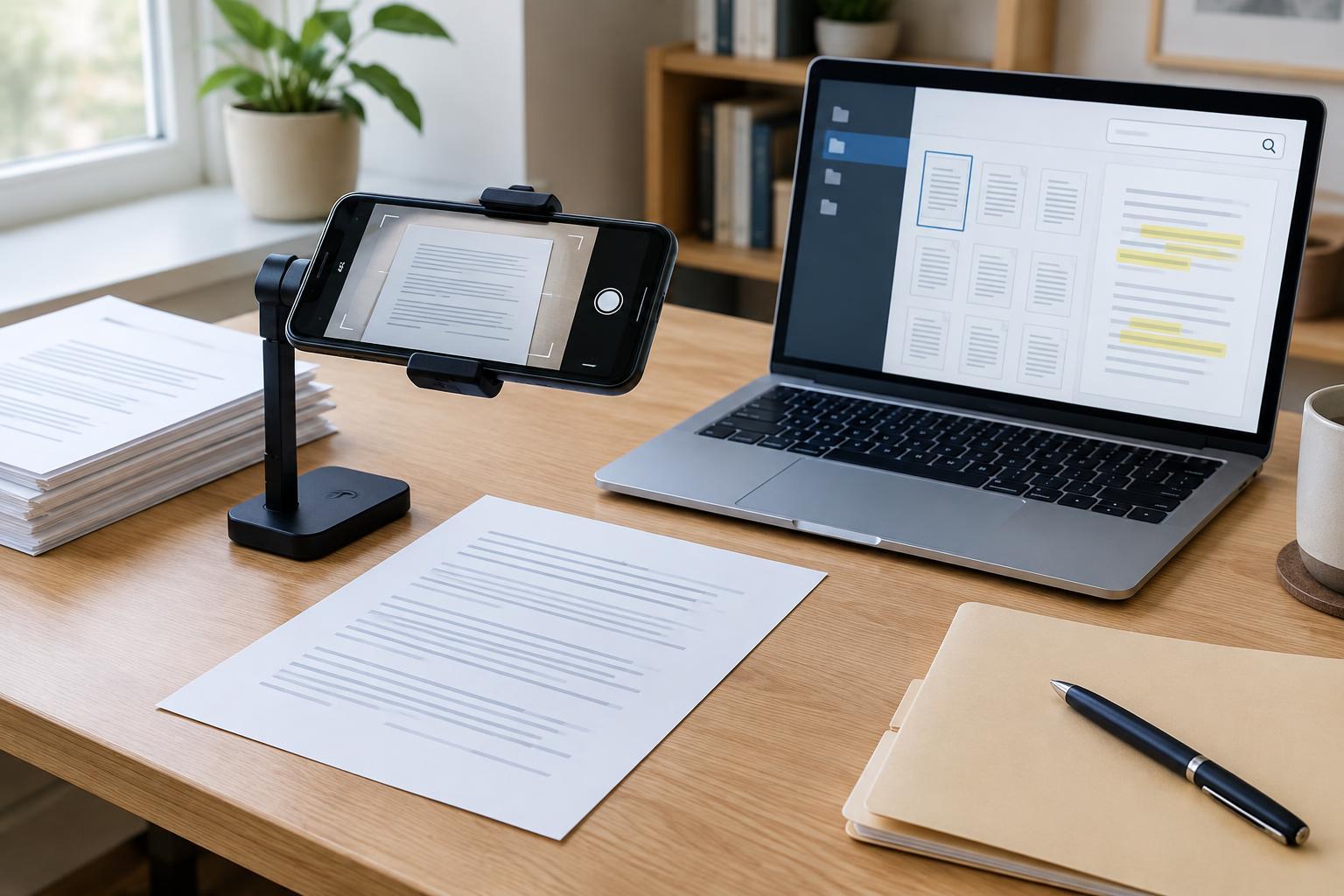
Check dates that look wrong rather than assuming every timestamp is accurate. Scans of printed photographs, downloads and images sent through messaging apps may show the date they were saved instead of the date of the scene. A camera with an incorrect clock can also put an entire group in the wrong place. Correct the date in your photo app if it supports that change, or keep uncertain images together and label the period as approximate. Consistency matters more than guessing an exact day.
Use albums for collections, not as a second filing job
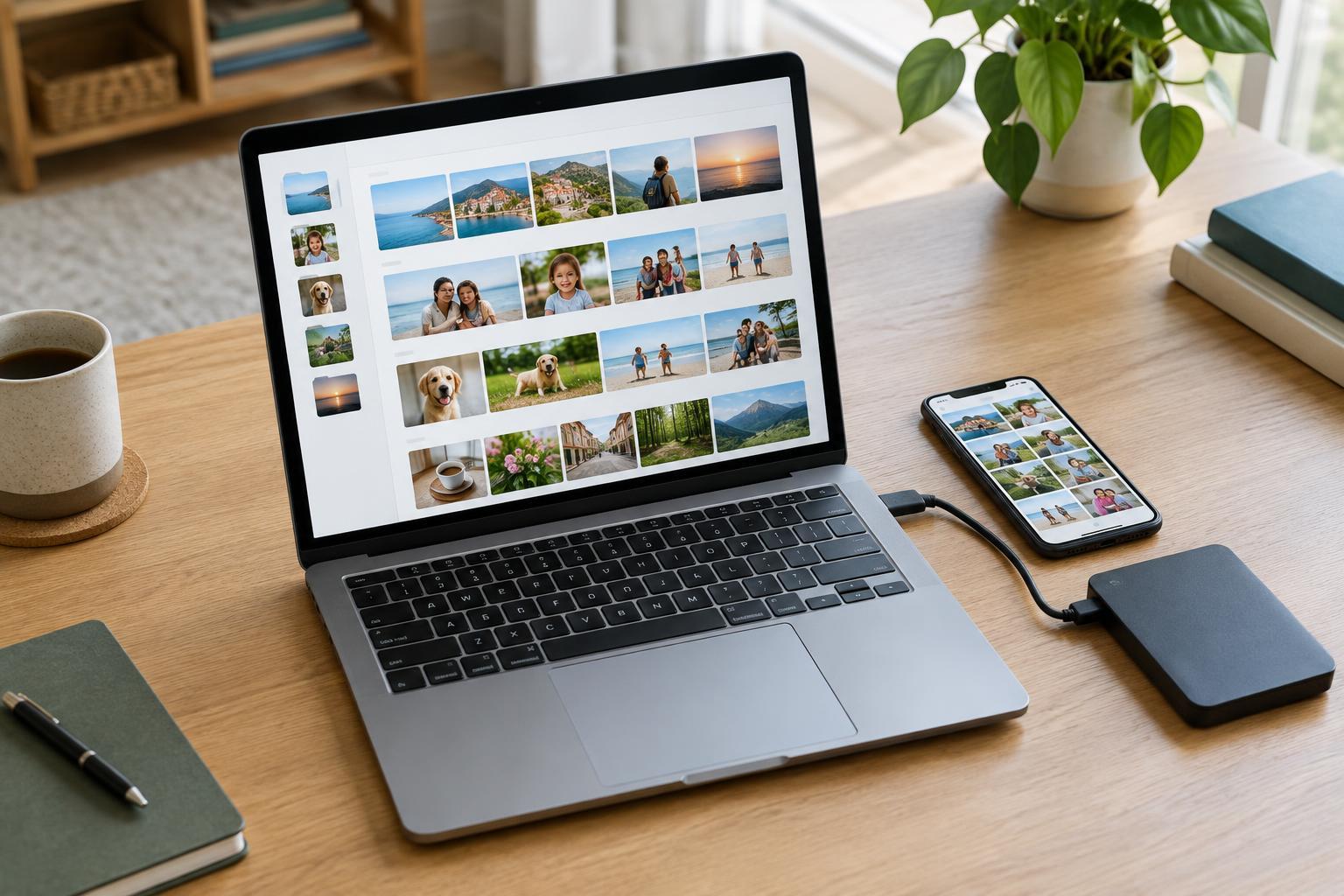
Albums are best for groups you expect to browse or share: a holiday, a home project, a child's school year or favorite pictures of a pet. In many photo apps, adding an image to an album does not move or duplicate the original; it creates another way to find it. Check how your chosen app handles albums before relying on that behavior, particularly if you also organize files in folders.
Name albums so they still make sense later. “Garden renovation 2024” is easier to recognize than “New album,” and a series such as “Family highlights 2023” and “Family highlights 2024” is easier to scan than many overlapping collections. You do not need an album for every outing. If you cannot imagine looking for a group by name, leave those pictures in the dated library. A small set of purposeful albums is more useful than an elaborate system that becomes another task to maintain.
Add searchable details where they help
Think of a photo you would struggle to find using its date alone. What words would you try? A person's name, a place, an event or an object can make a useful caption or keyword. Start with pictures that matter most, such as documents you are keeping for reference, milestones, travel memories or progress photos for a project. Short, consistent descriptions are enough: “Kitchen before cabinet painting” is more useful than a long account you will never finish writing.
Photo apps vary in what they can search and which details they preserve when files are exported. Some can recognize subjects or offer person and location grouping, but you should check their settings and results rather than assume they will identify everything correctly. If privacy matters, review whether features such as location recording, face grouping or cloud processing are enabled. For important collections, test a small export to see whether your captions or keywords travel with the files. An album name alone may not be enough context outside the app.
Keep the routine small enough to repeat
A sustainable routine beats a one-time sorting marathon. When new photos arrive, check that they landed in the main library, remove obvious accidental shots and verify that any unusual dates are correct. Add the best images to relevant albums and give a few hard-to-find pictures descriptive details. You can do this after a trip or project rather than trying to label every image as soon as it is taken.
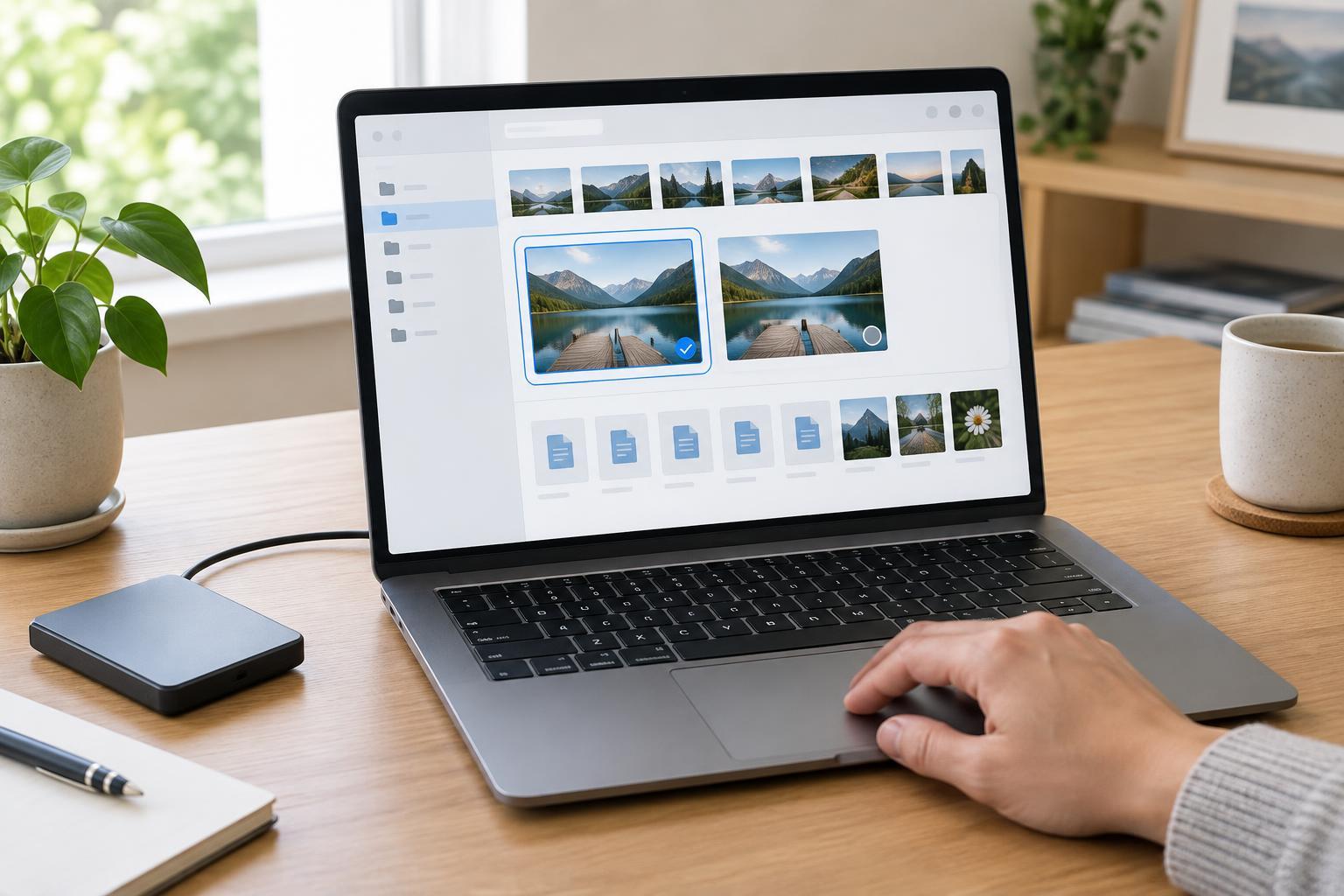
Be cautious with duplicates. Similar-looking burst photos may include one sharp image and several weaker ones, while files with the same scene may differ in resolution or editing. Compare them before deleting, and confirm that your backup is usable. Periodically search for an older photo using the words or album name you would naturally remember. If you can find it without knowing its exact filename, the system is doing its job. Adjust the parts that slow you down, rather than adding more rules.