Start with a recoverable copy
Before removing duplicates, make sure the files you care about exist somewhere outside the folders you plan to clean. A separate backup is safer than relying only on a computer’s Trash or a cloud service’s deleted-items folder. Check that you can open a few files from the backup, especially important photos, documents, and projects.
Choose a limited area for your first pass, such as one Downloads folder or a single photo export. Avoid scanning your entire computer and cloud drive together at the outset. A smaller search makes it easier to understand why copies exist and to notice when two folders serve different purposes.
If the folder syncs to a cloud service or another device, remember that deletion may sync too. Check the service’s recovery options before you begin, and allow any current uploads or downloads to finish. For shared folders, confirm that a file is not being kept there for someone else.
Know what kind of duplicate you have
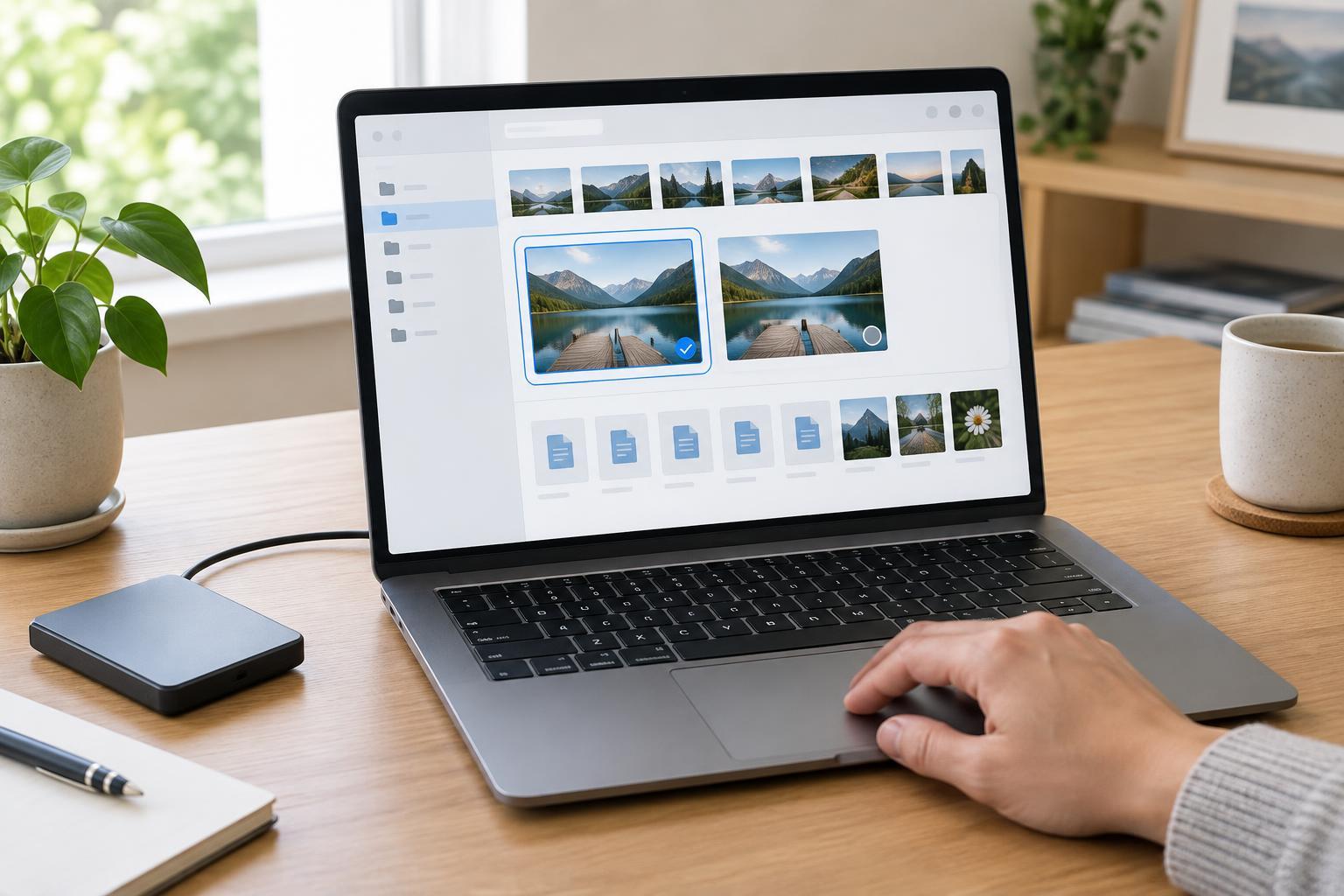
An exact duplicate contains the same file data as another file. Duplicate-finding tools may check size first and then compare file contents, sometimes using a file hash: a compact fingerprint calculated from the data. Matching names alone are not enough. Two files called “report.pdf” could contain different revisions, while identical files could have different names.
Lookalike files need more judgment. A resized image, a photo edited for printing, and its original may show the same subject without being interchangeable. The same goes for documents with small changes or videos saved at different quality settings. Treat these as related versions to review, not automatic deletion candidates.
Dates can help explain a file’s history, but they do not establish which copy is best. Copying or downloading a file can change its displayed date. A filename such as “final” is also only a clue. Open files when their contents or role are unclear.
Decide which copy belongs where
For each group of exact duplicates, look at the full folder paths before selecting one to keep. A copy in a well-organized project folder may be more useful than an identical copy in Downloads. On the other hand, a file in an app’s working folder might be needed by that app even if you have a copy elsewhere. When in doubt, leave app-managed folders alone and clean up personal folders you understand.
For photos and other creative work, preserve originals and intentional exports. An original may retain information or quality that a smaller sharing copy does not, while the export may still be useful for a specific task. For documents, check whether one version includes comments, formatting, or recent edits. Choose a primary location for the version you want to use going forward, then make sure it opens there.
You do not have to remove every duplicate. A second copy can be deliberate, such as a file placed in a folder for offline access. The goal is to remove confusing, unnecessary copies while keeping the files and workflows you rely on.
Delete in small, reviewable batches
A duplicate finder can gather candidates, but do not accept a “select all duplicates” choice without reviewing its rules. Prefer results that show full paths, sizes, and the basis for each match. Start with a handful of exact duplicates in a familiar folder. Keep a short note of anything you are unsure about rather than making a rushed choice.
Move unwanted files to Trash or a temporary review folder instead of permanently deleting them immediately. After a batch, open several retained files and check any projects or folders that depended on them. If everything behaves as expected, continue with another batch. Empty Trash or the review folder only when you are confident the cleanup is complete and your backup is usable.
Be especially cautious with files referenced by photo libraries, music managers, design projects, or other apps. Moving or deleting a file outside the app may break a link even when an identical copy remains elsewhere. If the app offers its own way to manage imports or duplicates, check that workflow before changing files in its folders.
Make future duplicates easier to manage
Give incoming files a predictable place to land. Review Downloads regularly, put active work in a consistent project folder, and name revised documents so their purpose is clear. Before importing photos or copying a large folder, check whether it is already in your library or backup.
A simple routine beats an occasional mass cleanup: identify a small folder, compare likely matches, keep the useful version, and remove only what you can account for. You will free up space where possible, but the bigger benefit is knowing which file to open the next time you need it.