Start with the problem you actually notice
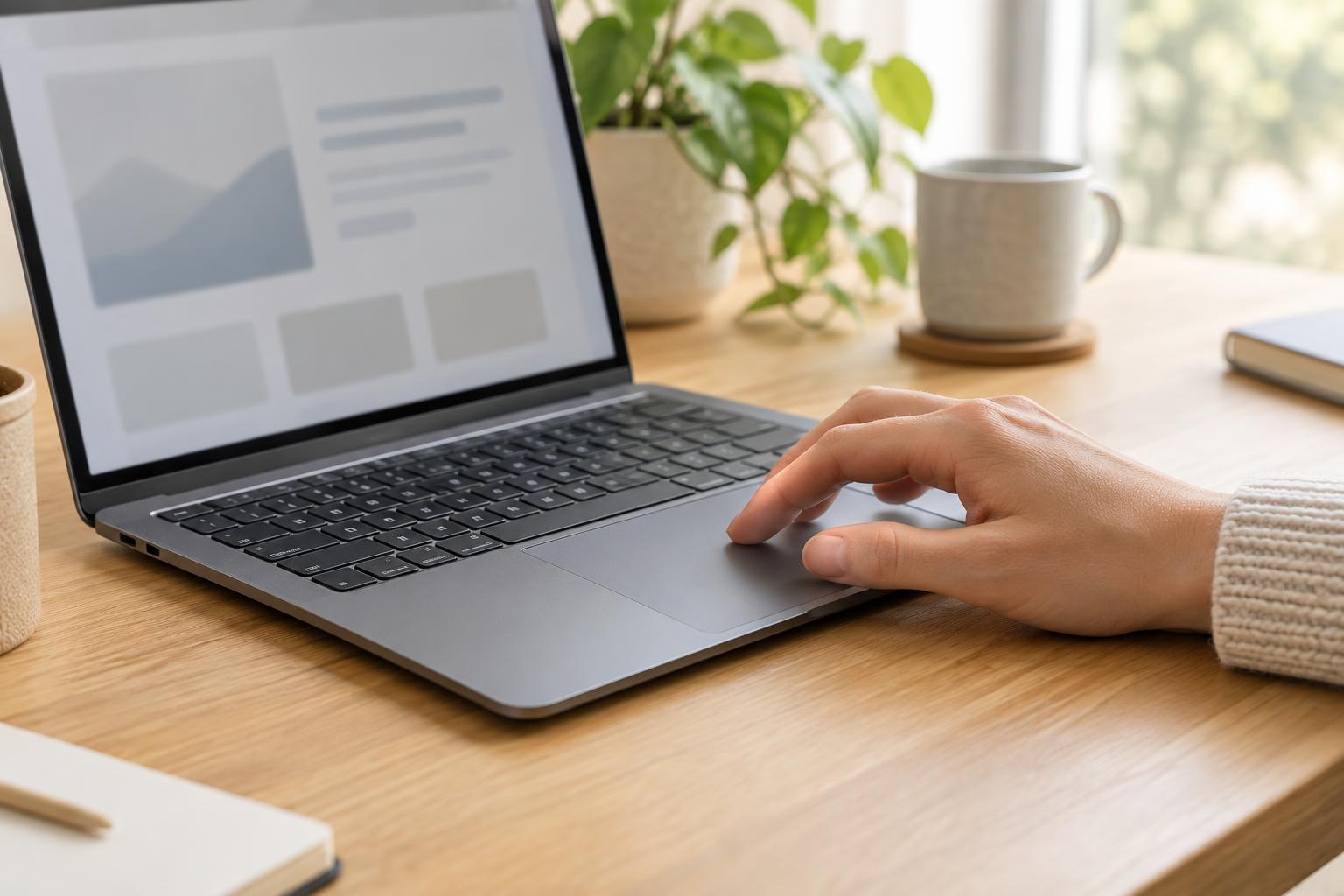
A touchpad can feel awkward in several different ways. The pointer may travel too far when you make a small movement, or it may take repeated swipes to cross the screen. You might accidentally open things while typing, struggle to drag a window, or scroll in the opposite direction from what you expect. Identify one symptom before changing settings so you can tell whether an adjustment helped.
Look for touchpad controls in your laptop’s system settings, usually under a section for mouse, touchpad or pointing devices. The names and available options vary by operating system and laptop. If you use an external mouse, check that you are changing touchpad settings rather than mouse settings. Make one change at a time and try it in a familiar task, such as moving between browser tabs or selecting a line of text.
Set pointer speed before changing gestures
Pointer speed determines how much the on-screen pointer moves for a given finger movement. If you frequently overshoot small buttons, lower it slightly. If crossing the display takes several swipes, raise it. Try both a short, precise movement and a trip across the screen after each change. A setting that feels fast when moving between windows may still be difficult when selecting text.
Some systems also offer acceleration, which changes pointer movement according to how quickly you swipe. It can make long movements easier without requiring as much finger travel, but it may feel less predictable if you prefer a consistent response. If your system lets you adjust it, compare the options during everyday use rather than judging them from a few quick swipes. Your preferred setting is the one that lets you reach targets reliably.
Choose how taps, clicks and drags should work
Tap-to-click lets a light touch act as a button press. It is convenient if pressing down on the touchpad feels tiring, but it can also cause unintended clicks when your finger brushes the surface. If that happens often, turn tap-to-click off temporarily and use a physical click to see whether the problem improves. Some laptops also let you change touchpad sensitivity or reduce input while you type.
Dragging deserves its own test. Depending on the laptop, you may be able to press and move with one finger, tap twice and hold on the second tap, or use one finger to hold a button while another moves the pointer. Try dragging a window or selecting a paragraph to find a method you can repeat comfortably. If your system offers a drag-lock option, check how you release it before relying on it.
Make scrolling and gestures predictable
Two-finger scrolling is useful once its direction feels natural. Many systems let you choose whether swiping down moves the page content down or moves your view farther down the page. Neither choice is universally right; pick the one that matches your expectations. Test it in a long document so you can focus on the page movement rather than the motion of the scroll bar.
Multi-finger gestures may switch apps, show open windows or change desktops. They can save time, but only if you can trigger them deliberately. Review the gestures your laptop supports and practice one or two you would use regularly. If a gesture keeps activating by accident, change or disable it where possible. You do not need every available shortcut enabled to have a capable touchpad.
Know when settings are not the answer
If the pointer skips, freezes or clicks without your input, first clean the touchpad gently with a soft cloth and make sure your hands and the surface are dry. Restart the laptop and test with an external mouse if you have one. If the mouse works normally while the touchpad does not, check whether the touchpad has been disabled by a keyboard shortcut or system setting. A system update or manufacturer-provided driver update may also be worth checking if the problem began after a software change.
Stop using the laptop and seek appropriate service advice if the touchpad appears raised, the case is bulging, or clicking has become difficult alongside a change in the laptop’s shape. Do not press a raised panel flat. Otherwise, if settings and basic checks do not help, note exactly when the problem occurs before arranging a repair. A clear description is more useful than repeatedly changing controls without knowing which symptom you are trying to fix.