Start with your hand, not the mouse label
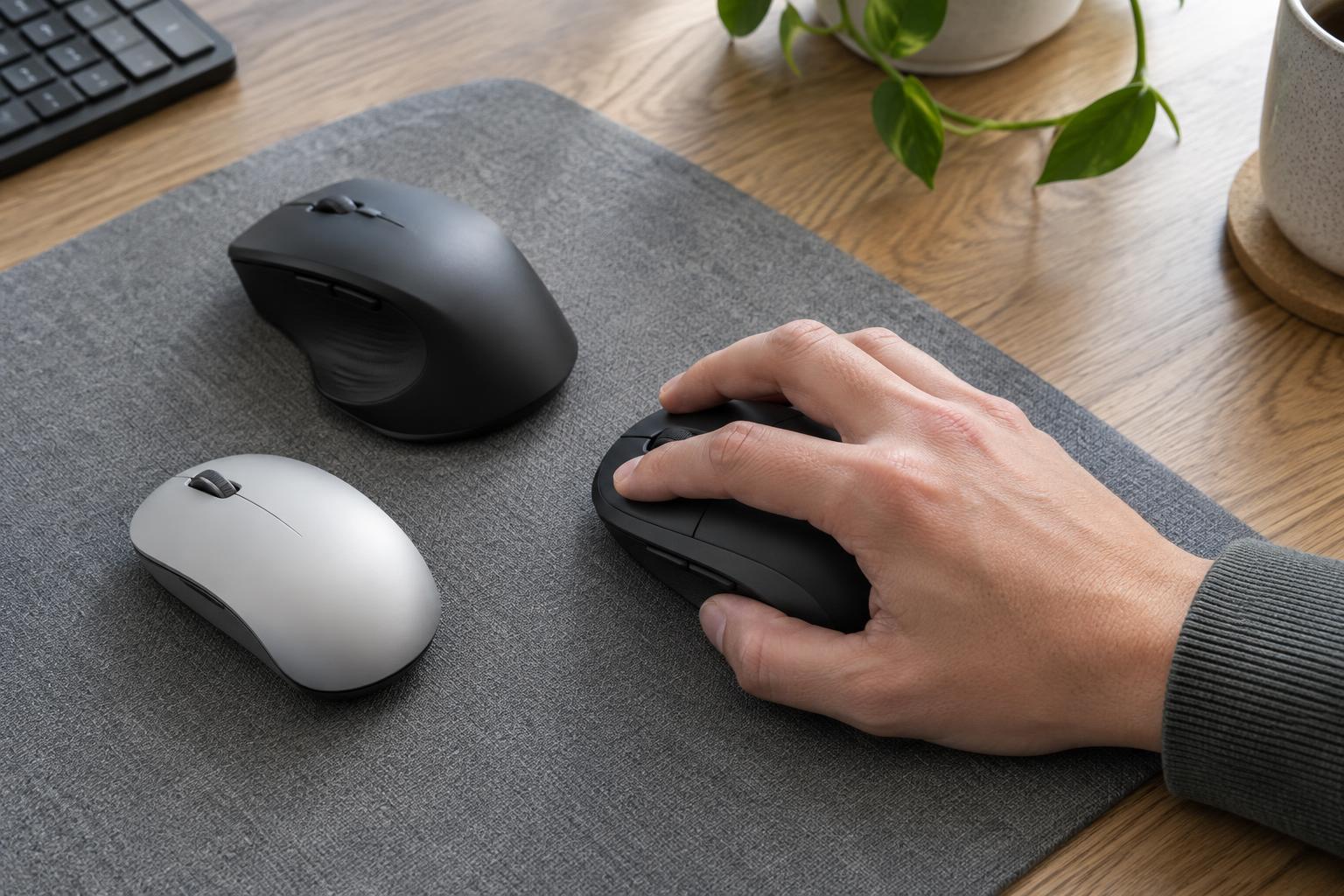
Labels such as “small” and “large” are a starting point, but they do not describe how a mouse will feel in your hand. If a maker lists dimensions, compare both length and width with a mouse you already use. Notice where your fingers land on the buttons and whether your thumb can rest against the side without reaching for it. The height and position of the mouse’s hump matter too: two models with similar footprints can support your palm very differently.
To get a useful reference, place your hand flat and measure from the wrist crease to the tip of your middle finger, then across the widest part of your palm. You do not need a precise formula that turns those measurements into a mouse size. Instead, use them to narrow your choices and read dimensions more critically. If your current mouse feels cramped, look for a little more length or width; if it makes you stretch to click or lift your hand awkwardly, consider a shorter or narrower shape.
Match the shape to how you hold it
With a palm grip, much of your hand rests on the mouse. A longer body and a hump in a comfortable position may offer more support. A claw grip keeps the palm partly raised while the fingers curve onto the buttons; the shape needs to leave room for that curve without making the buttons hard to reach. A fingertip grip moves the mouse mainly with the fingers, so a shorter, lighter-feeling shape may be easier to control. These are descriptions, not rules. Many people change their grip depending on the task.
Look closely at the sides as well as the top. Deep thumb grooves can help some hands find a consistent position but may feel restrictive if you shift your grip. An asymmetrical mouse is shaped for a particular hand, while a symmetrical shape may give you more ways to hold it. “Ambidextrous” describes shape only; check whether the buttons and software actually suit left-handed use if that matters to you.
If you can try a mouse in person, hold it as you would during an ordinary work session. Click, scroll, move it a short distance and lift it. Pay attention to where your thumb, ring finger and little finger go. A shape that looks comfortable in a product photo may feel quite different once those fingers need somewhere to rest.
Consider the surface and room to move
Your desk surface affects tracking and feel. A mouse pad provides a consistent area to move across and can help if a bare desk is glossy, uneven or easily marked. Optical mice generally work well on many ordinary, nonreflective surfaces, but performance can vary by sensor and material. Glass and highly reflective finishes are worth checking against the maker’s stated compatibility rather than assuming any mouse will track on them.
Also measure the usable area beside your keyboard. A wide mouse mat will not solve a cramped layout if the mouse still runs into a notebook or desk edge. If you prefer broad arm movements, leave more clear space. If space is limited, adjustable pointer sensitivity can let you move across the screen with shorter motions. Sensitivity settings are about finding control you like, not chasing the highest number printed on a box.
The bottom of the mouse matters on the surface you use. Smooth feet should glide without catching, while a very slippery combination may feel harder to control. If you regularly switch between a desk and a lap desk, consider where you will use the mouse most often and whether you are willing to carry a pad.
Choose features that fit your routine
Once the shape and surface are right, compare connections and controls. A wired mouse avoids charging or battery changes but adds a cable to the desk. Wireless models offer a tidier setup; check whether they connect by Bluetooth, a USB receiver or both, and whether your computer has the needed port. If you move between devices, an easy switching control may be more useful than a long list of programmable buttons.
Think about the controls you use every day. A scroll wheel that feels predictable, accessible back and forward buttons, and clicks you are comfortable hearing can matter more than extra features. Check whether button customization requires software and whether that software supports your operating system. For a travel mouse, size and easy storage may take priority; for a desk mouse used for long stretches, shape may deserve more weight.
Make the final choice with a simple test
Shortlist a few mice by dimensions, shape, connection and surface compatibility. Then compare them with the mouse you know, even if that comparison is based on what you dislike about it. When possible, try a candidate at a desk rather than judging it only from its packaging. Check the retailer’s return policy before buying, since a brief trial may not reveal how a shape feels during regular use.
There is no single best mouse for every hand. The useful choice is one you can reach and move comfortably, that tracks reliably on your workspace, and that has controls you will actually use. Start with those basics; treat unusual shapes and extra features as reasons to investigate, not as substitutes for a good fit.