Start with the laptop’s actual dimensions
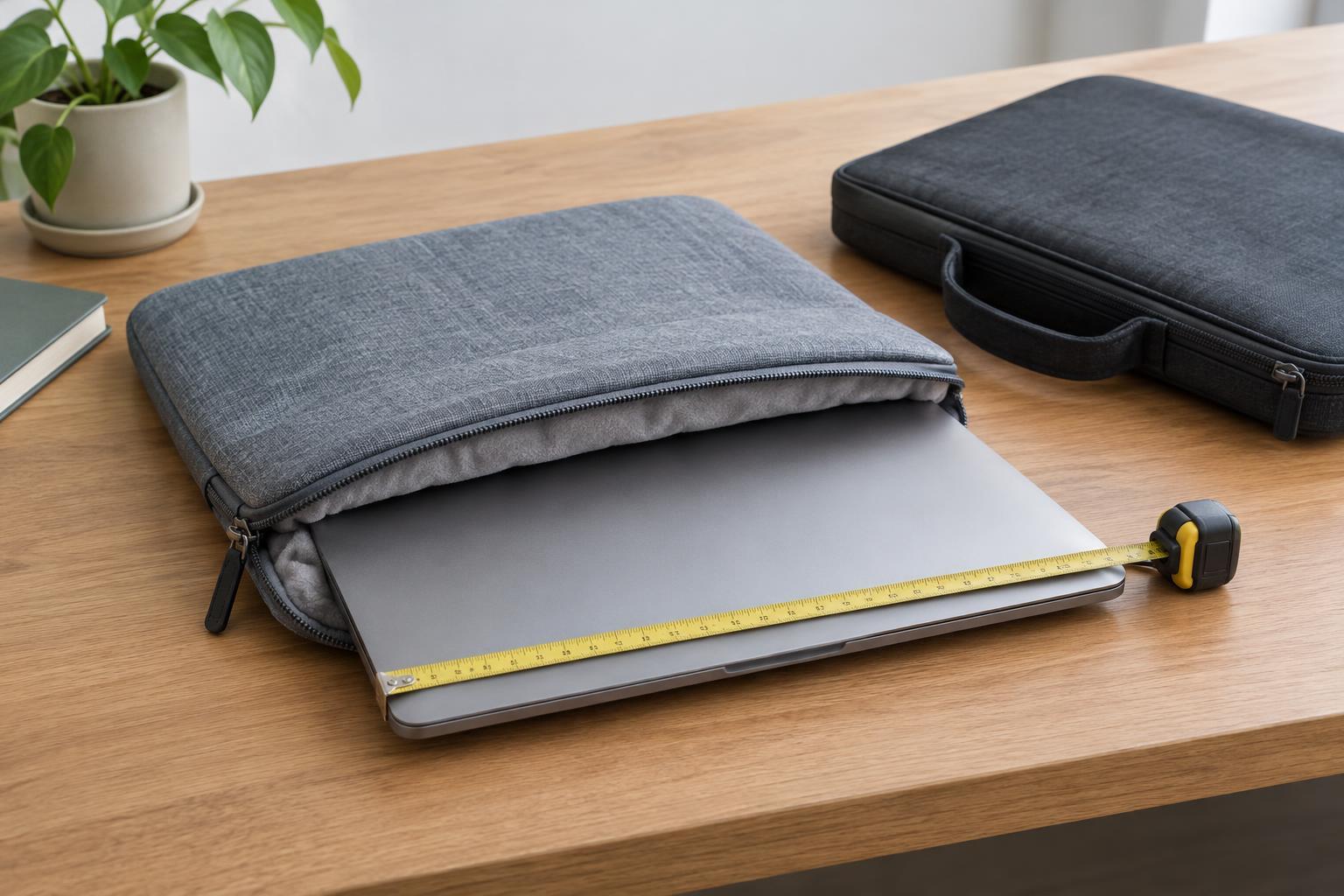
A sleeve labeled “13-inch” or “15-inch” may not fit every laptop with that screen size. The label usually refers to the screen’s diagonal measurement, while the sleeve must accommodate the laptop’s full width, depth and thickness. Look up your device’s dimensions or measure it when closed, including any permanently attached case. Then compare those numbers with the sleeve’s stated internal dimensions rather than its outside measurements.
Allow enough room to slide the laptop in without forcing the zipper or stretching the seams. Too much spare room has a downside, though: the device may shift inside a large sleeve. If a listing gives only a broad screen-size range, check whether it also provides an interior measurement or names compatible models. A snug fit is especially useful when the sleeve will ride inside a larger bag.
Match the padding to how you carry it
Think about what the sleeve will do during a typical day. Inside a backpack, it may mainly prevent scratches from keys, chargers and other items. Carried on its own between rooms or meetings, it may need more cushioning and a secure grip. Padding can help soften everyday bumps, but a sleeve is not a guarantee against damage from a drop or heavy pressure. Avoid placing a laptop where other belongings can bend or crush it.
Check how protection is distributed, not just whether a product is described as padded. Some sleeves have cushioned front and back panels but little material along the edges and corners. Others use a raised seam or a soft interior lining. A lining can help limit scuffs, provided it stays free of grit. If the laptop is part of a hobby or creative workspace, browsing Creative Downtime · Six Corners Journal may offer ideas for arranging the other items you carry alongside it.
Choose a closure and storage layout you will use
A zipper can keep the laptop from sliding out, but check that its teeth and pull are separated from the device by fabric or padding. A flap may be quicker to open, although its hold depends on the design. An open-top sleeve offers easy access when used inside another bag, but it gives the laptop less restraint if that bag tips over. Whichever style you choose, picture how you will remove the device while standing, sitting or working at a crowded desk.
Extra pockets are convenient for a slim notebook or cable, but they can change how the sleeve fits. A bulky charger pressed against the laptop may create an uneven surface or make the whole package awkward to carry. If you need to bring several accessories, a separate pouch may be easier to move between bags. For broader ideas on giving devices and accessories a consistent place at home, browse Home Organization · Six Corners Journal.
Check the carrying details before deciding
A sleeve with no handle is simple to tuck into a backpack. If you often carry it by itself, look at the handle’s position and how securely it is attached. A shoulder strap may free your hands, but confirm that its attachment points suit the weight of the laptop and anything stored in the pockets. Exterior fabric matters, too: a smooth surface may slide easily into a bag, while a textured one may be easier to grip.
Before buying, make a short checklist: your laptop’s dimensions, where the sleeve will travel, what else it must hold and whether you need a handle. That is more useful than choosing by screen-size label or appearance alone. Once you have a sleeve, periodically clear crumbs and grit from its interior and check that the closure still works smoothly. For more everyday reading beyond your device setup, you can explore Six Corners Journal.