Start with what you do and where the monitor will go
Before comparing specifications, decide what the monitor needs to do. Reading documents, editing photos, watching video and playing fast-paced games place different demands on a screen. Make a short list of your main uses, your computer’s available ports and the space on your desk. This keeps an appealing feature from distracting you from a poor physical fit.
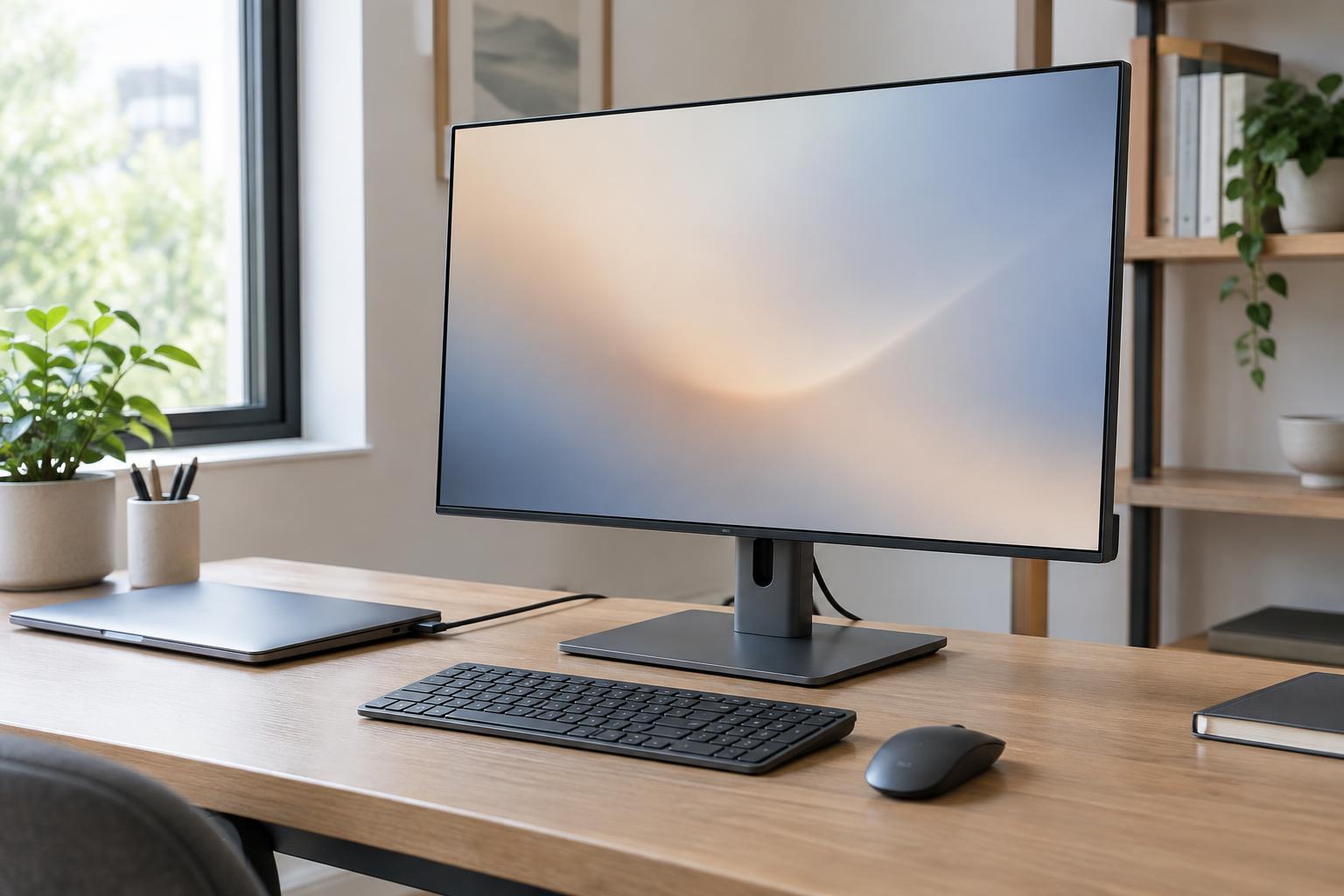
Screen size is measured diagonally, but the width of the display and its stand determine whether it fits. Check the manufacturer’s dimensions rather than relying on the advertised diagonal. Allow room for a keyboard, speakers and anything else that must remain on the desk. Also consider viewing distance: a larger screen may be useful for side-by-side windows, but it can feel awkward if you must sit very close to see its edges. A stand with height adjustment makes it easier to position the screen comfortably; if you plan to use a monitor arm, check for VESA mounting support and the monitor’s weight.
Match resolution to screen size
Resolution tells you how many pixels the display contains. More pixels can make text and fine details look sharper and provide more room for windows, but resolution alone does not tell the whole story. The same resolution looks denser on a smaller screen than on a larger one. For a typical desk setup, 1080p can be a practical budget choice on a smaller monitor, while 1440p often gives a useful balance of detail and workspace on a mid-sized screen. A 4K display offers finer detail, particularly at larger sizes, though you may need to increase the operating system’s display scaling to keep text comfortable to read.
Scaling makes interface elements larger without changing the panel’s physical resolution. It is worth checking how well the applications you use handle scaling, especially if you connect the monitor to an older computer. Higher resolution also asks more of a computer when it renders games. If gaming matters, consider whether your computer can produce the frame rates you want at the monitor’s native resolution. For everyday office use, prioritize readable text and a comfortable working area over choosing the largest pixel count on the box.
Understand what panel type does—and does not—tell you
Panel type is a useful starting point for comparing monitors, not a guarantee of image quality. IPS panels commonly offer consistent colors and wide viewing angles, which can be helpful when you move around or share the screen. VA panels typically provide stronger contrast, so dark scenes may appear deeper, although motion handling varies by model. TN panels are less common in general-purpose buying guides; they may be inexpensive or fast, but viewing angles and color consistency can be less appealing. OLED panels can show very deep blacks and fast pixel response, but they often cost more and carry some risk of image retention or burn-in with prolonged static content.
Look beyond the panel label if color or motion is important to you. Specifications such as color-gamut coverage and brightness describe different qualities, and a wide color-gamut claim does not by itself mean a display is accurately calibrated. Likewise, a fast advertised response time may describe a particular setting rather than how the monitor behaves in ordinary use. Compare clearly stated features first, then seek independent measurements if a specific performance claim will determine your purchase.
Choose a refresh rate that suits your use
Refresh rate, measured in hertz, describes how often a monitor can update its image. A 60 Hz display is adequate for many document, browsing and video tasks. A higher refresh rate, such as 120 Hz or 144 Hz, can make scrolling and pointer movement look smoother and is especially useful for games. To benefit fully in a game, your computer must be able to deliver enough frames, and the connection must support the chosen resolution and refresh rate together.
If you play games, check whether the monitor supports a variable refresh rate compatible with your computer or console. This feature can help reduce visible tearing when frame rates change. Do not treat refresh rate as a substitute for good motion performance: a high number cannot guarantee that moving objects will look clear. For a work-first monitor, you may get more everyday value from better adjustment, sharper text or the right ports than from the highest refresh rate available.
Check the connections and total setup before buying
Confirm that the monitor has inputs that match your devices, such as HDMI or DisplayPort. If you want one cable between a laptop and monitor, look for USB-C video support and, if needed, power delivery with enough wattage for your laptop. A USB-C port does not automatically provide every one of those functions. If you will connect multiple devices, count the inputs you need and consider how easily you can switch between them.
Finally, compare the complete setup rather than the screen alone. A monitor with a basic stand may need an arm to reach a comfortable height; a laptop may need a compatible cable or adapter. Check those costs alongside the display’s price. The best choice is the one that fits your desk, connects reliably to your devices and improves the tasks you perform most often—not necessarily the model with the longest specification list.