Start with the documents you actually keep
The best folder structure is not the most detailed one. It is the one you can use when you are tired, in a hurry, or saving a file from your phone. Before creating folders, look at a sample of your existing documents: bills, receipts, identification scans, home records, school forms, and anything else you regularly need to retrieve. Notice which items you search for by subject and which you search for by year. Those habits are better guides than an elaborate template.
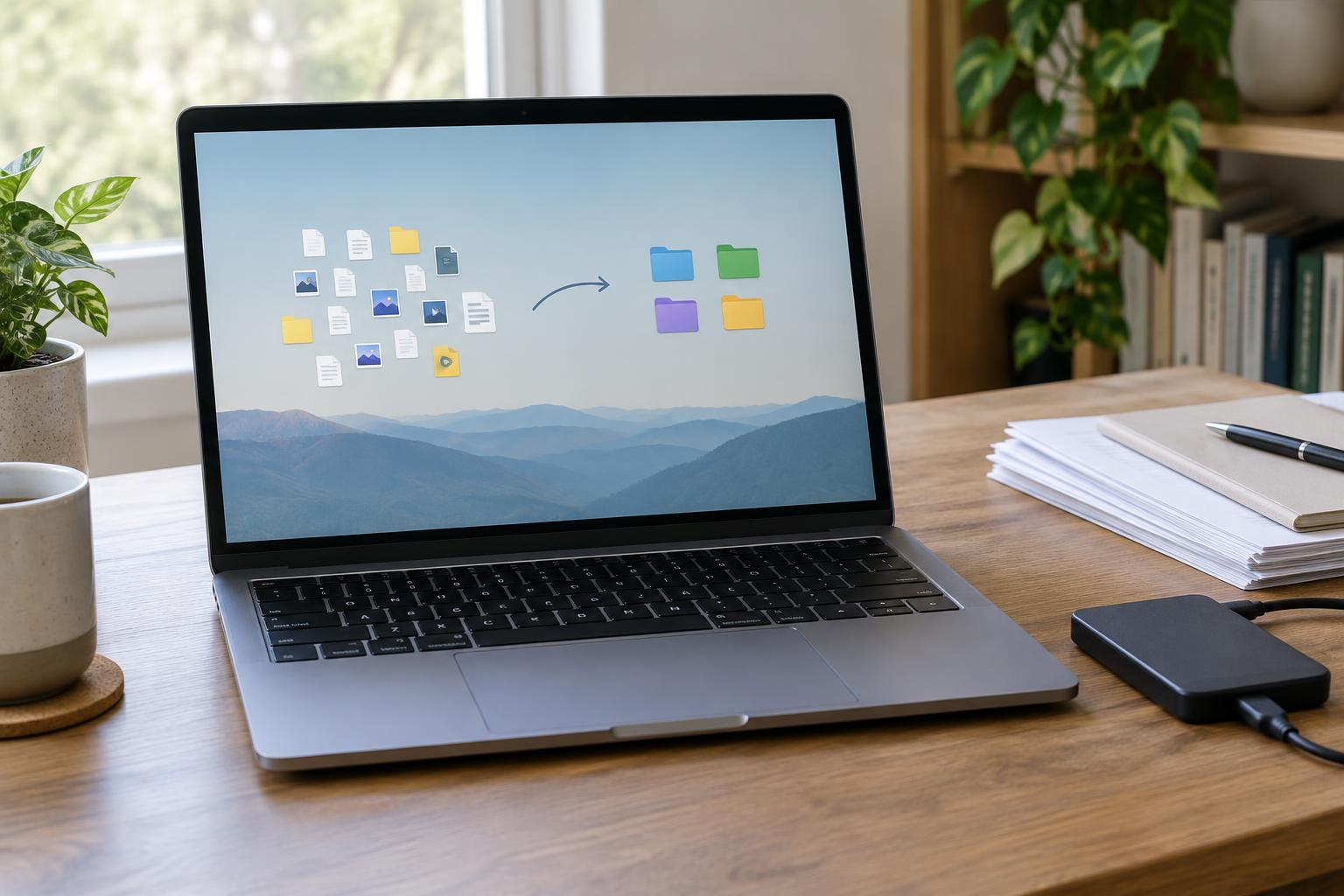
Choose one main location for personal documents, such as a folder on your computer or in a cloud storage service. If files are currently scattered across devices, do not feel obliged to sort everything at once. Establish the new structure first, then move older files into it in manageable batches. Keep a copy of the originals until you are confident the move worked.
Use a few broad folders with clear boundaries
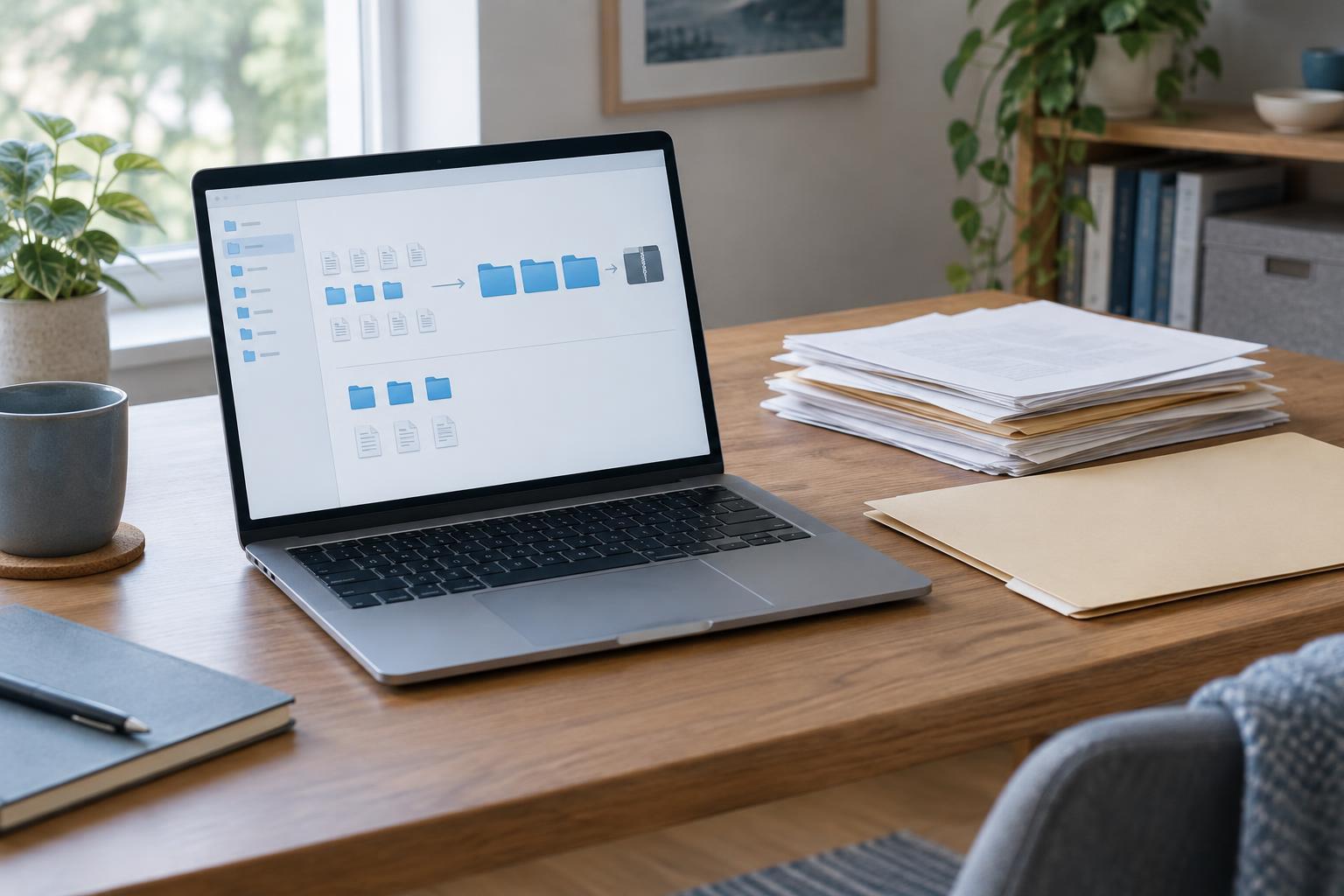
Begin with categories that reflect areas of your life. A starting set might be Home, Money, Work, Health, Education, and Personal Records. Add or rename categories to fit your circumstances. The important test is whether you can usually decide where a document belongs without opening several folders to compare them. If a category holds only one or two files, it may not need its own top-level folder.
Add subfolders only when a folder becomes difficult to scan. Home might eventually contain Housing, Utilities, and Appliances; Money might contain Banking, Taxes, and Purchases. Avoid building many empty levels in advance. Deep paths take longer to navigate and can make saving a document feel like a decision tree.
Some documents reasonably fit in more than one place. Pick one primary home rather than storing multiple copies that may later disagree. For example, keep an appliance warranty with Appliances even if its receipt could also fit under Purchases. If a different arrangement feels more natural to you, use that instead; consistency matters more than a universal rule.
Make file names do some of the finding
Folders provide context, but descriptive file names help when you search or view a list of results. A practical pattern is date, subject, and document type: “2025-03 Electricity bill” or “2024 Laptop purchase receipt.” Use the date shown on the document when it matters, and write dates in year-month-day order if you want names to sort chronologically. You do not need every field in every name; include enough to distinguish similar files.
Avoid vague names such as “scan001” or “final,” especially for documents you may need months later. When you download a file, rename it before you forget what it is. If a document has several versions, add a meaningful label such as “signed” or “submitted” rather than accumulating files called “final2” and “final-new.” Searchable text in a PDF can also help retrieval, but a clear name is useful even when the file’s contents cannot be searched.
Give new files an easy route into the system
Create an Inbox folder for files you have not classified yet. It is a landing spot, not permanent storage. Save downloads and scans there when you cannot sort them immediately, then review it on a schedule you can sustain, perhaps alongside another household admin task. During each review, rename files, move them to their homes, and delete duplicates or downloads you no longer need.
It also helps to decide what to do with completed or older material. You might keep current documents in each category and add an Archive subfolder for past years or finished projects. Archive by year only where that makes retrieval easier; a single old warranty does not require an annual folder. Keep records for as long as they are useful or required for your circumstances, rather than applying one retention rule to every kind of file.
Protect the system without making it harder to use
Organization and backup solve different problems. A neat folder structure will not recover files from a lost device or an accidental deletion. Keep a separate backup and check occasionally that you can open a file from it. If you sync documents between devices, remember that synchronization may also carry deletions and unwanted changes across them; check what recovery options your service provides.
Treat sensitive documents with extra care. Use strong account protection, limit sharing, and avoid putting confidential details in file names if those names might appear in notifications or shared views. Finally, allow the structure to change. If you repeatedly hesitate over where to save a file, that is a sign to rename or combine folders. A maintainable system should fit your decisions, not demand new ones every time you use it.