The difference starts with the job each tool does
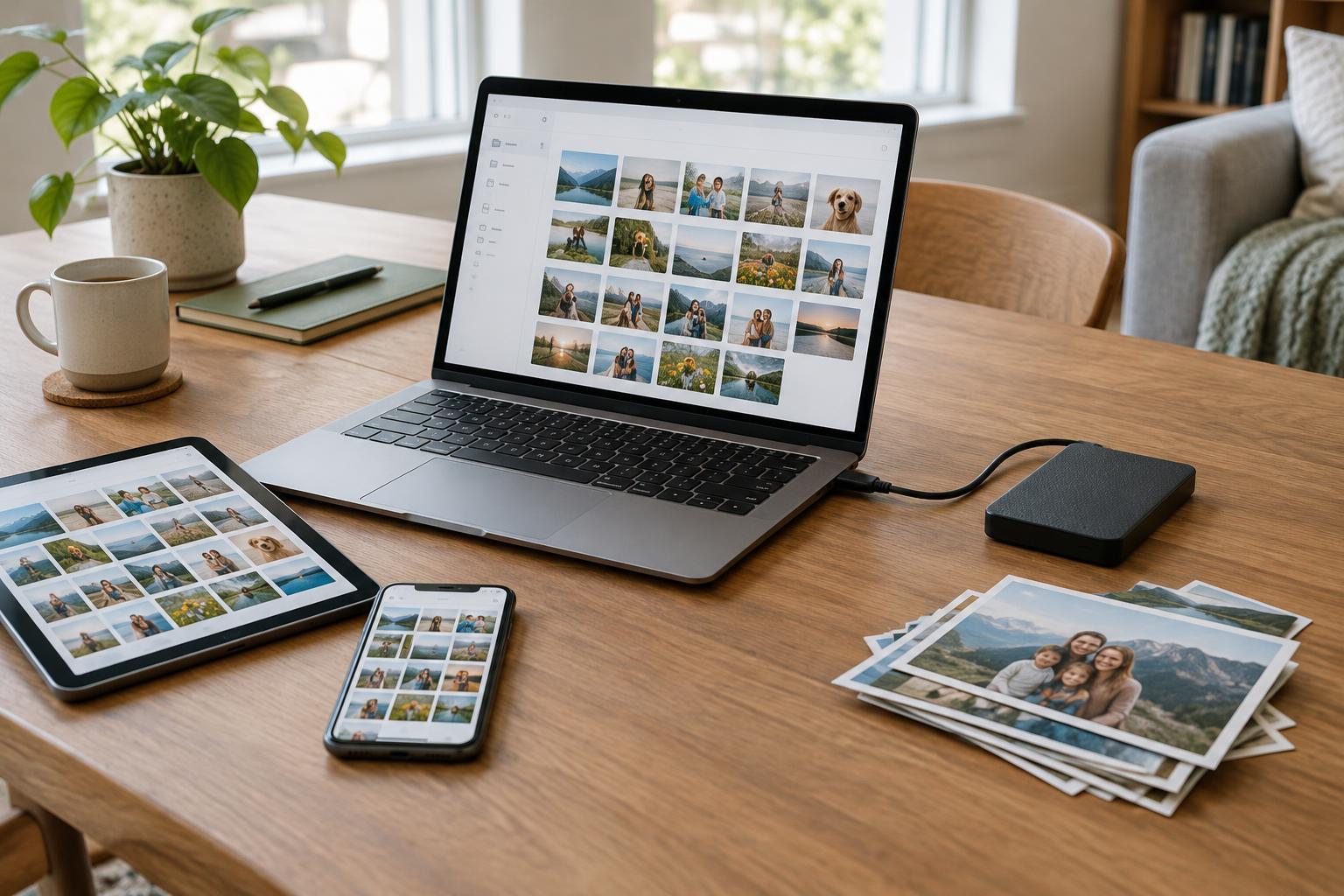
Cloud sync is designed to keep a set of files consistent across devices. Edit a document on your laptop, and the updated version can appear on your phone. Add a photo to a synced folder, and it may become available on another computer. This convenience makes sync useful for work in progress, shared folders and files you need in more than one place.
Backup has a different goal: preserving a recoverable copy of your data. A good backup lets you retrieve files after a device fails, a folder is deleted or an earlier version is needed. It does not have to make every change immediately available everywhere. In fact, some separation from your everyday files is part of what makes a backup valuable.
The distinction matters because a synced copy is not always an independent safety copy. If you delete a file from a synced folder, that deletion may reach every connected device. Sync services often offer a trash folder or version history, but how long those options remain available depends on the service and plan. Treat them as helpful recovery features, not as your entire backup strategy.
What can go wrong with sync alone
Imagine that you accidentally replace a finished document with an incomplete draft. Sync may promptly distribute the mistake. Or a device problem could corrupt files in a folder that is then synced elsewhere. If harmful software changes files on a computer, those changed files may also be uploaded. Sync is doing its job in each case: making locations match.
Cloud storage can still provide meaningful protection. A synced file may survive the loss of one device, and some services let you restore deleted files or older versions. Those features vary, though, and they may not cover every folder you care about. Photos, downloads, project files and app data can live in different places. Before relying on a service, check which folders it actually includes and what its recovery options cover.
What a backup adds
A backup gives you another path to recovery, ideally one that is less exposed to changes in your active files. An external drive can hold periodic copies of a computer’s folders. A dedicated cloud backup service can copy selected data to a separate account or storage system. Either approach can help, provided it includes the right files and keeps copies long enough to be useful.
No single backup destination addresses every risk. A drive kept beside a laptop could be damaged or lost with it. A cloud backup depends on account access and an internet connection for recovery. Using more than one destination, with at least one copy separate from your main device and everyday sync folder, reduces your dependence on any one device or service.
Backups also need maintenance. A drive that has been disconnected for months will not contain recent work, while a backup job that repeatedly fails may offer less protection than you expect. Choose a schedule you can sustain, check for errors and occasionally restore a file to confirm that the copy is usable.
Build a simple setup around your important files
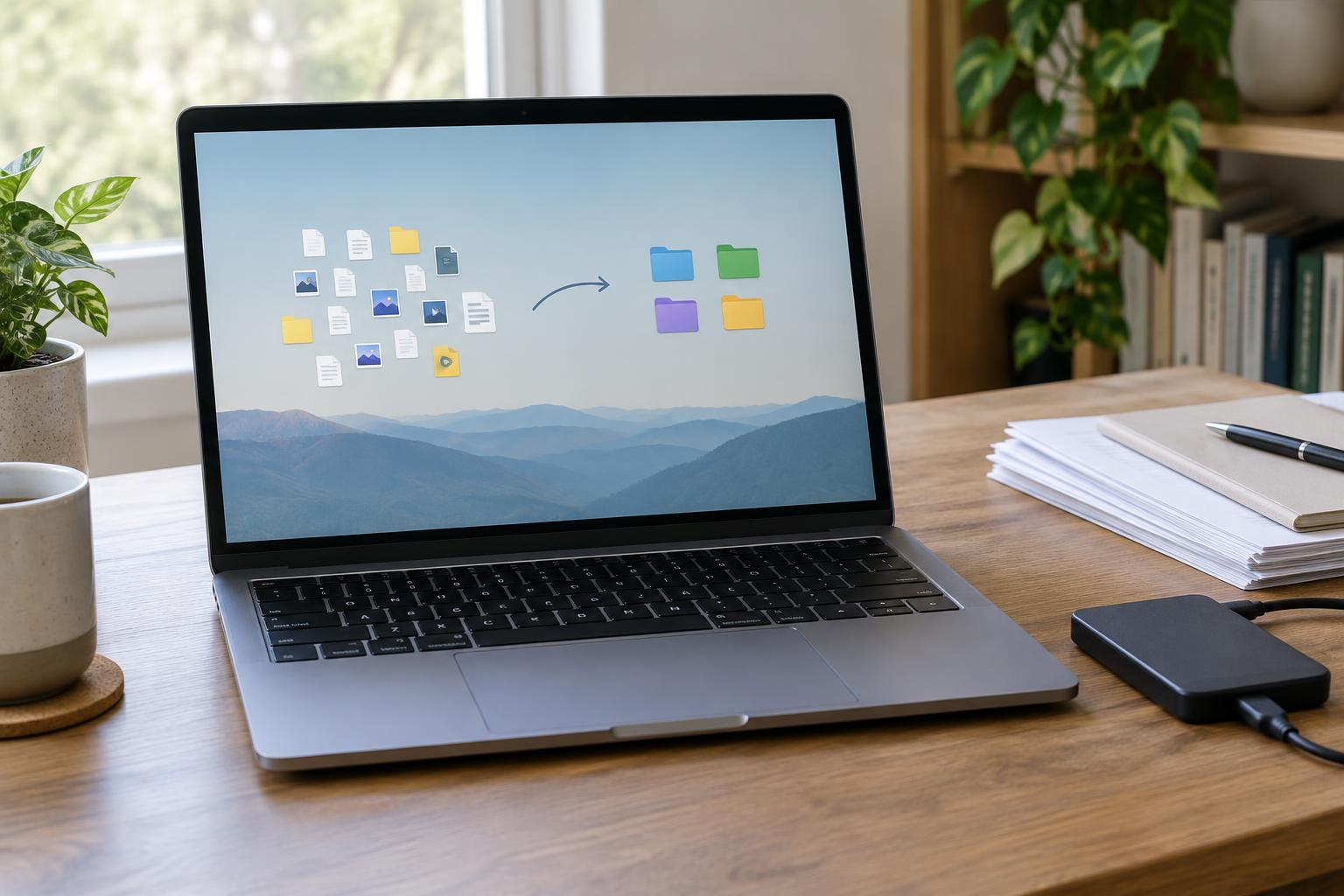
Start by identifying what you would miss most: personal photos, documents, creative projects and files that would be difficult to recreate. Note where they live before choosing tools. A file stored only on a phone, for example, will not be protected by a backup that covers only your computer.
Use sync for files you want to access or edit across devices. Then arrange a separate backup for those files and any important folders outside the synced area. This could be a regularly updated external drive, a dedicated backup service or both. If your backup software has settings for older file versions, review them so you understand how far back you could recover a change.
Keep the routine manageable. Automatic backup is easier to maintain than a task you must remember every week, but automation is not a substitute for checking results. Review your setup after adding a new device, moving folders or changing cloud accounts. Protect the accounts involved with strong, unique passwords and available sign-in safeguards; access to an account can affect both convenience and recovery.
Know what you would do on a bad day
A short recovery check can reveal gaps before you need the system. Pick a noncritical file, locate it in your backup and restore it somewhere other than its original folder. Confirm that it opens, then check whether you can find an older version or a deleted file using the tools you plan to rely on.
Sync and backup work best as partners. Sync helps you continue using your files across devices; backup gives you a way back when the current copies are wrong or unavailable. You do not need an elaborate setup to benefit from both. You need to know which files are covered, where an independent copy lives and how to restore it.