Start with the job each storage option does best
Cloud storage keeps files on a provider’s systems and lets you reach them through an app or web browser. It is convenient when you use several devices, share documents or want changes to appear on your phone and computer. Its usefulness depends on your connection, available storage space and the rules of the service you choose.
Local storage keeps files on a device you control, such as your computer’s internal drive or an external drive. It gives you direct access without an internet connection and can be practical for large collections that you do not need everywhere. But a file kept only on one laptop can disappear with a failed drive, accidental deletion or a lost device.
The better question is not which location should hold every file. It is which files need easy access across devices, which need fast offline access, and which need a separate copy for recovery. Many households will find that a combination is simpler than trying to make either option do everything.
Choose a home for each type of file
Put active documents in a cloud-synced folder if you regularly switch devices or collaborate with someone else. Check that the folder is available offline if you need it while traveling or during an outage. If a document is especially sensitive, consider whether you need it in the cloud at all and review the provider’s sharing and account-security settings before uploading it.
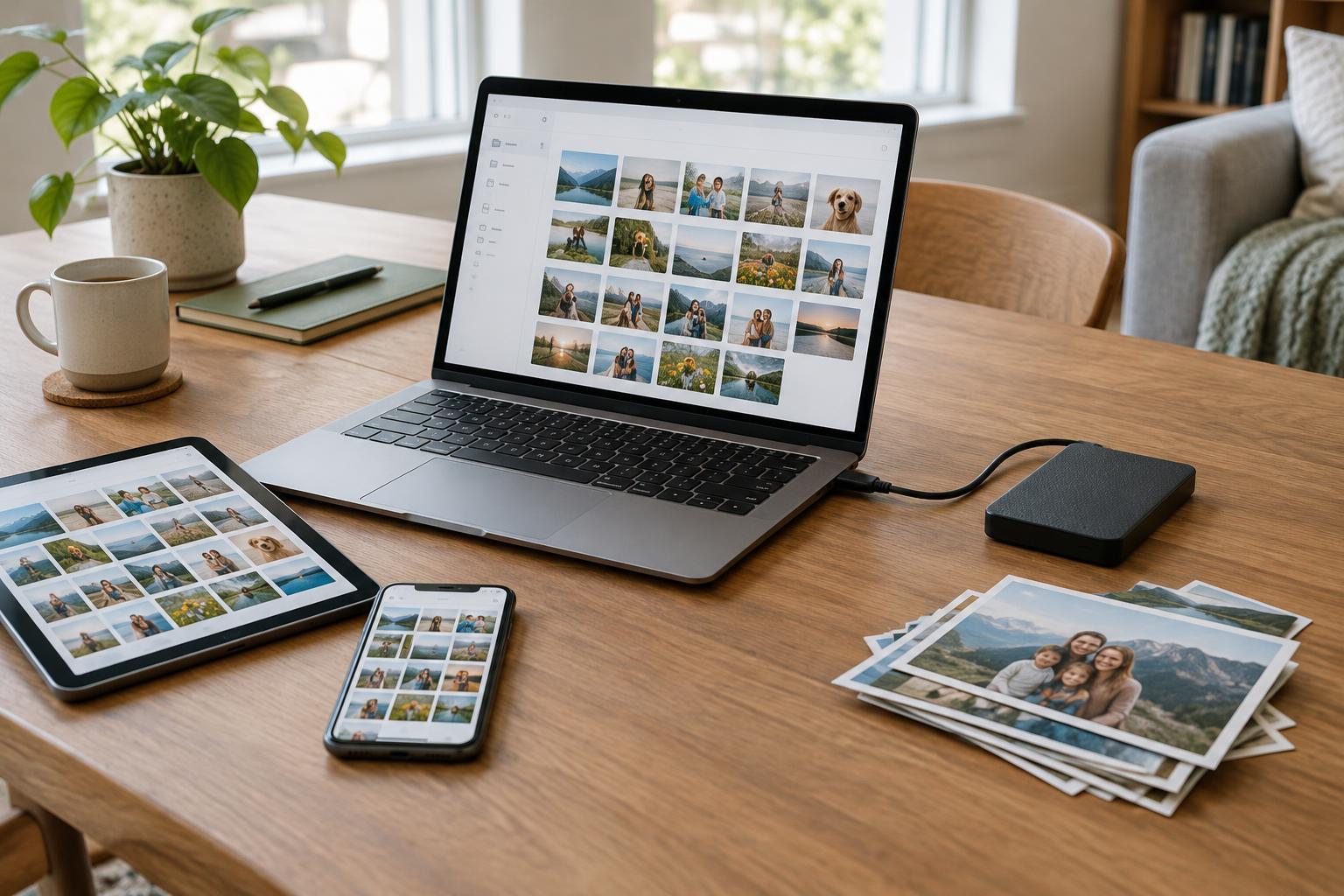
Photos often benefit from cloud access because you may want to view them on several devices. Pay attention to whether your photo app stores full-resolution originals locally, uploads them to the cloud, or removes local copies to save space. Those settings affect what remains available without a connection. A separate copy of photos you care about is still worthwhile.
Large videos, installers and completed projects may fit better on a local drive when you rarely open them away from home. Keep an active project on the drive that makes editing convenient, then decide where its finished version belongs. Avoid scattering files across several drives and accounts without a record of what lives where.
Do not mistake syncing for backup
Syncing aims to keep selected files consistent across devices. That means a deletion or unwanted edit may also spread across them. Some services offer a trash folder or earlier file versions, but recovery features vary and may have limits. Check how your service handles deleted files before you rely on it to undo mistakes.
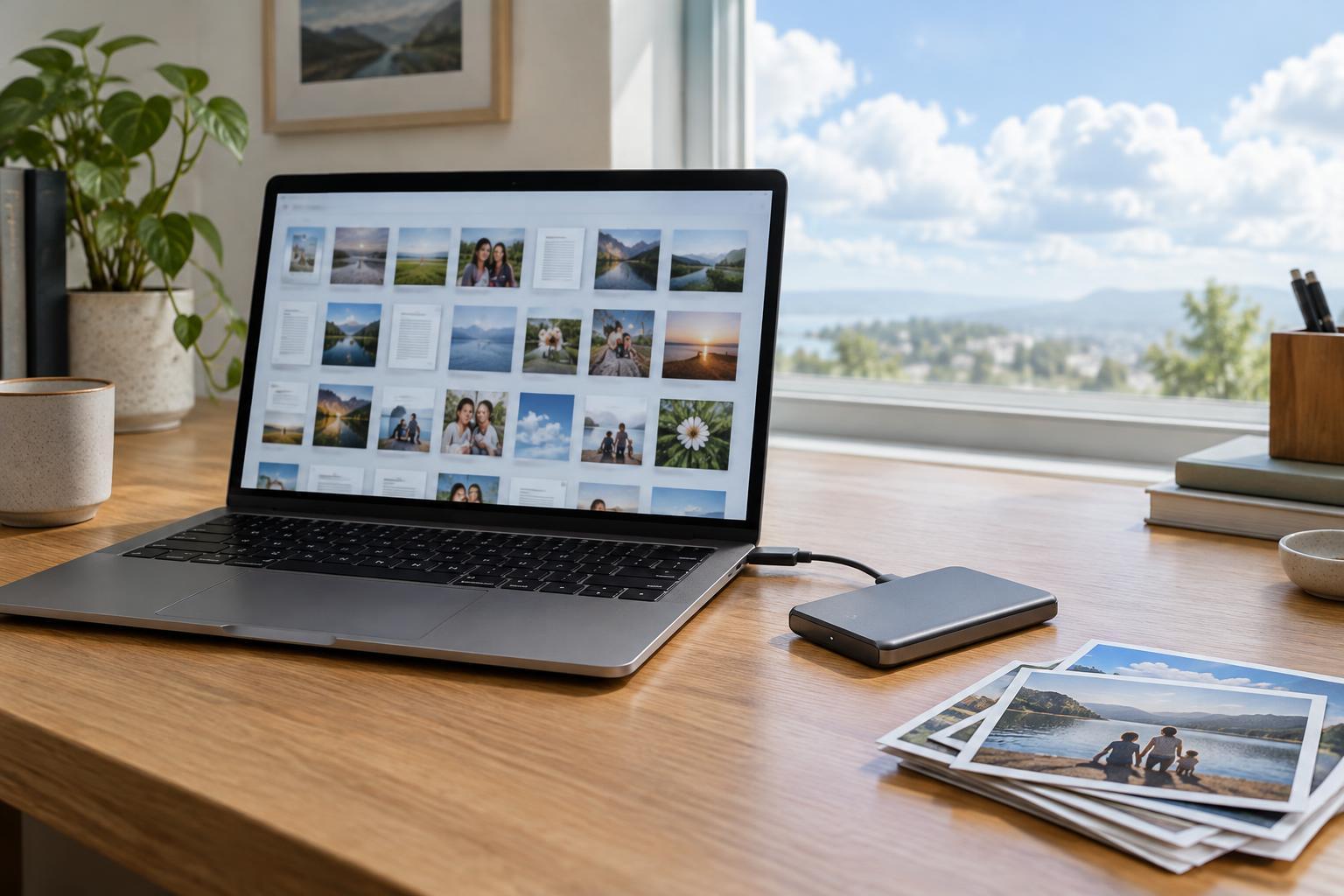
A backup is a separate copy made so you can recover files if the working copy is damaged, deleted or unavailable. For files that matter, keep at least one backup separate from the place you normally edit them. For example, you might work from a cloud-synced folder and back up your computer to an external drive, or work locally and maintain a separate cloud backup. Whatever you choose, confirm that the backup includes the folders you expect and occasionally try restoring a file.
Account for privacy, access and ongoing cost
Cloud storage means trusting a provider with your files and protecting the account that opens them. Use a strong, unique password and enable multi-factor authentication when available. Review shared links from time to time, especially links that allow anyone with access to view or edit a file. Before placing private material in a service, look at its security and recovery options rather than assuming all providers handle files the same way.
Local storage avoids putting every file in an online account, but it needs care too. Lock your devices, consider device encryption for portable computers and drives, and store backup drives somewhere they are unlikely to be lost alongside the main device. If other people use your computer, think about who can open its folders.
Compare costs over time, not just the space advertised. Cloud plans may require a recurring payment as collections grow. Local drives have an upfront cost and may eventually need replacing; a reliable local setup may also require more than one drive. Choose a system you can afford to maintain, not one that leaves you postponing backups.
Build a small, manageable system
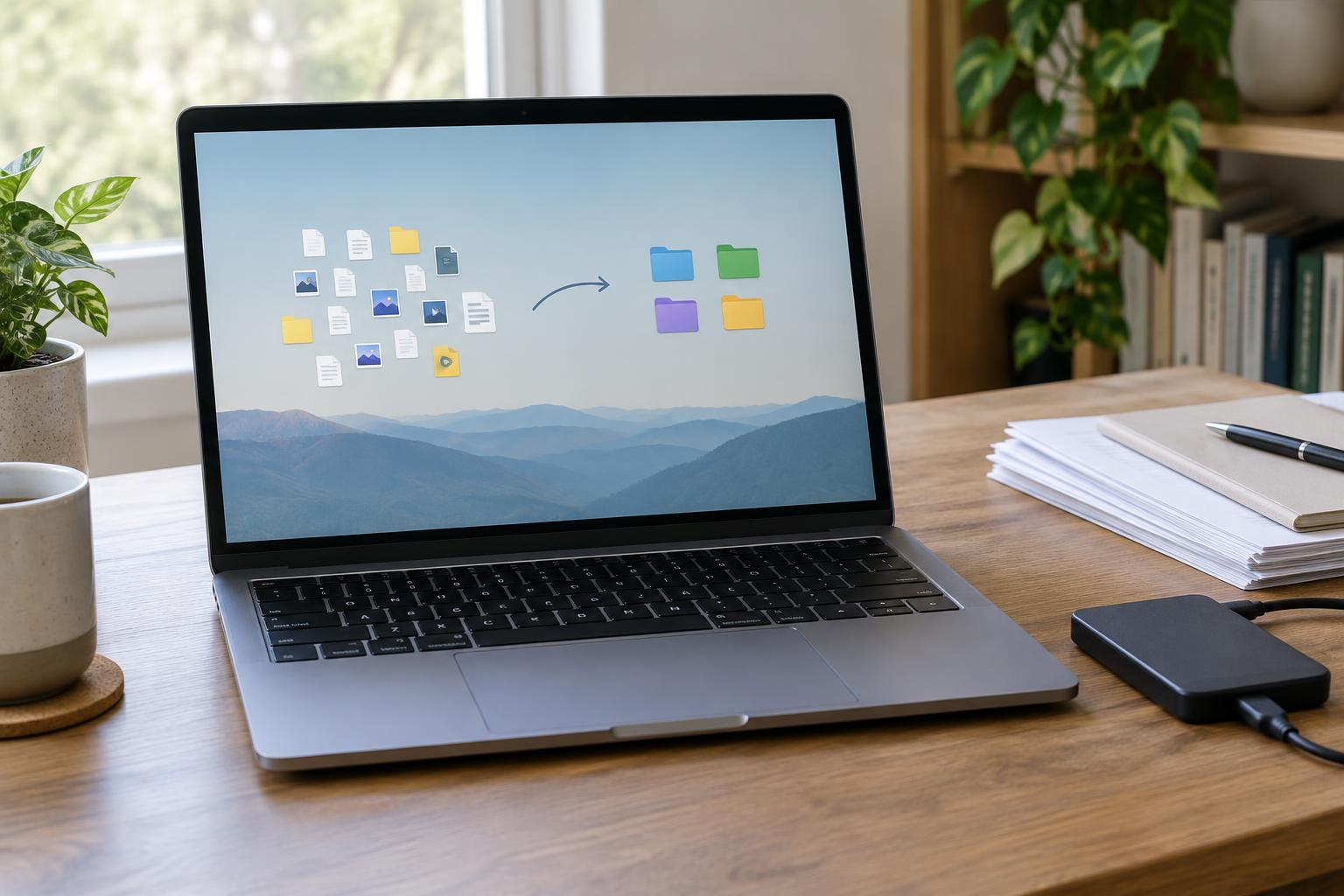
Start by identifying a few folders: current work, personal records, photos and large archives. Give each a primary home, then decide how it will be backed up. Keep folder names clear enough that you can find a file without remembering which app created it. If you move an archive to an external drive, label the drive and note what it contains.
Finally, test the routine under ordinary conditions. Can you open a needed document offline? Can you find a photo from another device? Can you restore a file you deliberately copied into your backup? Answers to those questions matter more than whether your setup is entirely cloud-based or entirely local. The best place for everyday files is the arrangement that makes them easy to use and possible to recover.