Start with the files you would miss
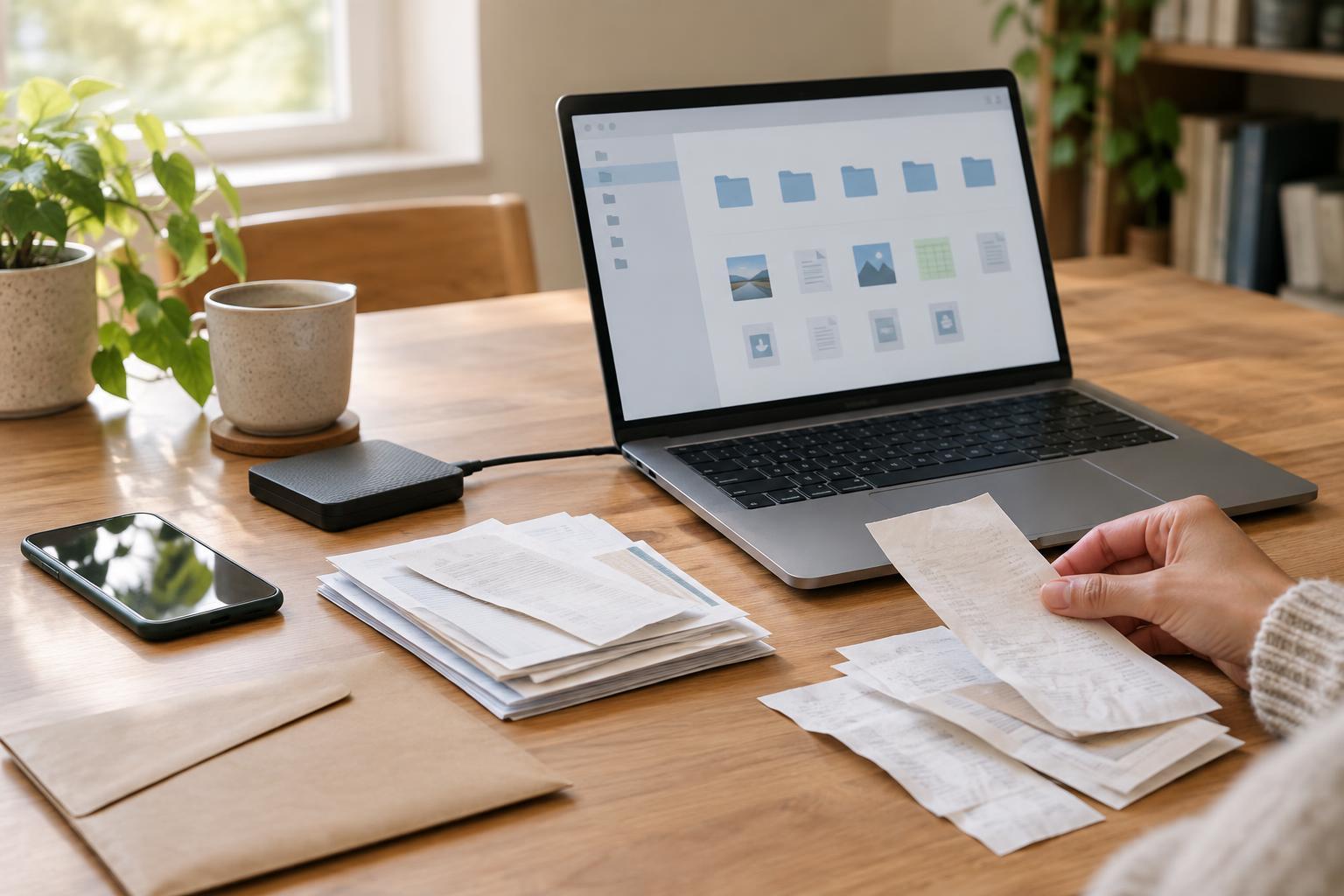
Before choosing a drive or service, make a short list of what you need to protect. For many people, that includes photos, videos, documents, school or work projects, and files kept only on a phone. Check where those items actually live: a computer’s folders, an external drive, a cloud account, or several devices. Files scattered across locations are easy to leave out of an otherwise reliable backup.
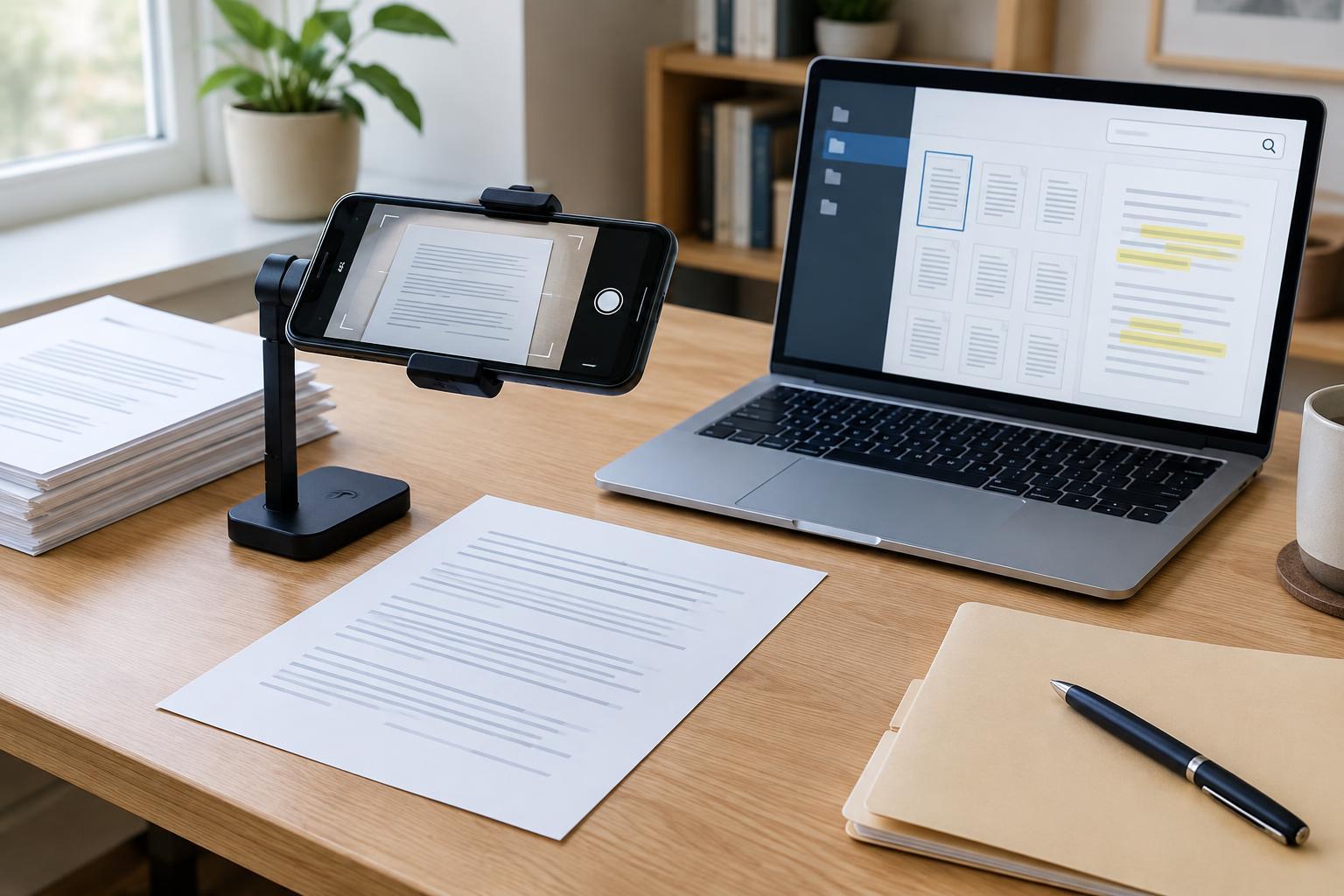
Also note anything that may need special handling. An app’s library might store files in a location you do not normally browse, while notes or messages may be available only through that app’s own export or device-backup feature. You do not have to save every download or temporary file. Prioritize items that would be difficult or impossible to replace, and confirm that your chosen backup method includes them.
Keep copies that do not share the same risks
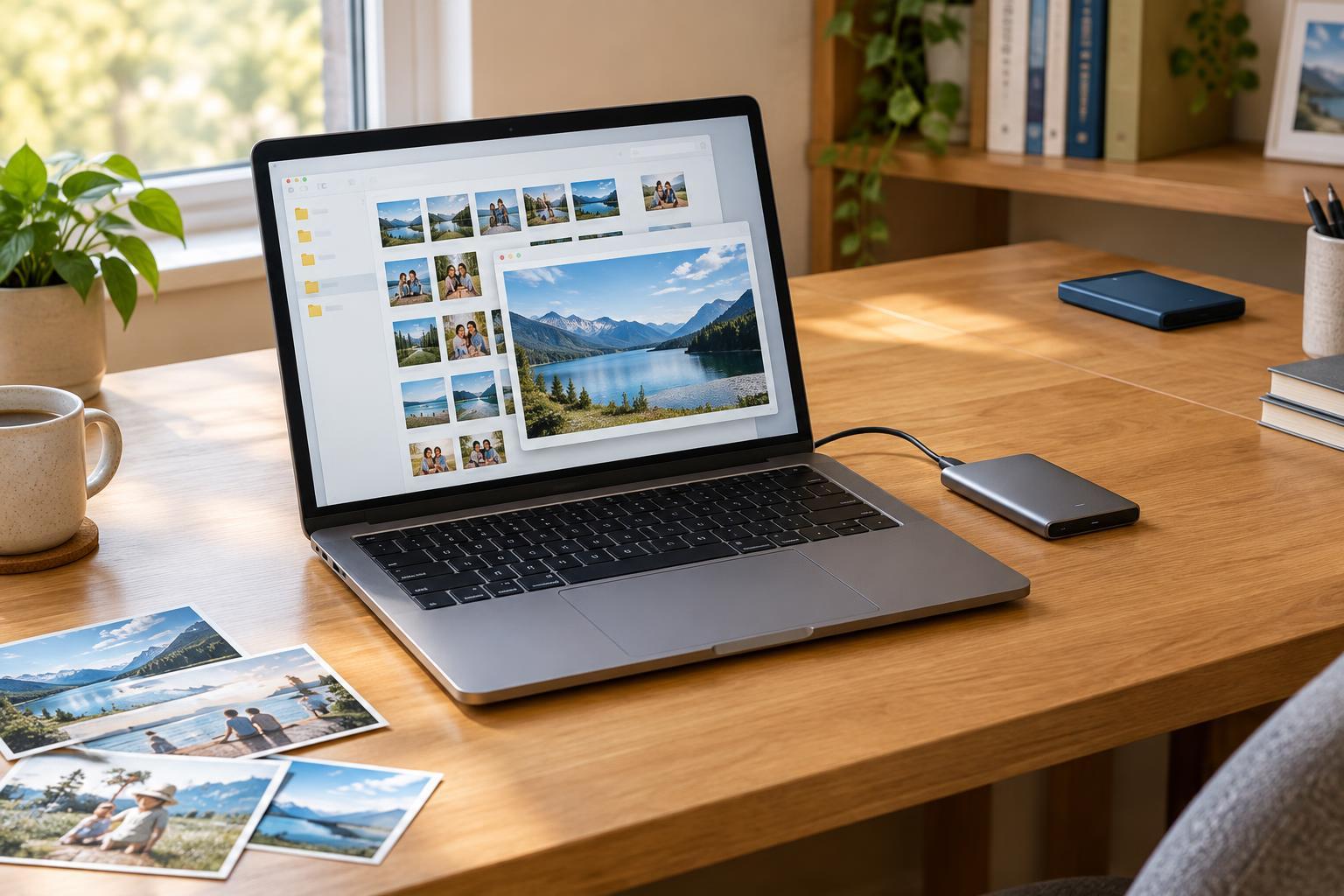
A practical approach is to keep your working files plus at least two backup copies, with one copy somewhere other than your usual setup. For example, you might use an external drive at home and an online backup service. The exact combination matters less than avoiding a single point of failure: a drive left beside your computer can be affected by the same theft or damage, while a copy available only through one online account depends on continued access to that account.
Cloud syncing is convenient, but it is not always a substitute for backup. If a file is deleted or changed by mistake, a sync service may repeat that change across devices. Check whether the service retains older versions and deleted files, and for how long. A backup system with version history can help you recover an earlier copy rather than only the most recent one.
For a drive-based backup, follow the device’s built-in backup setup or the drive maker’s instructions, then let the initial copy finish. If the drive is not meant to stay connected, disconnect it after backups complete and store it safely. Protect online accounts with a strong, unique password and an additional sign-in factor where available. If you encrypt a backup, keep its recovery key somewhere you can find it without relying on the device you are protecting.
Choose a routine you can maintain
The best schedule depends on how often your files change. Someone who creates new photos or project files daily may want automatic daily backups; someone with occasional changes may be comfortable with a less frequent drive backup. Automation reduces the chance that you forget, but it still needs occasional attention. A laptop that is rarely plugged into its backup drive, for instance, cannot complete that drive backup on its own.
Set a reminder to look at the backup’s status, available space, and most recent successful run. Watch for warnings about a full drive, a paused app, or an account that needs you to sign in again. When you get a new computer or phone, revisit your file list and settings rather than assuming the old routine transferred with you. Keep backing up the original device until you have confirmed that the new one is covered.
Test a restore, not just the backup status
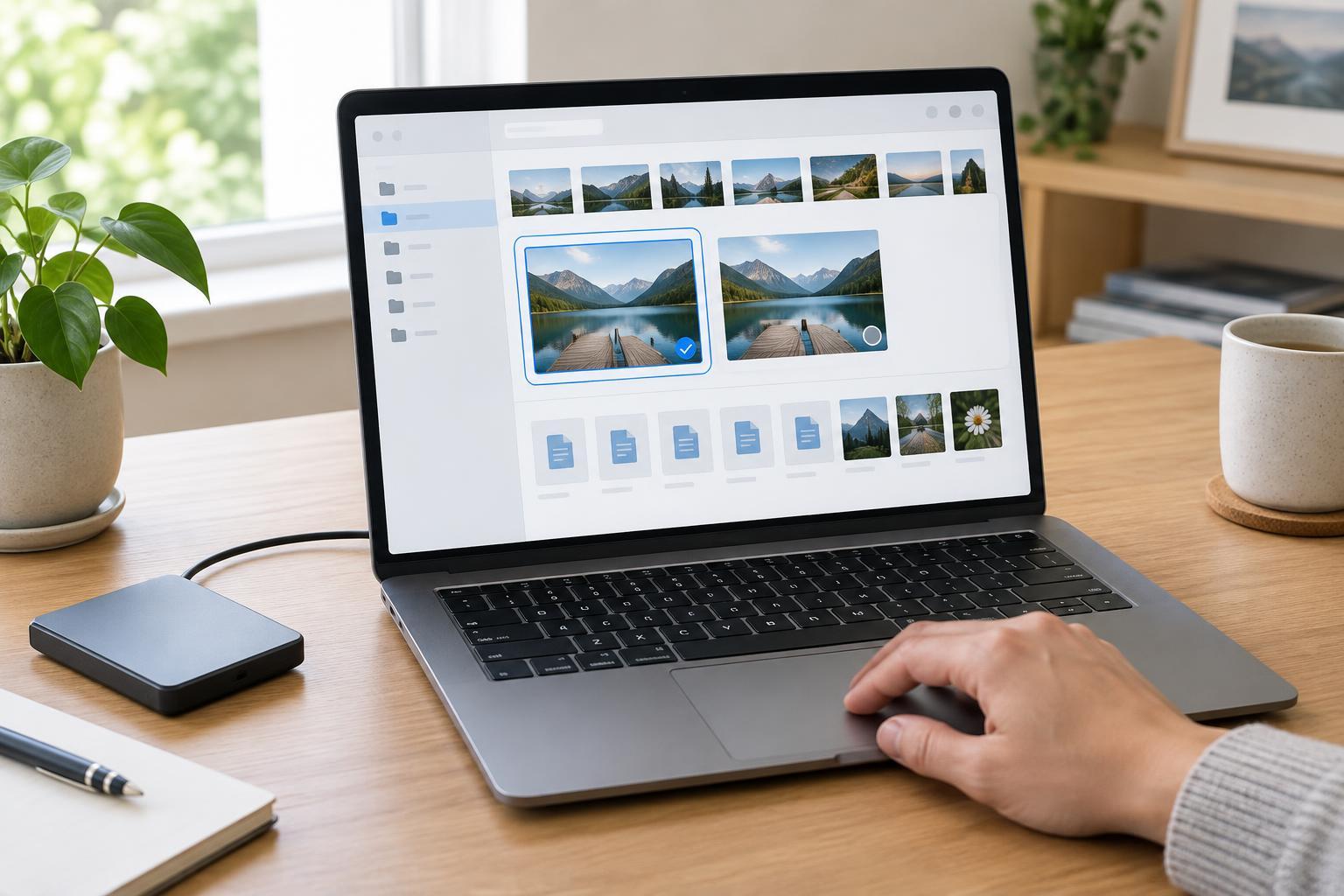
A message saying “backup complete” is encouraging, but retrieving a file is the stronger check. Pick a few examples from different places, such as a recent document, an older photo, and a file inside an app library. Use your backup tool’s restore process to copy them to a temporary location. Open each restored file and check that it is the version you expected. Avoid restoring over the original during a routine test.
Next, find out how you would recover more than one file. Locate the option for restoring a folder or a whole device, and note any sign-in details, recovery keys, cables, or software you would need. You do not need to erase a working computer to test your plan. A small restore test, paired with a clear understanding of the larger recovery steps, can reveal missing folders or access problems while your original files are still available.
Repeat the test after major changes to your devices or backup setup, and periodically as part of your routine. If a test fails, fix the issue and try again before treating that copy as dependable. The goal is not merely to collect copies; it is to know which copy you can use and how to get your files back.