Start with the work, not the model name
Before comparing desktops, list the tasks you expect to do most often. Browsing, video calls, documents and streaming put different demands on a PC than editing large photos, compiling software or playing games. Note which applications you use together, too: a computer can feel sluggish when many browser tabs and programs compete for memory, even if each task seems modest on its own.
Decide whether you need a separate graphics card. A processor with integrated graphics can be a sensible choice for general use and may support multiple monitors, but check the desktop’s actual display ports and the resolutions they support. Games, 3D work and some creative applications may benefit from a dedicated graphics card. That choice also affects the case size, cooling and power supply you should look for.
Compare processors by fit, not one headline number
A processor, or CPU, handles the computer’s general calculations. Its brand or product tier gives you a starting point, but it does not tell the whole story. Processors within the same tier can differ by generation, power limits and included graphics. Clock speed and core count are useful specifications, yet neither is a reliable stand-alone measure of how a complete desktop will perform.
For everyday work, prioritize a capable current or recent processor alongside enough memory and a solid-state drive. If your work regularly keeps demanding applications busy, a processor with more cores may be worthwhile; if not, paying for the highest tier may bring little noticeable benefit. When comparing two complete systems, look at their full CPU model names and the rest of their specifications rather than assuming their labels make them equivalent.
Consider noise and space as well as speed. A compact desktop may use a processor with a lower power limit or have less room to move heat away. That does not make it a poor choice for routine tasks, but sustained heavy work may favor a larger system with more cooling capacity.
Choose memory for what you run at the same time
Memory, or RAM, holds the applications and files a computer is actively using. For a basic home or office PC, 8 GB can be workable if your tasks are light. For a new general-purpose desktop, 16 GB offers more breathing room for multitasking. Consider 32 GB or more if you know your applications or large projects benefit from it. These are starting points, not promises of performance: your software and habits matter more than a single target number.
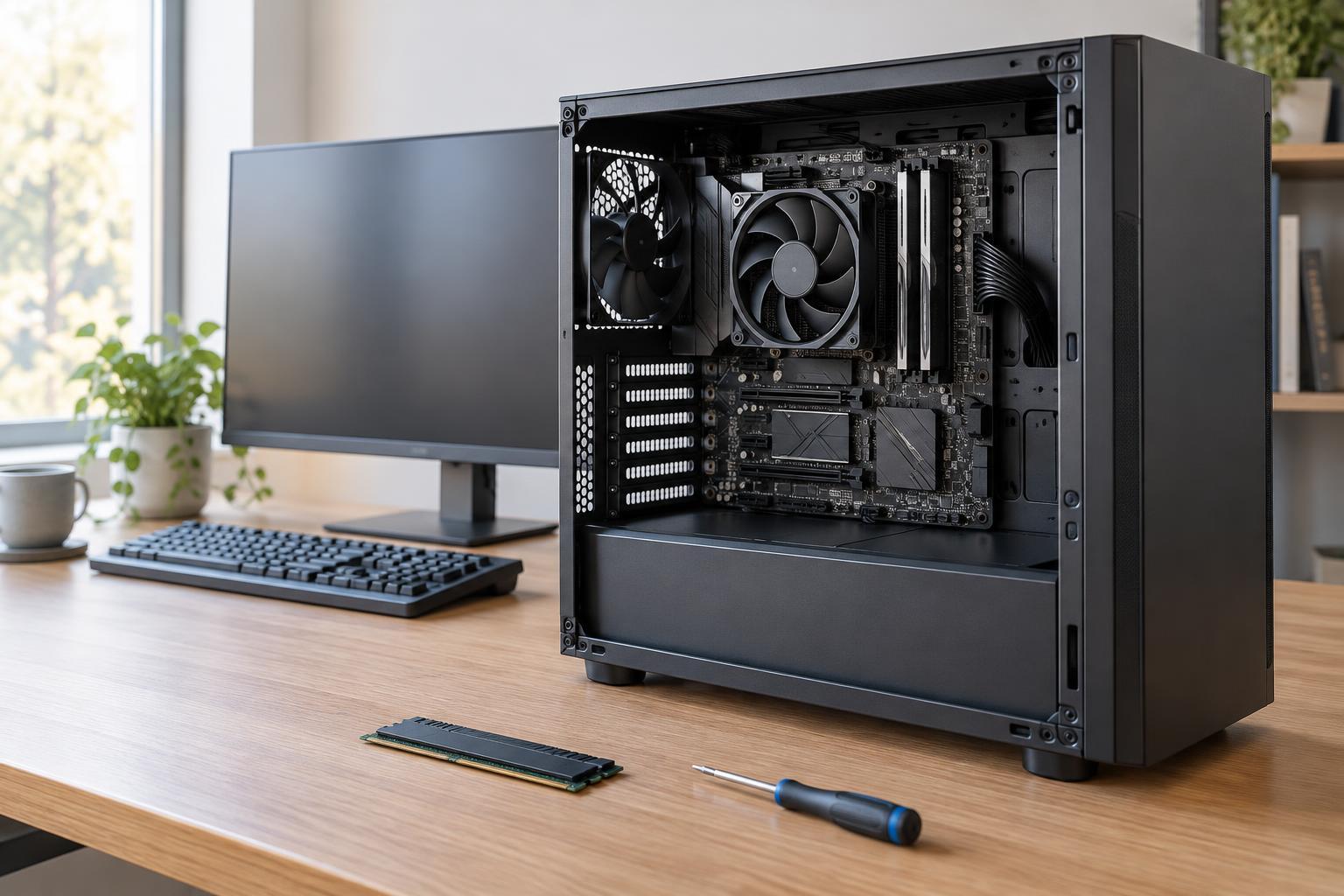
Check both the installed amount and how it is installed. A desktop with two memory slots already filled may require you to replace existing modules to increase capacity; one with free slots may be simpler to expand. Also verify the memory type supported by the motherboard. Different generations, such as DDR4 and DDR5, are not interchangeable, and supported speeds and maximum capacity vary by system. If you plan to add memory later, consult the manufacturer’s specifications for compatible configurations.
Check the upgrade path before you buy
Desktops are often easier to change than laptops, but “upgradeable” can mean very different things. A standard-size tower may leave room for another storage drive or a larger graphics card, while a compact or proprietary design may offer limited space or specialized parts. Product photos can help, but the service manual or detailed specifications are better places to confirm available memory slots, storage connectors and expansion slots.
For a possible graphics upgrade, check more than whether the motherboard has a suitable slot. A new card must physically fit the case, receive the power connections it needs and stay within the power supply’s capabilities. CPU upgrades have their own limits: motherboard socket compatibility alone is not enough, because firmware support, power delivery and cooling also matter. Treat a promised future CPU upgrade as uncertain unless the manufacturer documents support for the specific processor.
Make a balanced final comparison
A fast CPU cannot make up for every other compromise. Check that the desktop includes enough solid-state storage for your applications and files, or a clear way to add more. Review the ports you will actually use, including display, USB and network connections. If wireless networking matters, confirm it is included rather than assuming every desktop has it.
Finally, compare the complete purchase: processor model, installed RAM, storage, graphics, power supply, case and warranty terms. A less expensive PC may be the better value if it meets today’s needs and has a straightforward path to the upgrades you are likely to make. Conversely, if expanding it would require replacing several parts, buying the right configuration now may be simpler. Choose for the work you can reasonably anticipate, not an upgrade you might never need.