Start with your work, not a processor name
Before comparing laptops, list the tasks you expect to do at the same time. Writing, video calls and browser-based coursework place different demands on a computer than video editing, 3D modeling or software development. Check whether your school or employer requires a particular operating system or application, and confirm that any essential software will run on the model you are considering. A capable laptop is a poor choice if it cannot open the tools you need.
Processor names can be difficult to compare across brands and generations. For routine documents, web apps and meetings, a current mainstream processor is usually a more sensible starting point than paying for a high-end chip. Demanding creative or technical software may justify more processing power or a dedicated graphics processor. Compare specific configurations rather than assuming every laptop in the same product family performs alike. Thin designs can also differ in how they manage heat and noise during sustained work.
Prioritize enough memory and practical storage
Memory, or RAM, helps a laptop keep apps and browser tabs ready to use. For light, focused use, 8 GB may be workable; 16 GB offers more breathing room for frequent multitasking, large documents and years of changing software demands. If your course or job involves virtual machines, substantial media projects or other specialized tools, check their stated requirements before buying. Also find out whether the memory is replaceable. On many slim laptops it cannot be upgraded later.
Storage is where apps, downloads and local files live. An SSD is the practical default for a work or school laptop. Capacity matters more than a large advertised number if you regularly keep videos, design files or offline course materials; 256 GB may suit a cloud-centered routine, while 512 GB provides more space before file management becomes a chore. Cloud storage and external drives can help, but they do not remove the need to keep adequate free space on the laptop. Check whether storage can be replaced if future flexibility matters to you.
Choose a screen and keyboard you can live with
Screen size is a daily trade-off. A compact laptop is easier to carry between classes or meetings, while a larger display gives spreadsheets, research and side-by-side windows more room. Resolution is only one part of screen quality: brightness, reflections, viewing angles and text clarity affect comfort, too. If you often work in bright rooms, look beyond a display’s resolution in the specifications and seek a reliable review or an in-store look at the screen.
The keyboard, trackpad, webcam and microphone rarely dominate a product listing, yet they can shape every working day. Consider whether the keyboard layout has the keys you use often and whether the trackpad gives you enough space. For frequent calls, check the listed camera features, but do not treat a resolution figure as proof of good image quality. Specification sheets describe features; firsthand reviews and hands-on time are better ways to judge feel, sound and real-world image quality.
Treat battery life and portability as a package
A manufacturer’s battery estimate is a useful comparison point, not a promise of how long your particular day will last. Screen brightness, video meetings, demanding apps and wireless connections can all change runtime. If you spend long stretches away from an outlet, compare independent battery tests that resemble your use where possible, and consider the size and weight of the charger as well as the laptop.
Weight and dimensions deserve attention if the computer travels daily. A lighter model may be worth more to a commuter than a slightly faster one, provided it still meets the required workload. If most work happens at one desk, a larger screen or more ports may be more valuable. There is no universal best balance: picture a normal day, including the bag you carry and where you can plug in.
Check connections, then compare the total purchase
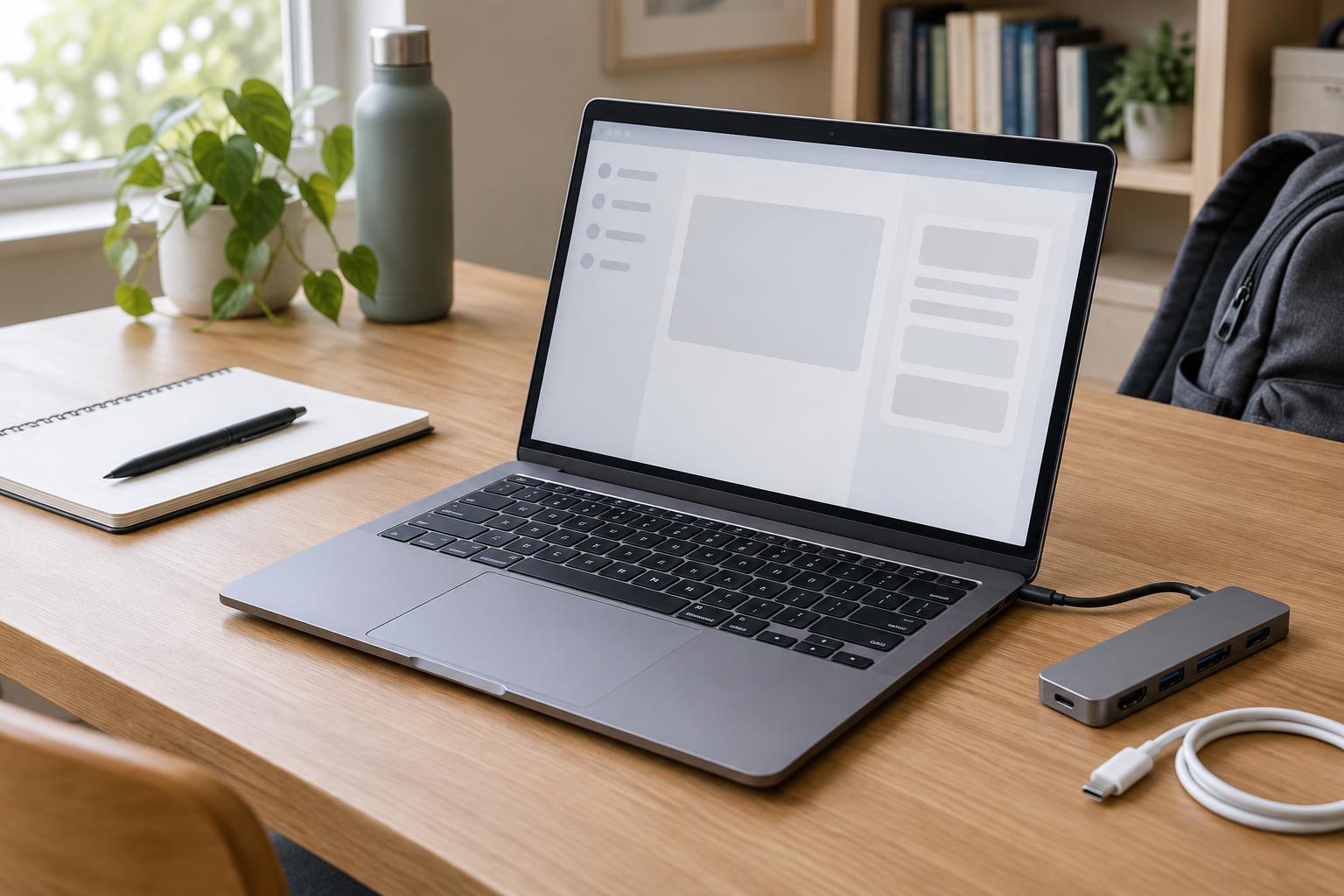
Make a short list of devices you need to connect: a monitor, projector, headset, external drive, mouse or network adapter. Count the available ports and check what each one supports. Similar-looking USB-C ports, for example, may differ in charging, display output and data capabilities. An adapter or dock can fill a gap, but it adds cost and another item to carry. If you rely on a wireless connection, verify that the laptop supports the networks available where you work or study.
Finally, compare laptops at the configuration level, including memory, storage, screen and warranty terms—not just the headline price. Allow room in the budget for any required software, a protective sleeve, an adapter or an external backup drive. Look up the model’s upgrade and repair options if you plan to keep it for several years. The best purchase is the one that meets your actual requirements, feels comfortable to use and leaves you with fewer compromises you will notice every day.