Start with an inventory and your accounts
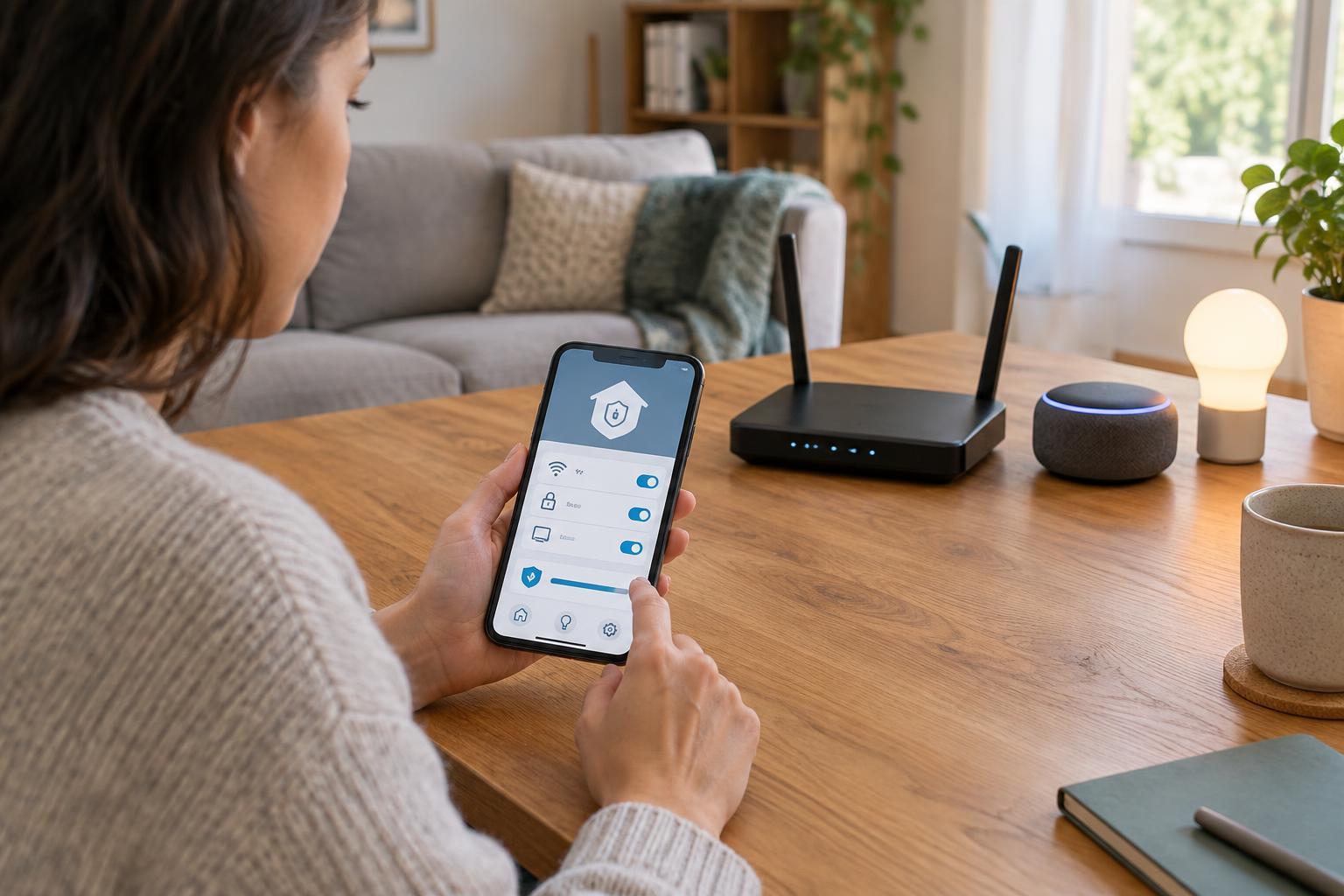
Make a list of the connected devices in your home, including speakers, cameras, doorbells, TVs, plugs and hubs. Note which app controls each one and who has access. This gives you a manageable starting point: an old device or a shared account is easy to overlook when its app is no longer on your home screen.
For each account, use a unique password and turn on two-factor authentication when available. Check the list of signed-in devices or active sessions if the service provides one, and remove anything you no longer recognize or use. If several people need control, separate accounts with appropriate access are usually easier to manage than sharing one password. Review guest and household members after someone moves out or no longer needs access.
Give apps and integrations only the access they need
Check your phone’s settings as well as each smart home app. An app may ask for location, contacts, photos, Bluetooth, local network access or microphone access. Some permissions support a feature you want; others may have been granted during setup and never reconsidered. If your phone offers choices such as allowing access only while using an app, choose the narrowest option that still lets the feature work.
Next, look for linked services, voice assistants and automations. A connected service may be able to control devices or receive information about their activity. Disconnect integrations you no longer use, especially ones you added to try a single feature. Changes can affect routines, so test important functions afterward. A periodic review is more useful than assuming the permissions you chose on setup day will always match how you use the device.
Decide when microphones and cameras should be active
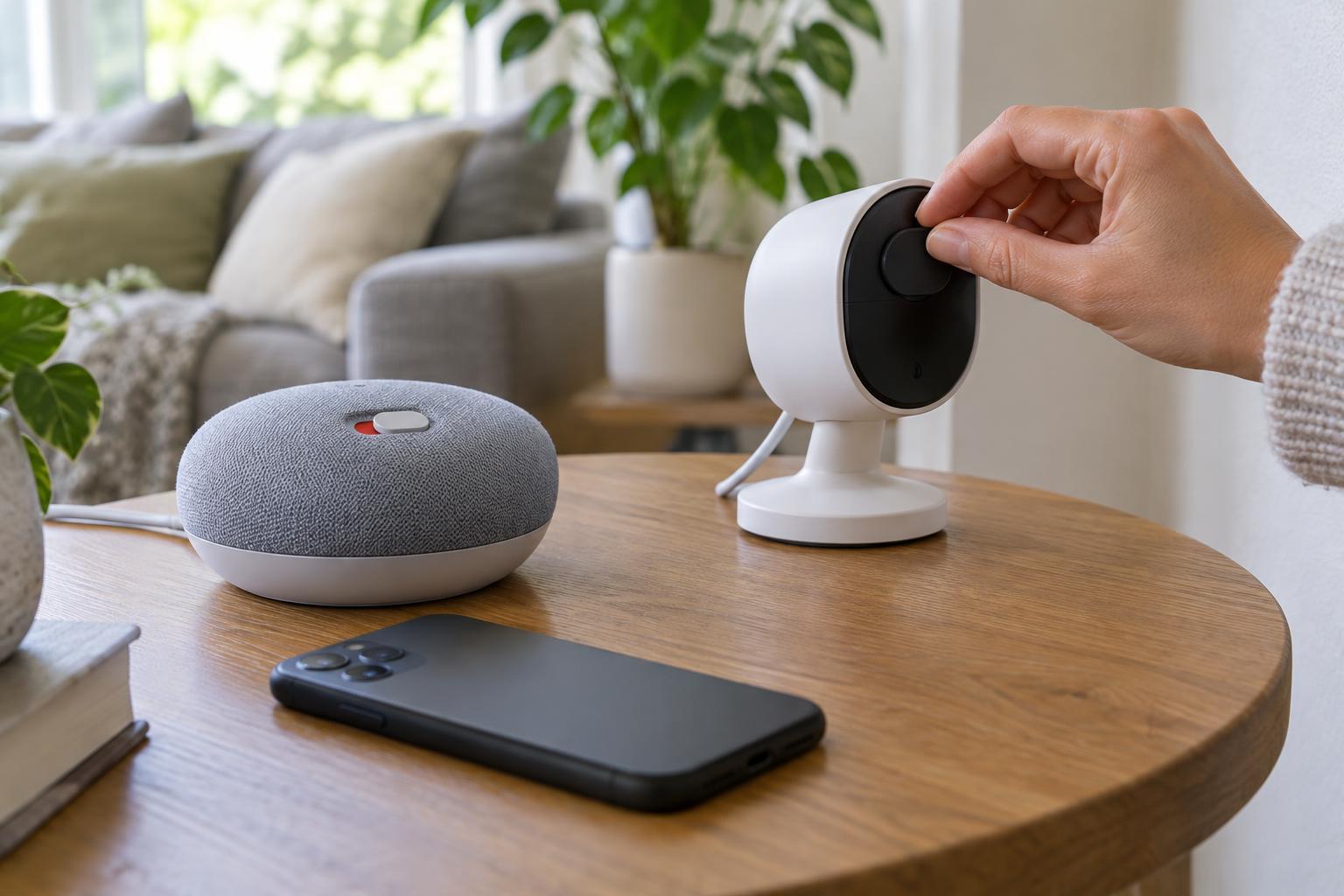
For a voice-controlled device, find out how to mute its microphone and whether it has a visible indication that mute is on. Muting may also disable voice commands, so decide which rooms and times genuinely benefit from hands-free control. Review any settings for saved voice recordings or voice history; where controls exist, choose a retention period that suits you and delete recordings you do not want to keep. A mute control and a history setting address different things: one affects listening now, while the other concerns information already saved.
For cameras and video doorbells, review the field of view, recording schedule, notifications and access permissions. Position cameras to cover the area you intend without unnecessarily capturing private spaces. If your system offers privacy zones or a physical shutter, consider using them. Check whether household members and visitors understand when a camera or microphone may be active.
Review what is stored and shared
Privacy settings are often spread across an app, an account page and individual device menus. Look for options covering activity history, recordings, personalized recommendations, diagnostic information and data shared with connected services. Turn off optional sharing you do not want, but read the setting description before changing it: some data may be needed for a feature to function. Available controls and their wording vary by product.
Check where recordings are stored and whether you can view, download or delete them. A delete option may have limits, so do not assume removing an item from an app erases every copy immediately. If a product’s privacy information is unclear, treat that uncertainty as part of your decision about where to place the device and which features to enable.
Keep the checklist useful over time
Privacy is not a one-time setup task. Enable automatic device and app updates where practical, and occasionally check that devices are still receiving support. Revisit settings after adding a household member, connecting a new service or changing phones. If a device stops being useful, remove it from routines and unlink it from your account rather than leaving it quietly connected.
Before giving away, selling or recycling a device, remove its access to your home, sign it out where possible and follow its reset instructions. Also check whether recordings or activity remain in the associated account. The aim is not to disable every smart feature. It is to know who can use each device, what it can sense and which information you have chosen to keep.