Start with the scene, not the mode
A smartphone’s standard Photo mode is a good starting point. It is usually the quickest option for a moving subject, and many phones already adjust exposure and apply some image processing automatically. Switch modes when you can name the problem you want to solve: a sky that looks too bright, a dim room that needs more detail, or a distracting background behind a person.
Camera apps differ. One phone may turn HDR or Night mode on automatically, while another offers a separate setting. Some apply Portrait effects after you take the picture. The labels also vary, so it is worth checking what your own camera app displays. If a moment matters and you have time, take one photo in standard mode and another with the special mode. Comparing the results is often more useful than assuming the extra processing will improve every shot.
Use HDR when bright and dark areas compete
HDR, or high dynamic range, is useful when a scene contains both strong highlights and deep shadows. Think of a person standing in front of a bright window or a shaded street beneath a bright sky. In standard mode, the camera may preserve the sky while making the person too dark, or brighten the person until the sky loses detail. HDR aims to keep more information in both areas, often by combining or processing exposures.
Look for a scene with important detail at both ends of the brightness range. If the light is even, HDR may offer little benefit. It can also make an image look flatter than you want, especially if you liked the contrast between light and shadow. Because HDR processing can depend on multiple moments of capture, a fast-moving subject may be harder to render cleanly on some phones. For action, try standard mode first and check whether faces and edges look natural.
After taking an HDR photo, inspect the brightest area and the main subject rather than judging only the overall brightness. If the sky is preserved but the person looks unnatural, try tapping the person on the screen to set focus and exposure, then take a standard photo for comparison.
Use Night mode for a dim scene that can stay still
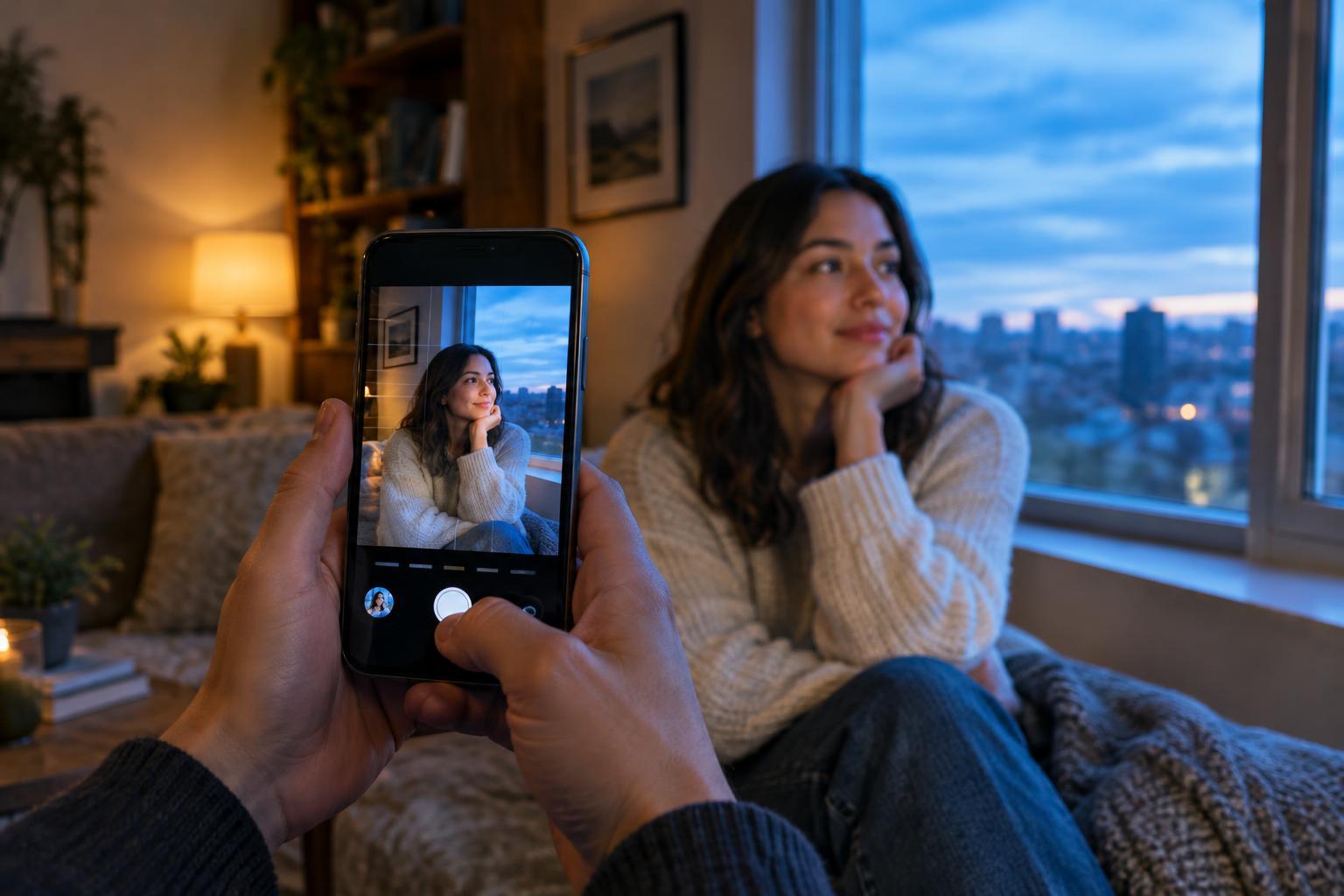
Night mode is designed for low-light scenes where a normal photo looks too dark or noisy. It may gather light over a longer capture and combine frames to reveal detail. It can be especially helpful for a quiet street, an indoor corner with soft lighting, or a group willing to pause. You do not need to wait until a scene is nearly black; try it whenever the camera suggests it and the standard result is disappointing.
Stillness matters. Brace your elbows, lean against a stable surface, or rest the phone somewhere secure if the camera asks you to hold it steady. Ask people in the frame to pause, too. A subject who moves during the capture can appear blurred even when the background looks sharp. If you are photographing a pet or another unpredictable subject, a quicker standard shot in better light may be preferable.
Night mode may brighten a scene beyond how it felt in person. That can be useful when you want to see details, but less appealing when you want to preserve the mood of a dim café or a dark sky. Compare both versions and keep the one that expresses what you wanted to remember. Avoid pointing the camera directly at a strong lamp if its glare overwhelms the subject; changing your angle can help more than changing modes.
Use Portrait mode to separate a subject from the background
Portrait mode keeps a chosen subject relatively sharp while softening the background. It is most useful when a person is the clear focus and the surroundings are busy. Despite the name, it may also work well for a still pet or object, depending on the phone. Give the camera a clear view of the subject and some space between the subject and the background; that separation can make the effect easier to apply convincingly.
The blur is usually created with software, so check its edges. Fine hair, glasses, fingers and objects held near the face can confuse the effect. Portrait mode may also struggle in dim light or with a subject that will not stay still. If an edge looks cut out, step back slightly, find more even light, reduce the blur strength if your app allows it, or take the picture in standard mode.
Portrait mode is a choice about emphasis, not a rule for photographing people. Leave it off when the setting helps tell the story, such as a friend in a memorable place, or when several people stand at different distances. A sharp background can be part of the picture rather than a distraction.
Make a quick choice before you shoot
Ask what is most likely to spoil the photo. If bright and dark areas are competing, try HDR. If there is too little light and the scene can remain still, try Night mode. If the subject should stand out from a cluttered background, try Portrait mode. When motion is the biggest challenge, standard Photo mode is often the safer first choice.
Finally, review the image at a larger size when you can. Check the detail you care about: faces, movement, bright skies or the outline of a blurred background. Camera modes are tools for particular conditions, not upgrades you need to use every time. A well-timed standard photo can be the best result.