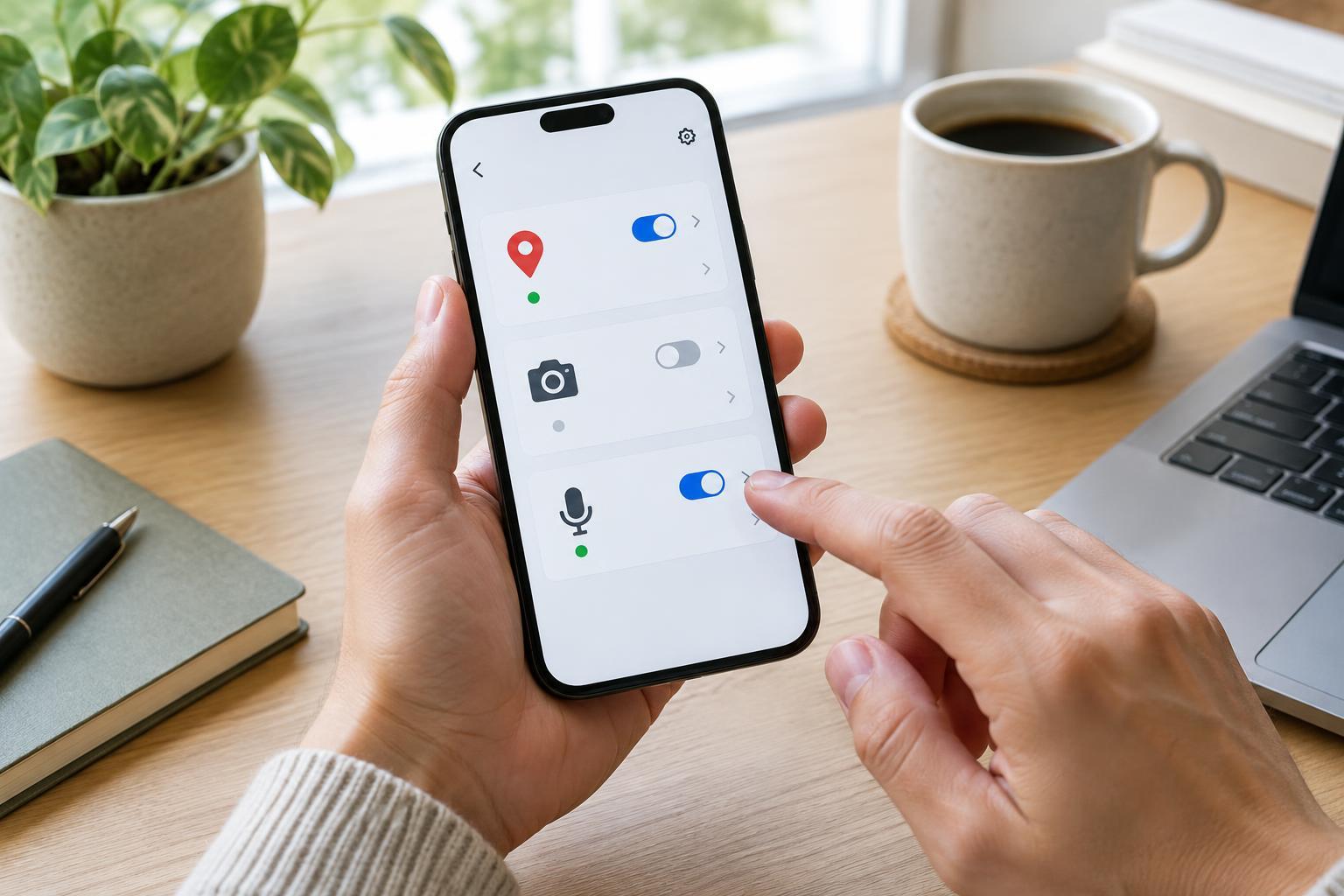
Start with your phone’s permission list
App permissions control whether an app can access features such as your location, camera or microphone. Reviewing them is useful even if you were careful when installing apps: a permission that made sense for a one-time task may no longer be needed. The aim is not to deny every request. It is to give each app the access it needs for features you actually use.
On an iPhone, open Settings, then Privacy & Security, and choose Location Services, Camera or Microphone to see which apps have requested access. On many Android phones, open Settings, then Privacy or Security & privacy, followed by Permission manager. Menu names vary by phone and software version; if you cannot find a list, search Settings for the name of the permission. You can also open an individual app’s entry in Settings to review its permissions together.
Choose location access based on the task
Location deserves a close look because an app may offer several levels of access. A map needs your position while you navigate, but it may not need to know where you are when you are not using it. A weather app might work with a city you enter manually. For each app, ask what would stop working if you changed its access to “While Using the App,” “Ask Every Time” or “Don’t Allow.” Available choices differ across devices and apps.
Check whether precise location is necessary, too. Turn-by-turn directions or a nearby pickup may depend on it, while a broad local forecast often does not. If your phone offers an approximate-location setting, try it where an exact position seems unnecessary. Pay particular attention to apps allowed to use location in the background or “Always.” That level may be appropriate for a feature you intentionally rely on, such as location sharing, but it is worth checking that you still use the feature.
Match camera and microphone access to features you use
Camera access can be reasonable for video calls, scanning codes or taking a photo inside an app. Microphone access may be needed for calls, voice messages or recording. An app that does none of those things is a good candidate for a closer look. Some apps request access only when you open a relevant feature, so denying a permission now does not necessarily prevent you from granting it later.
Review apps you installed for a single purpose, such as scanning a document or joining an event. If you no longer use the feature, remove the permission or consider uninstalling the app. Remember that denying access may change how a feature works: you might need to upload an existing photo instead of taking one in the app, or type a message instead of recording it. Test the feature you care about before deciding whether to restore access.
Use activity clues, but check the context
Many phones show an on-screen indicator when an app uses the camera or microphone. Some also provide a recent-access view in privacy settings. These clues can help you identify an app to investigate, but an indicator alone does not tell you why access occurred. A call, voice search, camera preview or another feature you just opened may explain it. If something seems unexpected, note which app was active and review that app’s permissions and settings.
Also consider how you reached a feature. A website opened in a browser may ask to use your camera, microphone or location through the browser rather than through a separate app. Browser site permissions may therefore need a separate review. If you use a work-managed phone or profile, some settings may be controlled by your organization. Focus on the controls available to you rather than assuming every device offers the same options.
Make a small review part of your routine
Work through the permission lists one app at a time. Keep access for functions you use, reduce it where a narrower option works, and remove it where you cannot identify a reason for it. You do not need to finish everything at once; starting with unfamiliar apps and those with background location access makes the review manageable. If an app later asks for permission again, read the prompt in the context of the task you are performing.
After making changes, try your usual tasks: start navigation, join a call or scan a code. If something fails, you can revisit the permission rather than leaving broad access enabled just in case. Repeat the review after installing several new apps or changing how you use your phone. Permissions are most useful when they reflect your current habits, not a decision you made months ago.