Start with a safe inventory
A password manager can accumulate years of saved logins: accounts you use every day, old shopping profiles, duplicate entries created by imports, and passwords for sites you no longer recognize. The goal of a cleanup is not to make the vault as small as possible. It is to make the right login easy to find while preserving access to accounts that still matter.
Before editing, make sure you can unlock your password manager and that its sync is working on the devices you use. If it offers a backup or export feature, read how that feature handles unencrypted files before using it. An exported vault can contain sensitive information, so do not leave a copy in a downloads folder or cloud drive by accident. You can do most cleanup directly in the manager without exporting anything.
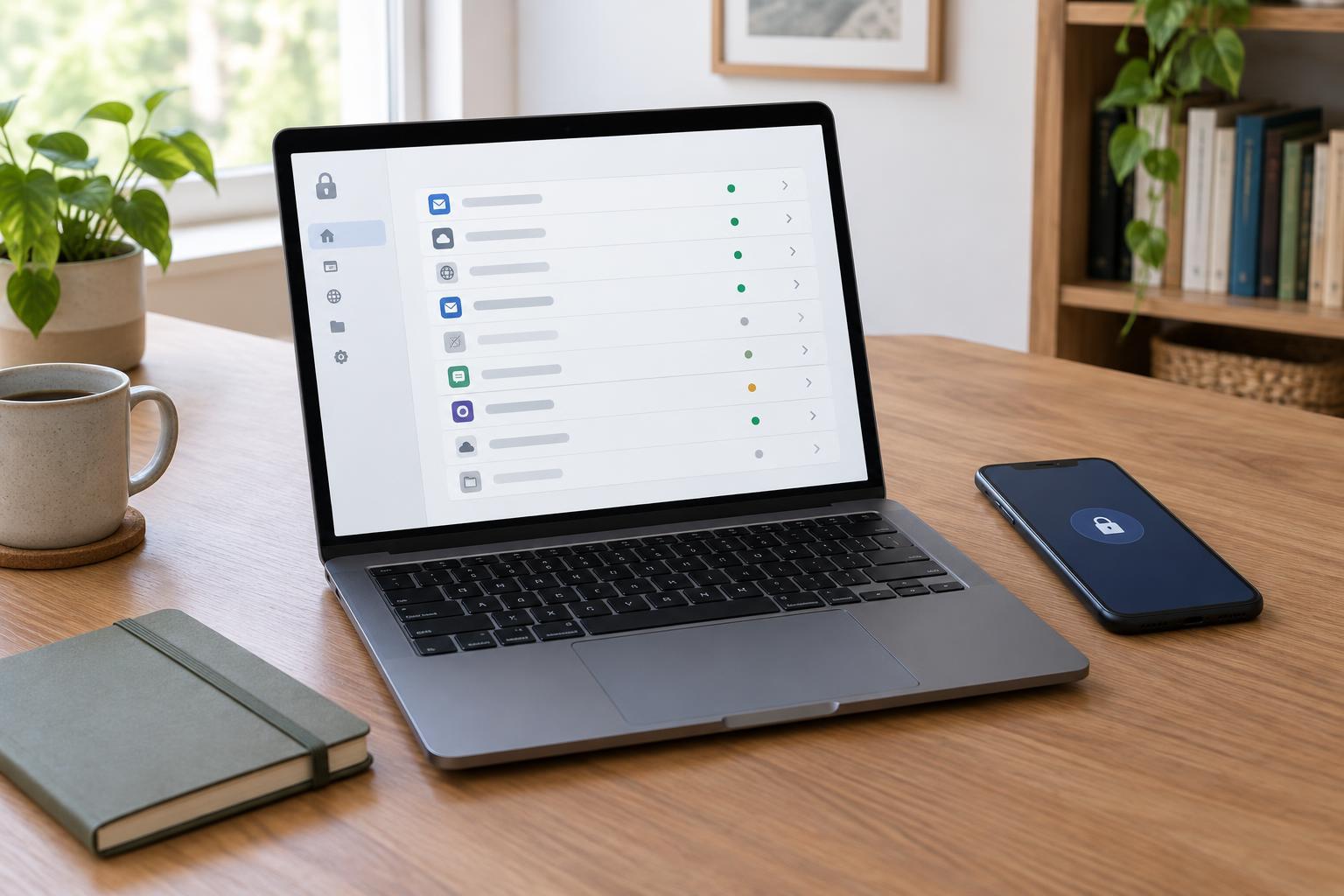
Begin by sorting entries by name or last modified date, if those views are available. Search for familiar services and note patterns rather than changing everything at once. A short review of one group, such as shopping or travel accounts, is easier to check than a vault-wide editing session.
Make each entry recognizable
Give entries names that tell you what they are for. A service name may be enough for a personal account; adding “work,” “family,” or a specific email address can help when you have several logins for the same service. Keep the username or sign-in email in its dedicated field so it remains available to autofill.
Check the saved website address too. A correct address helps the manager offer the appropriate login and can make an unfamiliar sign-in page easier to question. If a company has changed its sign-in page, verify the new address through a route you already trust, such as its app or a bookmark you use regularly. Do not replace a saved address merely because an unexpected message says the account has moved.
Folders, tags, and notes are useful when they answer a real question. You might group household services or label accounts you intend to close. Keep notes brief, and avoid copying passwords, recovery codes, or other secrets into a general-purpose notes app just to make them easier to find.
Tell duplicates from separate accounts
Two entries with the same name are not automatically duplicates. They may represent separate personal and work accounts, different email addresses, or a login for an app alongside one for its website. Compare the usernames and saved addresses first. If the manager shows when an entry was updated, that may provide a clue, but a newer timestamp alone does not prove an entry works.
When you are unsure, open the service using a known address and test the login you expect to keep. Check whether the account contains the information you need. Only then consider deleting an extra entry. If one entry holds useful notes or a different website address, move that information to the retained entry before removing it.
A password manager’s warning about reused or weak passwords is a separate issue from duplication. Two saved entries may point to one account, while one password reused across several accounts creates a security concern. For accounts you keep, use the manager’s password generator to create a unique password when you next change it, and save the new login after confirming it works.
Review entries that appear outdated
An entry may be outdated if its email address is no longer yours, the service has changed its sign-in method, or you have confirmed that the account was closed. Lack of recent use is less conclusive: some accounts are needed only for warranties, past purchases, subscriptions, or occasional travel. Mark uncertain entries for review rather than deleting them on sight.
For an account you no longer want, sign in and look for the service’s account-closure option. Deleting its password-manager entry does not close the account. Before closing anything, check whether you need receipts, files, or access to a linked service. Once closure is confirmed and you no longer need the record, you can remove the saved login.
Some sites now use passkeys or sign-in through another provider. If you have moved to one of these methods, check how your password manager stores or displays it before removing an older password entry. Keeping a clear label for the current sign-in method can save confusion later.
Keep the vault useful over time
A small maintenance habit prevents another large cleanup. When you create an account, save it with a recognizable name and the correct email address. When you change a password, confirm the updated entry works before removing an old one. When you close an account, revisit its saved login after the closure is complete.
Protect access to the manager itself with a strong, unique master password and any additional sign-in protection it supports. Learn its recovery process while you still have access. Store recovery information in a secure place you can reach if your usual device is unavailable, rather than relying on that device alone.
You do not need a perfectly categorized vault. A useful one lets you identify the right account, notice entries that need attention, and avoid mistaking an old login for a current one. Review a manageable group whenever your accounts change, and leave uncertain entries intact until you can verify them.