Start with a storage check, not a deletion spree
When your phone runs low on space, begin in its storage settings. Both iPhones and Android phones provide a breakdown of categories such as apps, photos, videos and system files, though the labels vary. Look for the largest categories and any individual apps using an unexpected amount of space. This gives you a better plan than deleting a handful of small files at random.
Before changing anything, decide what must stay accessible on the phone and what only needs to be kept elsewhere. A boarding pass for tomorrow may need to remain offline; last year’s videos may not. If a storage category is unclear, inspect the relevant app rather than assuming everything in it is disposable. Storage estimates can also take time to update after a cleanup.
Make a copy you can actually recover
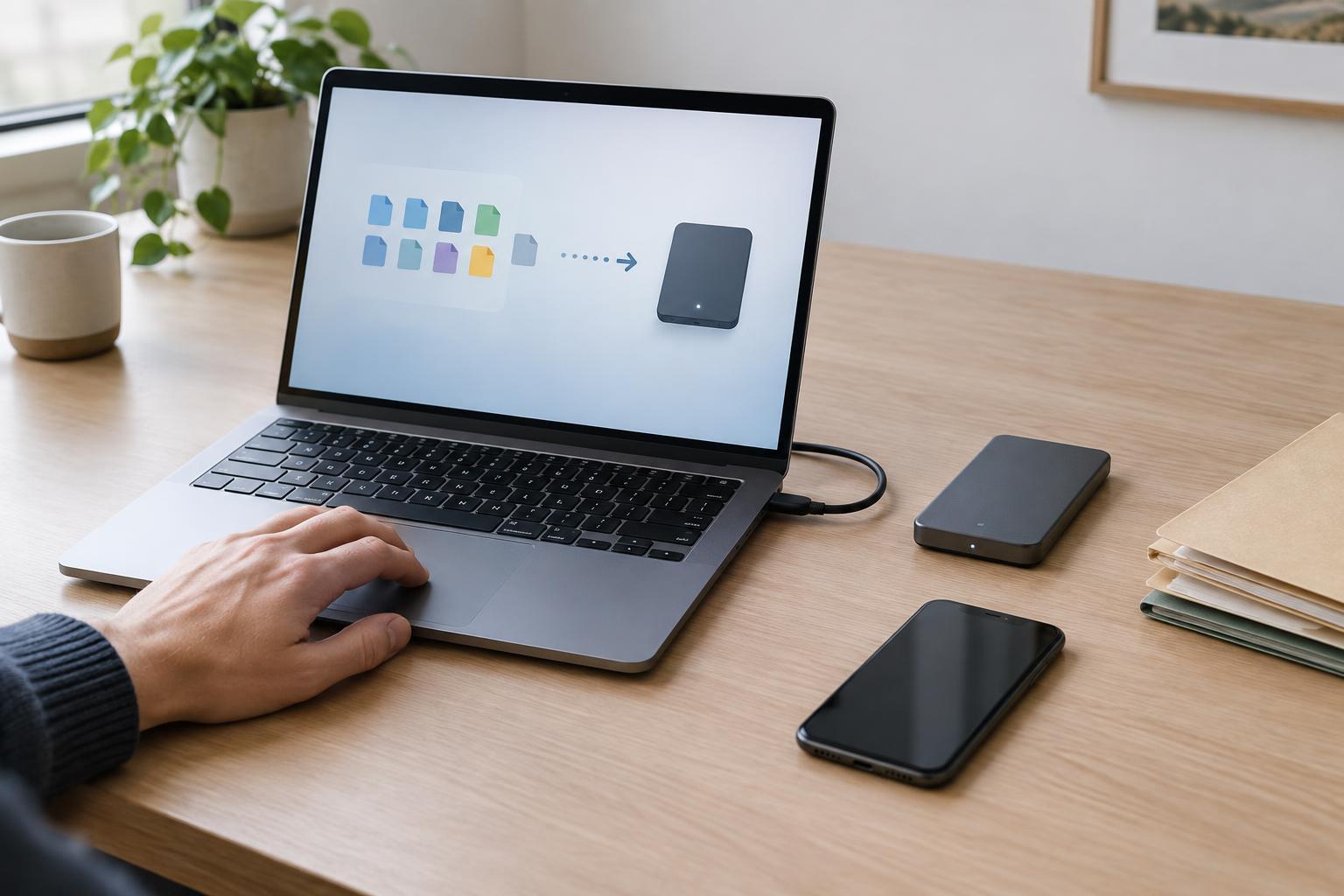
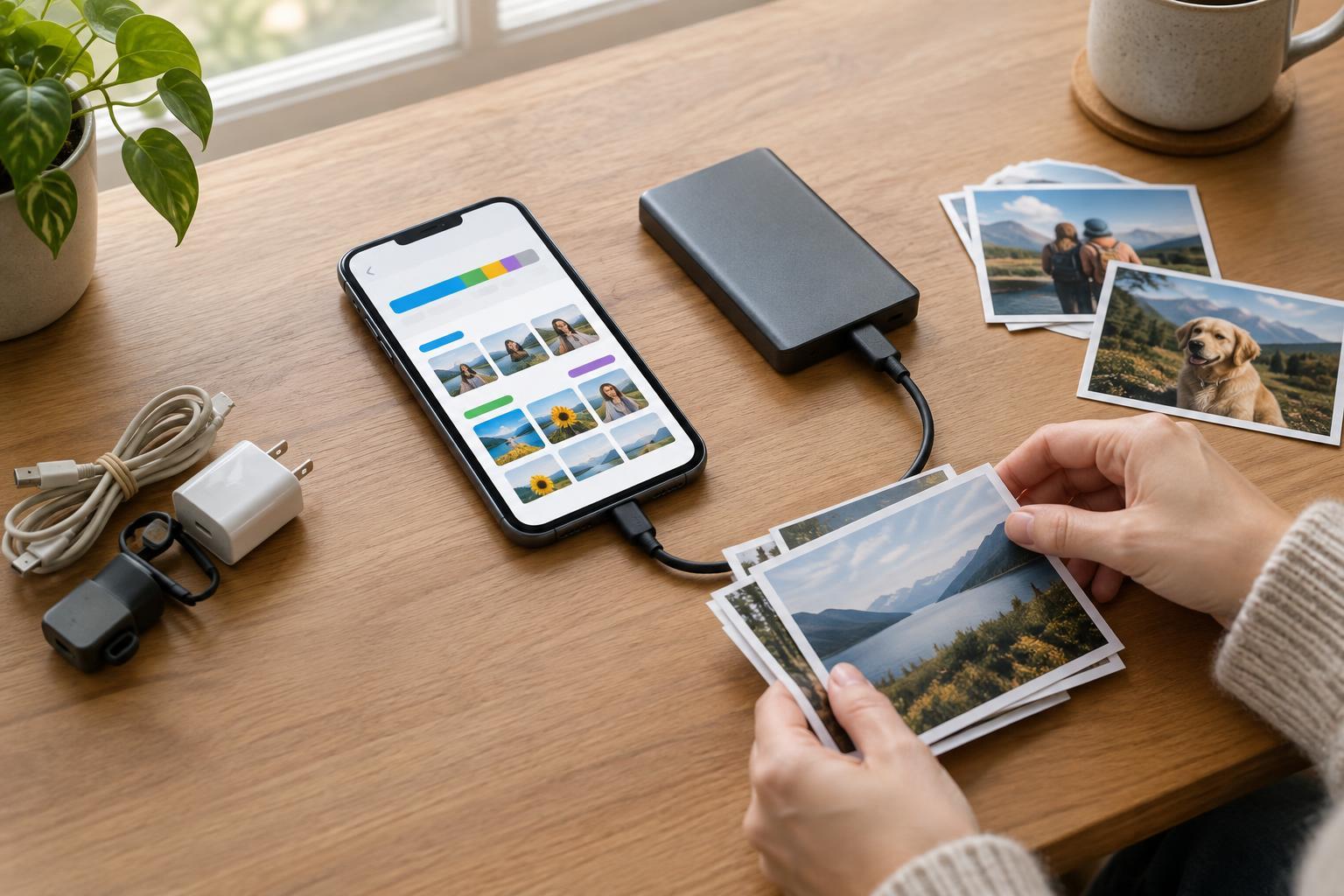
Protect irreplaceable photos, recordings and documents before you remove them. You might use a cloud service, transfer files to a computer or external drive, or use both. A phone backup and a collection of individually accessible files serve different purposes: a backup may help restore a device, while separately saved files are often easier to check and retrieve one at a time.
Do not treat a progress indicator alone as proof that your files are safe. Wait for uploads or transfers to finish, then open a few items from the destination, including an older photo and a large video. Check that the expected folders are present and that you can sign in to the account holding them. Keep at least one verified copy before deleting the originals.
Be especially careful with photo libraries that sync across devices. In many setups, deleting a picture in the phone’s photo app also deletes it from the synced library. A feature called “free up space” or “optimize storage” may work differently from ordinary deletion, but its behavior depends on the app and settings. Read the confirmation screen and test with an unimportant file if you are unsure.
Clear replaceable files first
Downloads are a good first stop. Check the phone’s Files or Downloads app for old PDFs, installers, duplicate attachments and items you can download again. Streaming apps may also hold offline music, podcasts, maps or videos. Remove unwanted downloads from inside those apps so you can see exactly what is being removed.
Next, review apps you rarely use. Uninstalling an app can free its storage, but local drafts, game progress or settings may disappear with it. Confirm that anything important is tied to an account or saved elsewhere first. Some phones offer an option to remove an unused app while retaining its data; check what that option promises before relying on it.
Temporary app files may take up space too. Where an app offers a clear-cache option, it can be useful, but avoid tapping “clear data” or similar controls without understanding the effect. That stronger action may sign you out or erase information stored only in the app.
Review messages, photos and videos selectively
Message threads can accumulate photos, clips and voice notes. Use your messaging app’s storage tools, if available, to review large attachments. Save anything meaningful outside the conversation before removing it, and remember that deleting an attachment from a thread is not always the same as deleting a copy saved in your photo library.
For photos and videos, start with obvious duplicates, accidental recordings and clips you no longer want. Sort or search by file size if your phone or photo app allows it: a few long videos can make a greater difference than many screenshots. Check albums or folders you care about before bulk-selecting items. If you use a recently deleted folder, remember that its contents may continue to occupy space until they are permanently removed. Empty it only after confirming you no longer need those files.
Keep storage manageable afterward
Once you have room again, make cleanup a small routine rather than an emergency. Review downloads and offline media occasionally, and check that photo transfers or backups still complete. If you often work without a connection, keep the files you need offline instead of moving everything to cloud-only storage.
Leave some free space for app updates, new photos and everyday use. If the same categories fill your phone repeatedly despite careful cleanup, the issue may be your storage needs rather than clutter. At that point, moving an archive to a verified location or choosing a higher-capacity phone when you next replace it may be more useful than repeatedly deleting files you value.