Check the ports before choosing a cable
Start with the video inputs on your monitor and the outputs on your laptop. HDMI is common on both. Some monitors also have DisplayPort, while many laptops use USB-C for video. A USB-C port’s shape alone does not confirm that it supports an external display: check the laptop’s specifications or port markings for video output support. If you use a dock or adapter, it must support video from your particular laptop as well as the connection on the monitor.
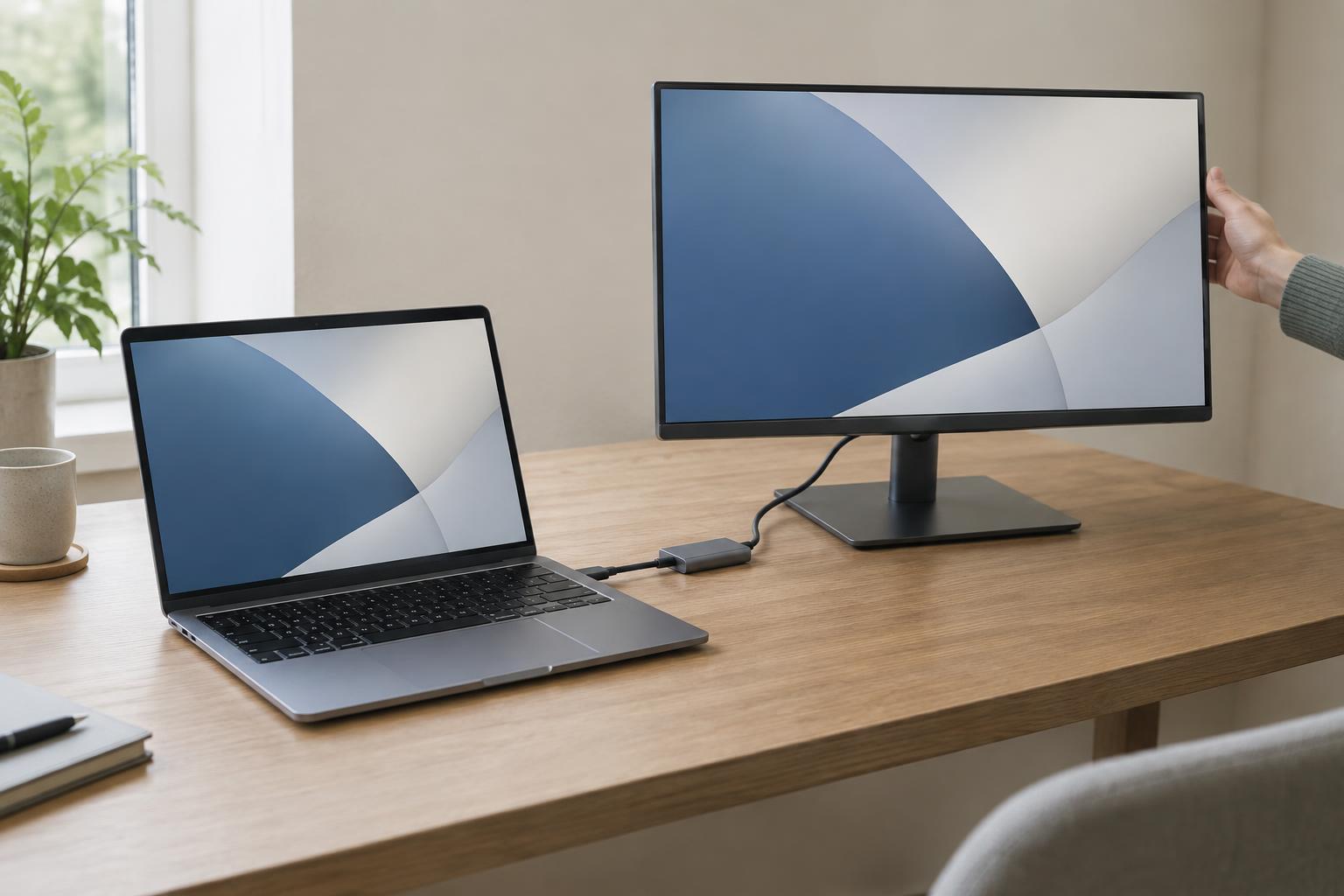
A direct cable is usually the simplest place to start. If the ports differ, choose an adapter intended to send video from the laptop’s port to the monitor’s input; adapters do not always work in both directions. When shopping, check the supported resolution and refresh rate for the complete path, including the cable, adapter or dock, and monitor. A display may connect successfully yet offer fewer settings if one part of that path is limited.
Connect and arrange the screens
Turn on the monitor, connect the cable firmly at both ends, and select the matching input using the monitor’s controls. Your laptop should then detect it. If nothing appears, open the laptop’s display settings and look for an option to detect displays. You can also disconnect and reconnect the cable, making sure it is fully seated.
Next, decide whether to duplicate your laptop screen or extend your desktop. Duplication shows the same content on both screens and is useful for sharing a view. Extension gives each screen its own workspace, which is often better when working at a desk. In display settings, drag the screen icons to match their physical positions so the pointer moves naturally between them. Choose which screen should be the main display if you want menus and new windows to open there by default.
Set resolution and scaling separately
Resolution controls how many pixels the computer sends to the display. Start with the monitor’s native resolution, usually shown as the recommended setting in your operating system. A lower resolution can make everything look larger, but it may also make text and edges less sharp. If the expected resolution is missing, check the monitor’s stated capabilities and every connection component before assuming the screen is faulty.
Scaling changes the apparent size of text, buttons, and windows without necessarily lowering the output resolution. On Windows, select the external monitor under Settings, System, Display, then adjust Scale and Display resolution for that screen. On a Mac, open System Settings, Displays, select the external display, and choose a size option that balances readable text with workspace. Labels and available options can vary by operating system version. Make changes while viewing the external monitor, since a comfortable setting on your laptop screen may not suit a larger display.
Troubleshoot blur, cropping, and unusual sizes
If text looks blurry, first confirm that you are using the monitor’s native resolution. Then try a different scaling option and check whether the problem affects the whole screen or only one app. Some apps may need to be closed and reopened after a scaling change. If only an older app looks fuzzy, its handling of display scaling may be the cause rather than the monitor.
If the desktop extends past the edges of a TV or monitor, look in the display’s on-screen menu for settings such as overscan, aspect ratio, or screen fit. If the picture has unwanted borders, check those same settings before changing the computer’s resolution. A stretched image can also indicate an incorrect aspect ratio or a non-native resolution.
For flickering, a blank screen, or missing resolution choices, test one change at a time: reseat the cable, select the input again, bypass a dock, or try another compatible cable or port. Also review the refresh rate in display settings and select a mode supported by the monitor and connection. This step-by-step approach helps identify whether the difficulty comes from a setting or a piece of the connection path.
Keep a setup that works
Once the display is sharp and comfortable, note which port, cable, input, resolution, scaling setting, and refresh rate you used. That record is useful if you unplug the laptop regularly or switch between desks. When reconnecting through a dock, allow a moment for the screens to appear before changing settings.
If you later replace a monitor or adapter, revisit the settings rather than assuming the old ones will fit. The goal is not to choose the largest number available in every menu. It is to use a supported connection, a sharp resolution, readable scaling, and a screen arrangement that suits how you work.