First, describe what happens
“Won’t start” can describe several different problems. The PC might show no lights or fan movement when you press the power button. It might turn on while the monitor stays black. Or it might display a manufacturer logo but never reach the sign-in screen. Those symptoms point to different places to check, so avoid assuming that the computer itself is broken.
Start with a simple observation. Press the power button once and note any case lights, fan noise, beeps or messages on the monitor. Watch whether the PC stays on, shuts off quickly or repeatedly restarts. If you recently moved the desk, changed a cable or added a device, keep that in mind without treating it as proof of the cause. Before unplugging anything, shut the PC down if possible and disconnect it from the wall.
If there are no signs of power
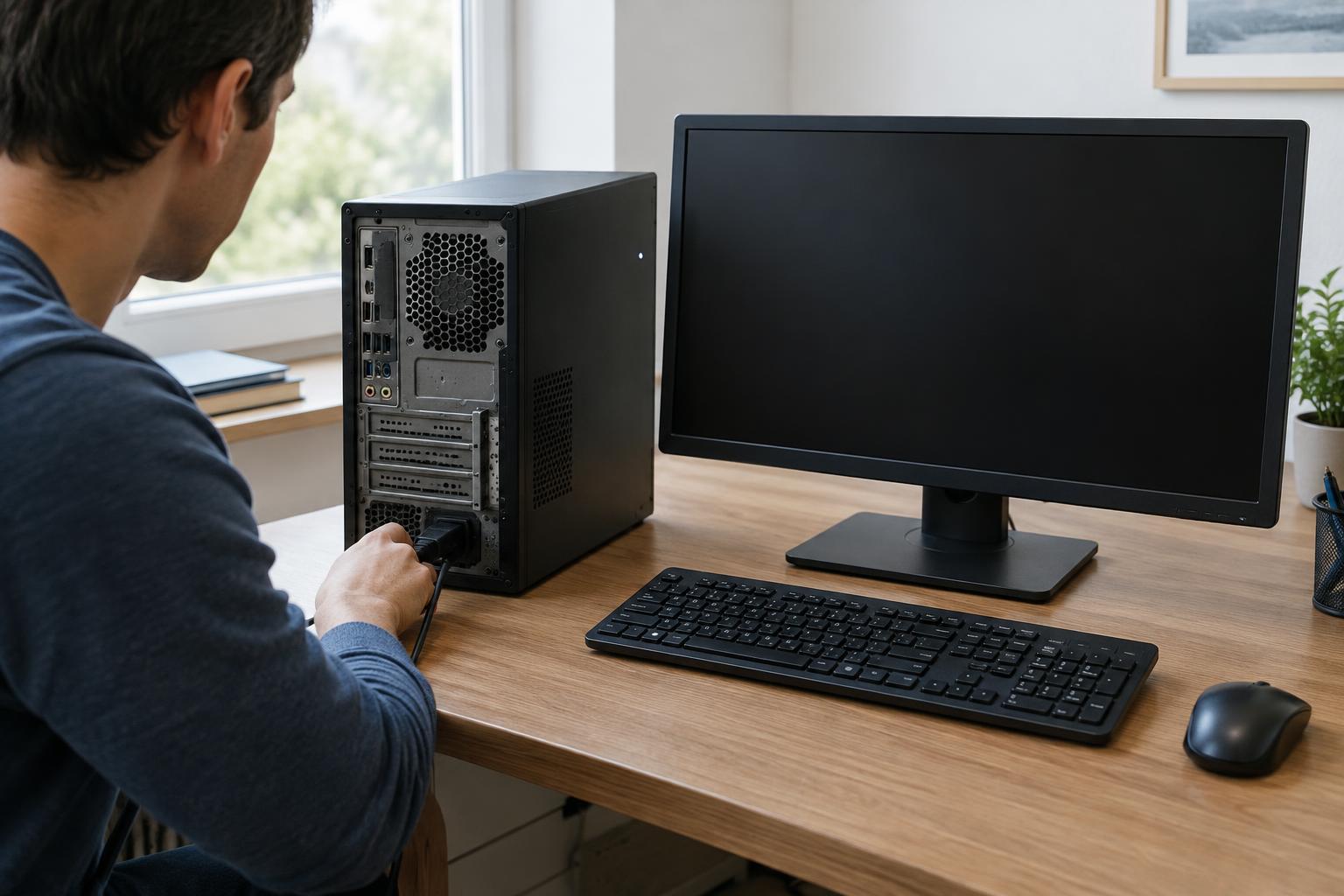
Check the path from the wall outlet to the PC. Make sure the power cord is firmly seated at both ends and that any power strip is switched on. If the strip has other connected devices, check whether they work. You can also try a known-working outlet, provided it is safe and convenient to do so. Some desktop power supplies have a switch on the back of the case; if yours does, confirm it is in the on position.
Next, disconnect nonessential external devices, such as USB drives, printers and hubs, and try the power button again. A connected accessory can occasionally interfere with startup, though a completely unresponsive PC can have many causes. If you notice a burning smell, damaged cable, sparks or an unusual electrical sound, stop troubleshooting, unplug the PC if it is safe to do so and seek qualified help. Do not open a power supply: it can retain a dangerous electrical charge even when unplugged.
A wall outlet that works does not prove the PC’s power supply or power button is healthy. If the basic external checks change nothing, a repair technician can test those components rather than having you buy a replacement based on a guess.
If the PC turns on but the screen is blank
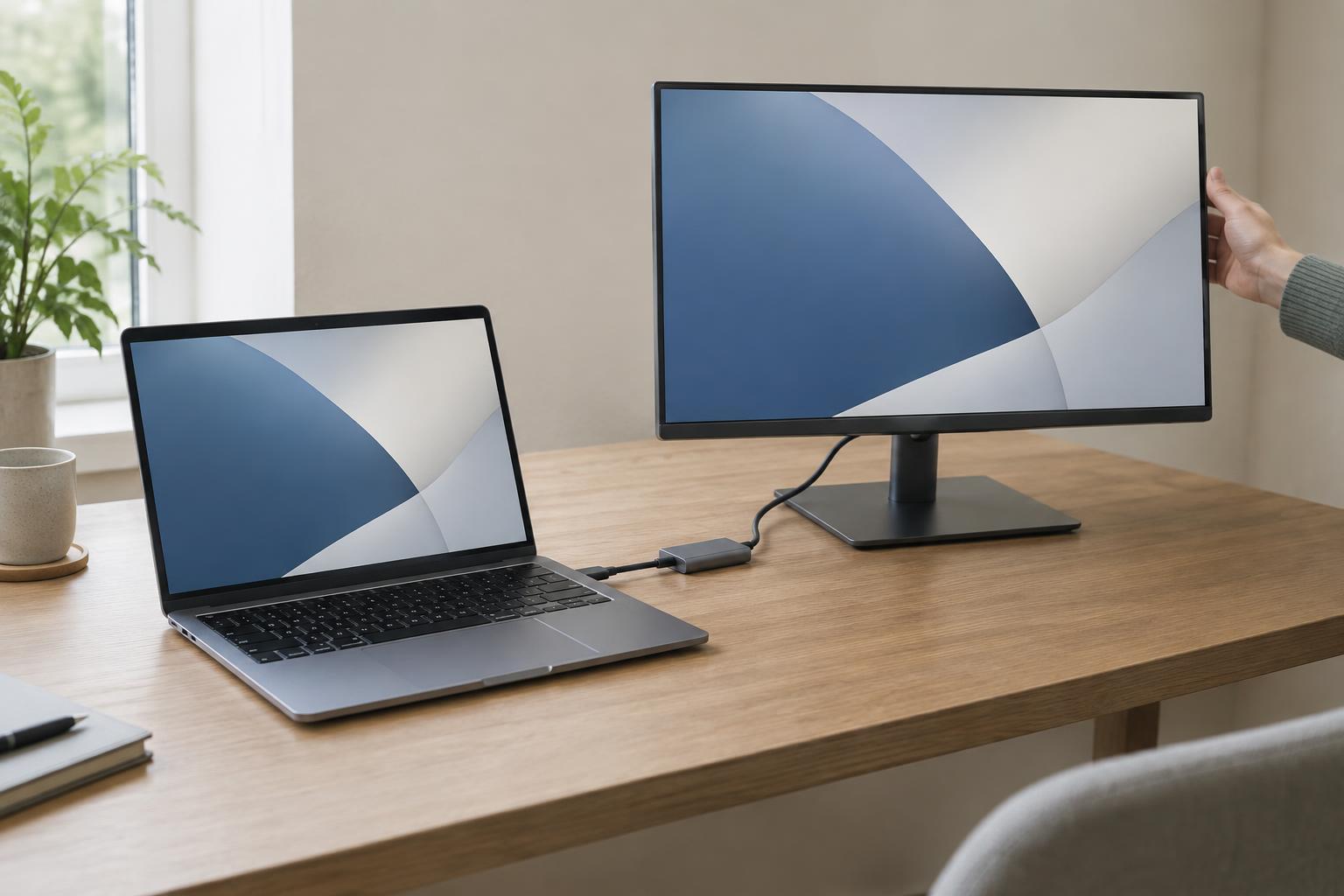
Look at the monitor separately. Confirm its power light is on, its cable is secure at the monitor and PC, and it is set to the input you are using, such as HDMI or DisplayPort. If the monitor says “No signal,” it is powered but is not receiving a usable picture. That message does not, by itself, identify whether the cable, video connection or PC is at fault.
If the desktop has both motherboard video ports and a separate graphics card, check which ports the monitor uses. A PC configured to send video through the graphics card may show nothing when the monitor is connected to a motherboard port. With both devices powered off, you can reseat the display cable or try another cable or monitor that you already know works. These swaps help isolate the display path without requiring you to open the case.
A blank screen can also occur when the PC fails an early hardware check. Note any repeating beeps, diagnostic lights or displayed error codes and consult the PC or motherboard documentation for their meaning. Codes vary by model, so a pattern that means one thing on one system may mean something else on another.
If you see a logo but the system will not boot
Reaching a logo or startup message means the PC has progressed further than a machine with no power or video. Read any on-screen message before restarting. A notice about a missing boot device, for example, calls for a different investigation from a login screen that never finishes loading. Take a photo of the exact wording if you may need support later.
Remove USB drives and other removable storage, then restart once. A computer may try to start from an attached drive instead of its usual system drive. If it still cannot find a boot device, avoid repeatedly changing firmware settings without recording their original values. If the operating system offers a built-in recovery option, follow its prompts carefully and check whether an option could erase files before selecting it.
If the PC keeps restarting or freezes at the same point, note where that happens and whether it follows a recent hardware or software change. Repeated forced shutdowns rarely clarify the problem. When files are important and no current backup exists, prioritize preserving the drive’s contents over experimenting with resets or reinstalling the operating system.
Know when to stop and get help
The useful outcome of these checks is a clearer description, not necessarily an immediate fix. “No lights with a working outlet,” “fans run but two monitors show no signal,” and “logo appears, then a missing-boot-device message” are all more helpful than “it won’t start.” Record what you tried, what changed and any error text.
If you are uncomfortable opening the case, you do not need to. Persistent power failures, suspected internal damage and important data on an inaccessible drive are good reasons to contact a qualified repair service. Clear symptoms can help them choose the next test while reducing the chance of replacing a part that was never the problem.