Find out where your contacts live
Before deleting anything, check which accounts supply contacts to your phone and computer. A contacts app may display entries from a cloud account, a work account, a device-only list and other connected services at the same time. Two identical-looking cards may be stored in different places, so removing one without checking its source can have an unexpected effect.
Choose a main account for personal contacts if your devices support it, and check where new contacts are saved by default. You do not need to move every entry immediately. The goal is to know which list you intend to maintain and which lists are shown only because they are connected. If you also use a work account, keep work and personal details separate where possible, especially if the work account may later be removed from your device.
Make a backup before the big cleanup
Contact changes can sync quickly across connected devices. Before a large round of edits or deletions, look for an export or backup option in the service that stores your contacts. Save the copy somewhere you can find it again, and check that it contains the entries you expected. An exported file may include private phone numbers, addresses and notes, so store it securely and avoid leaving extra copies in a shared downloads folder.
If your contacts service offers a way to undo recent changes or restore an earlier version, learn where that option is before you start. It is a useful safety net, but it should not replace a separate backup. For a smaller cleanup, working through a few entries at a time also makes mistakes easier to spot.
Merge duplicates without losing useful details
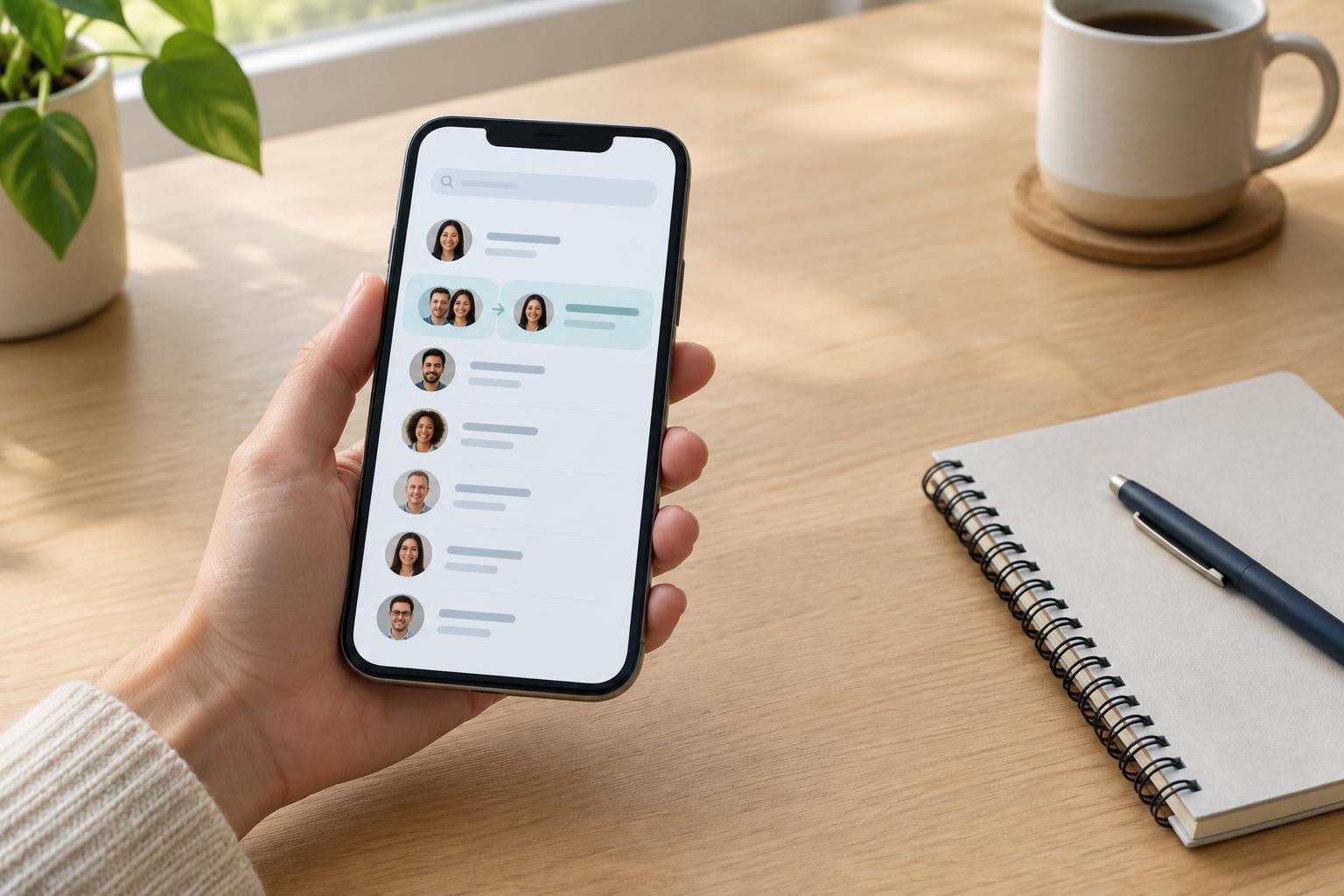
Start with the duplicate suggestions in your contacts app, if it has them, but review each suggestion rather than approving everything at once. Entries with the same name may refer to different people. Conversely, one person may appear under a nickname in one card and a full name in another. Compare phone numbers, email addresses, organizations and notes before deciding that two cards belong together.
When you merge, check the resulting card. Make sure the preferred mobile number and email address remain easy to identify, and that a current detail has not been replaced by an older one. Some apps link cards from different accounts for display without combining the underlying records; others save a merged entry to an account. If the distinction is unclear, try one low-risk pair first and see how it appears on your other devices.
For duplicates that you cannot confidently match, leave them alone until you can verify the information. A tidy list is helpful, but keeping two uncertain entries is better than combining details for unrelated people.
Remove clutter and make important cards easier to use
Next, look for entries that no longer serve a purpose: one-time delivery contacts, obsolete business numbers or incomplete cards created by accident. Delete only what you recognize. For an old contact you may need later, updating the card or adding a clear label can be more useful than removing it.
Give frequently used contacts consistent names so they are easy to search. Add labels such as mobile, work or home when a card has several numbers. Put a person's preferred contact method in the appropriate field rather than relying on a note you may overlook. Keep notes brief and avoid storing sensitive information, such as passwords, in contact cards. For a household or organization, separate cards may be clearer than one card crowded with unrelated numbers.
After editing, search for a few important people on another device. Confirm that their updated details appear and that you can tell which number or address to use. This quick check can reveal a sync or account-setting issue before you make more changes.
Keep the list current with small check-ins
A contacts list stays useful when updates become part of ordinary communication. When someone shares a new number or email address, edit their existing card instead of creating another one. If you are unsure whether an old detail still works, mark it for review rather than guessing. You can also check a contact's card after a conversation that reveals a changed name, role or preferred way to be reached.
Every so often, scan recent additions and duplicate suggestions, then review the people you contact most. Check that new entries are going into your chosen account and that sync is working across your devices. A short, repeatable check-in is easier to manage than waiting until the entire address book needs another overhaul.