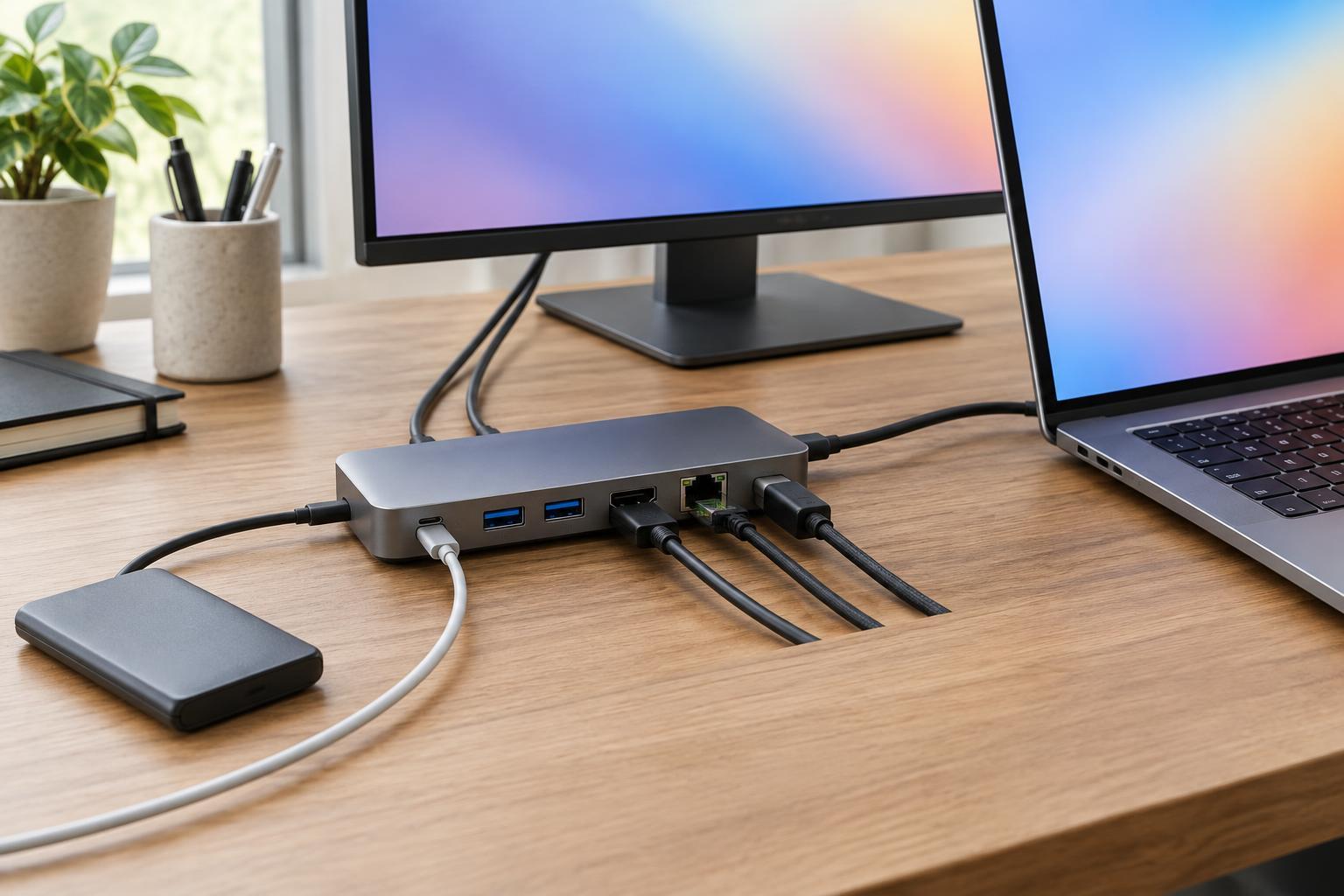
Start with the laptop, not the dock
A dock is most useful when it turns several desk connections into one convenient laptop connection. Before comparing models, list what you want to leave plugged in: monitors, a keyboard, a mouse, an Ethernet cable, external storage or an audio device. Separate essentials from ports that would merely be nice to have. This keeps an impressive-looking port list from distracting you from the connections you will use.
Next, check the specifications for the exact USB-C port on your laptop. The connector’s shape alone does not tell you whether it supports video output, USB4, Thunderbolt or charging. A port that transfers data may not drive a monitor. A dock advertised with advanced display features cannot add a video capability the laptop lacks. If your computer has more than one USB-C port, check each one rather than assuming they work alike.
Match display support to the setup you want
Write down how many external screens you plan to use, their resolutions and their refresh rates. Then check both the laptop’s supported external-display configurations and the dock’s stated limits. A dock may offer two video sockets without being able to run two independent screens from your particular computer. Operating system, graphics hardware and connection type can all affect the result.
Pay attention to how the dock produces its video output. Some docks use a video signal carried over USB-C; others rely on software-driven display technology that may require an app or driver. The latter can be useful in some setups, but it may be less suitable for work that depends on low latency, protected video playback or an installation-free connection. If high refresh rates matter to you, confirm that the stated resolution and refresh rate are supported together, not just listed separately.
Check charging power and the cable
If you want one cable to handle both docking and charging, look for USB Power Delivery input to the dock and the amount of power it can pass to the laptop. Compare that output with the rating of your laptop’s usual charger. A dock with a lower output may still charge the computer during light tasks, yet struggle to keep up with demanding work. Some laptops also require their own power adapter for full performance.
Check what comes in the box. A dock’s power adapter may be included, sold separately or required for certain functions. The cable matters too: USB-C cables vary in supported data speeds and charging capacity. Using the supplied host cable, when one is provided, removes one avoidable compatibility question. If you need a longer cable, choose one whose stated capabilities meet the dock’s requirements rather than selecting it by connector shape alone.
Choose ports by task, not by count
For everyday peripherals, several USB ports may be more useful than one especially fast port. External drives can benefit from faster connections, while a keyboard receiver or printer usually does not need them. Check the speed of individual ports: a dock may mix faster and slower USB connections. If you transfer large files regularly, also consider whether connected devices share bandwidth with the displays.
An Ethernet port can give a stationary laptop a wired network connection. An SD card reader is convenient if you frequently move photos or video from a camera. For audio, check whether you need a headphone jack, a microphone input or both; a single jack may not serve every headset or microphone. Count the ports you will use at the same time, leaving a little room for a device you connect only occasionally.
Make a final compatibility check
Before buying, compare the dock’s compatibility information with your laptop model and operating system. Confirm the host connection type, the number of displays, charging output and any required software. Look closely at limits or footnotes, especially if the advertised setup involves multiple high-resolution monitors. A compact hub may be enough for travel, while a powered desktop dock may better suit a permanent workstation with several devices.
Finally, sketch your desk layout. Check that the host cable can reach your laptop and that the dock’s video and power ports face a practical direction. This small step can prevent a capable dock from becoming an awkward one. The best choice is not the dock with the most sockets; it is the one that supports your specific laptop and keeps your everyday connections simple.